Chat and groups
Team chat keeps work conversations inside the Work OS instead of in a separate app. Channels hold group discussions, DMs hold one-to-one threads, and a floating chat widget follows you to every page so you can answer a colleague without leaving an invoice.
Open the full page from AI Work OS · Chat & Groups in the sidebar. The page title is Team chat & groups, subtitle "Where work conversations live - indexed into company memory". That last phrase is the intent: chat is part of the company memory the Ask AI layer is built to answer from.
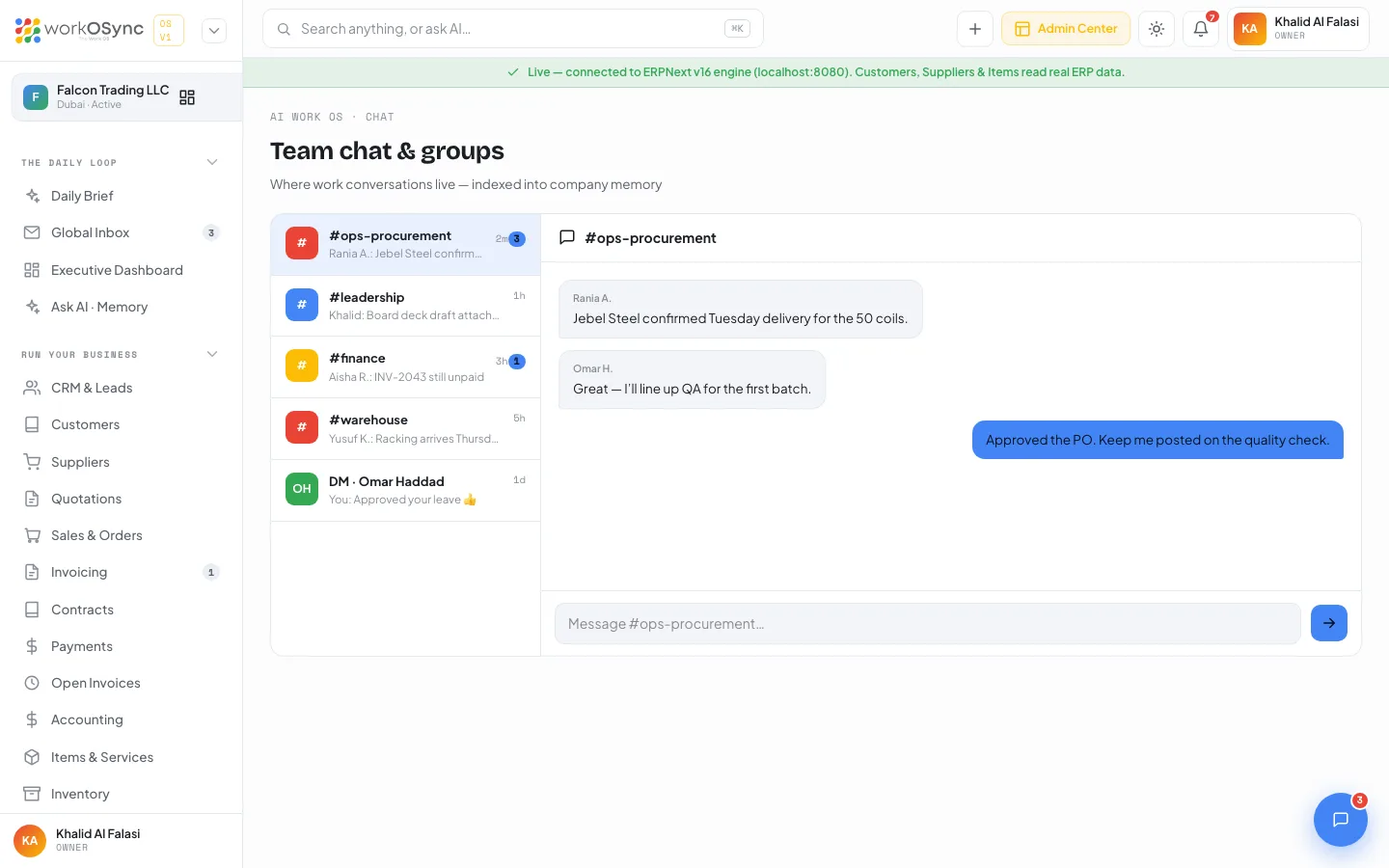
Channels and DMs
The left column lists every conversation. Each row shows the name, the last message with its author, the time since it was sent, and an unread count when there is one.
| Conversation | Kind | Seeded last message | Unread |
|---|---|---|---|
#ops-procurement | Channel | Rania A.: Jebel Steel confirmed Tue delivery | 3 |
#leadership | Channel | Khalid: Board deck draft attached | |
#finance | Channel | Aisha R.: INV-2043 still unpaid | 1 |
#warehouse | Channel | Yusuf K.: Racking arrives Thursday | |
| DM · Omar Haddad | Direct message | You: Approved your leave |
Channel avatars show a #; DM avatars show the person's initials. Once you send a message in a conversation, its row preview changes to You: {your message} with the time now.
The conversation pane
- Header: the chat icon and the conversation name.
- Bubbles: messages from colleagues sit on the left with the author's name above; yours sit on the right with a time stamp underneath.
- Empty state: a channel with no history shows "No messages yet in this channel."
- Seeded history:
#ops-procurementand#financeopen with a short thread so you can see the layout; the other channels start empty.
Composer
The composer placeholder reads Message {conversation}…. Press Enter to send;Shift+Enter does not send, so you can compose multi-line thoughts before sending. The arrow button sends as well. The pane scrolls to the newest message automatically.
Messages you send are kept in this browser so a conversation reads correctly across page loads while you evaluate the product. Shared delivery to teammates and history sync arrive with the chat service in a later release.
The floating chat widget
A round button sits at the bottom-right of every app page, with a red badge showing the number of unread messages (3 in the demo workspace). It is separate from the full chat page: think of it as the quick reply drawer. Click it to open the widget; click the X to close it.
Messages tab
Lists your recent conversations with an avatar, the last message and its time, and an unread count: Rania Aziz, Aisha Rahman, Omar Haddad, # ops-procurement and # finance. Selecting one opens the thread view with a back arrow, the conversation name, the message bubbles (or "No messages yet. Say hello" for a fresh thread), and a composer with the placeholder Type a message…. Enter sends.
Team members tab
Lists your team with their role and an online or offline dot: Khalid Al Falasi (Owner), Rania Aziz (Sales), Aisha Rahman (Operations), Omar Haddad (Sales) and Yusuf Khan (Warehouse). Clicking a member opens a direct thread with them.
Send your first message
- Open a conversation
On the chat page click a channel or DM in the left column, or open the floating widget and pick a conversation from Messages.
- Type in the composer
Write your message. On the full page, use Shift+Enter for a new line.
- Press Enter
The bubble appears on the right with its time, and the conversation preview in the list updates.
The seeded threads mirror real records: the procurement channel discusses the Jebel Steel purchase that also appears in One-tap approvals and Meetings and AI notes, and the finance channel chases INV-2043, which you can open from Invoicing. Keep decisions in chat and they become part of the company memory.