Quotations
Quotations are the first document in the quote → order → invoice flow. You build an estimate from your items and services catalogue, share a public approval page the customer can sign on their phone, and convert the accepted quote into a sales order with one click. This page also covers Contracts, which reuse the same e-signature flow, and the Items & Services catalogue that every document form draws on.
The quotations list
Open Quotations from the sidebar (/quotations). The page is titled Quotations & estimates with the subtitle Quote → order → invoice. Send, track and convert. The header carries New quotation and Export (columns Quotation, Customer, Date, Valid till, Total, Status).
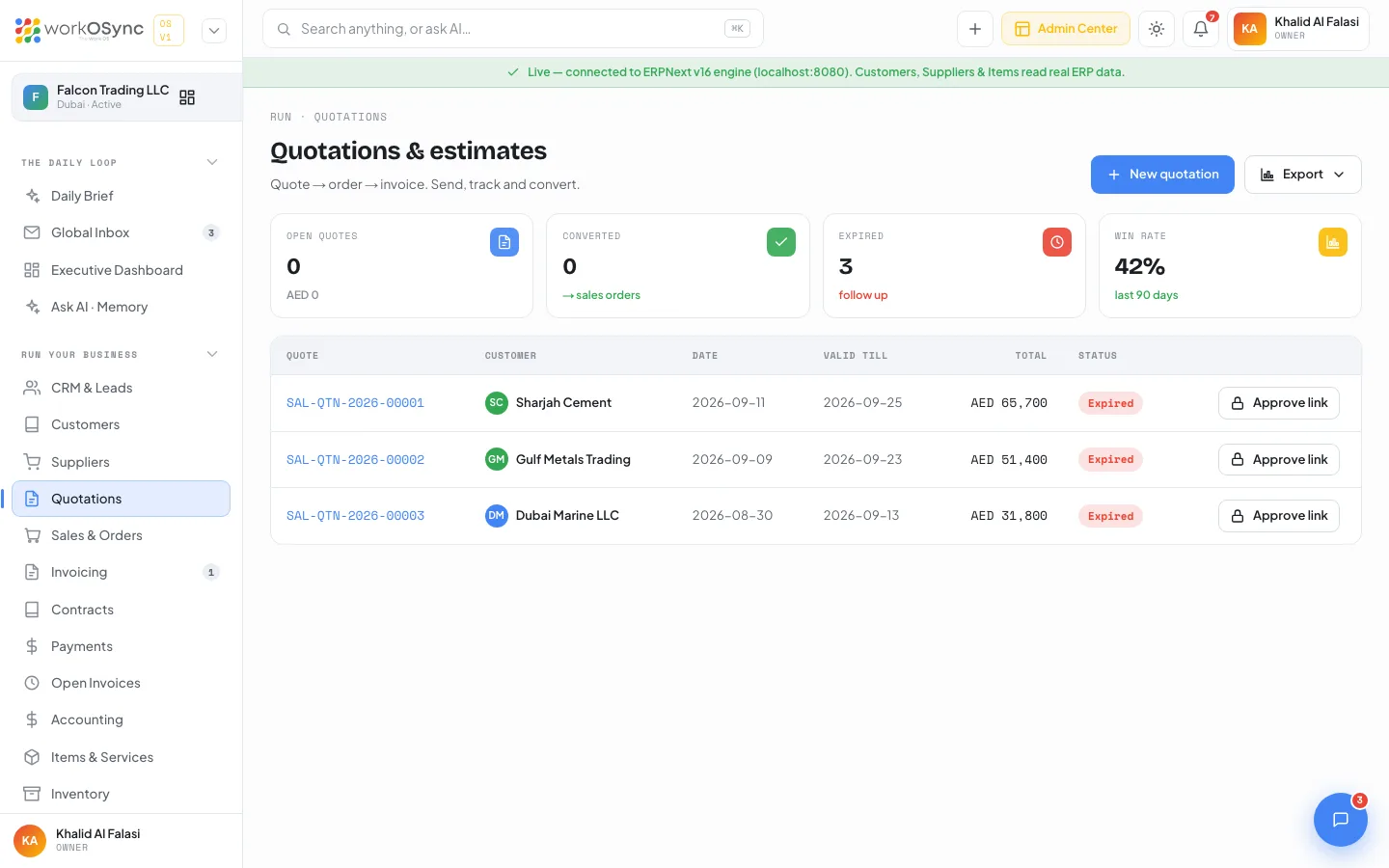
KPI tiles
| Tile | What it shows |
|---|---|
| Open quotes | How many quotes are still open, and their combined value. |
| Converted | Quotes with status Ordered, noted as → sales orders. |
| Expired | Quotes past their validity date, flagged follow up. |
| Win rate | Shows 42% with last 90 days, a fixed sample figure. |
Table and row actions
Columns are Quote (link to the detail page), Customer, Date, Valid till, Total and Status. Each row has two actions:
- Approve link opens the public page
/quote/{id}in a new tab so you can check what the customer will see. - Convert (shown for Open quotes only) creates a Sales Order from the quote and confirms with Converted {id} → Sales Order {SO}. The order takes the quote's lines, its date, the valid-till date as the delivery date and the VAT 5% tax line. In demo mode the message names a placeholder
SO-DEMO.
Statuses
| Status | Meaning |
|---|---|
| Open | Sent and awaiting a decision. Can be converted. |
| Ordered | Converted to a sales order. |
| Expired | The valid-till date has passed without an order. |
| Draft, Partially Ordered, Lost | Additional statuses that ERPNext may report when the engine is connected. |
The estimate builder
New quotation opens /quotations/new, titled New estimate with the subtitle Build a quotation - pick items, set discounts and send to the customer.
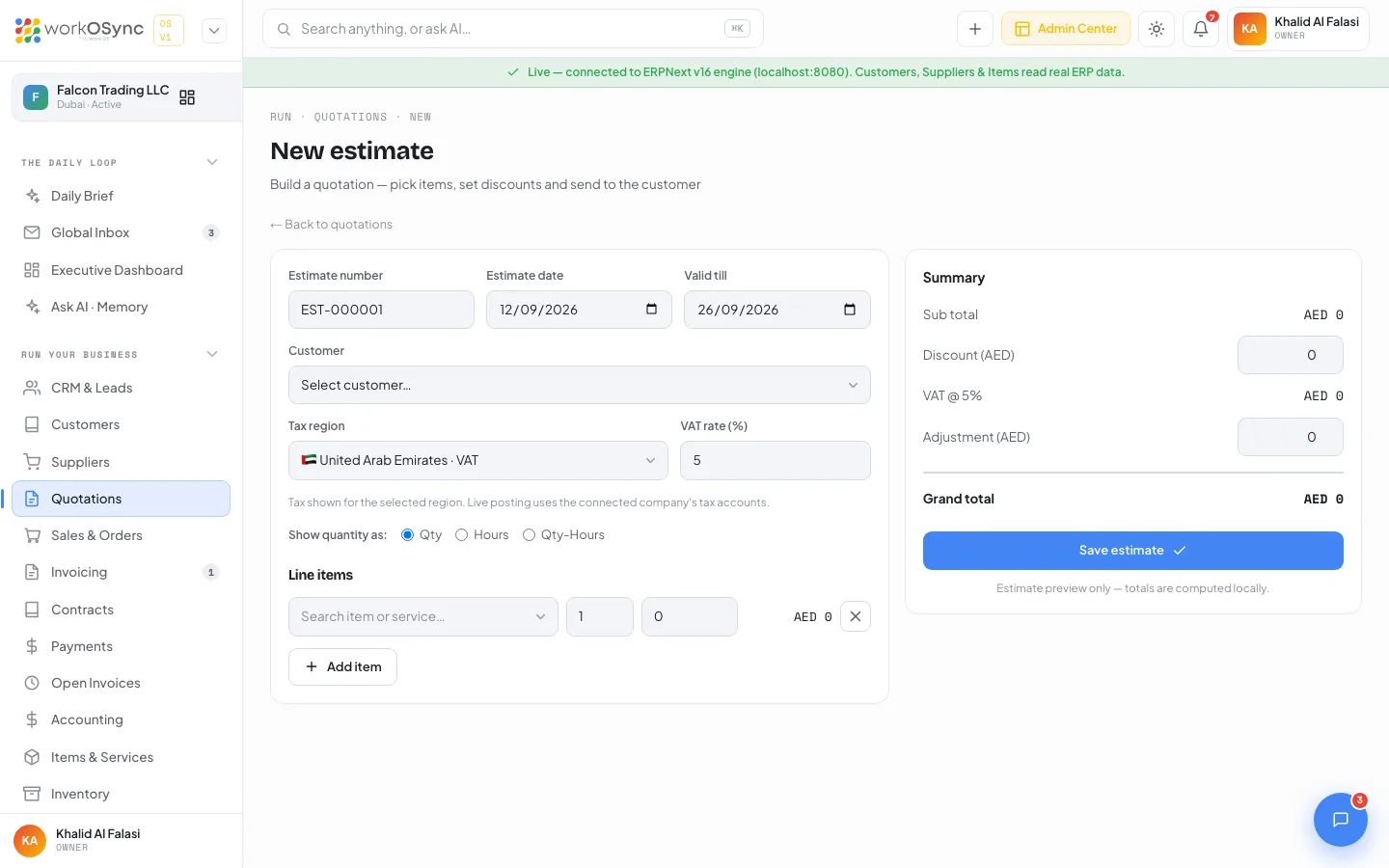
Header fields
| Field | Default and notes |
|---|---|
| Estimate number | Read-only EST-000001; the engine assigns the real number on save. |
| Estimate date | Defaults to today. |
| Valid till | Defaults to 14 days after the estimate date. |
| Customer (required) | Pick from the customer master (Select customer…). |
| Tax region | Defaults to 🇦🇪 United Arab Emirates · VAT. Options: United Arab Emirates · VAT, India · GST, European Union · VAT, United States · Sales Tax. Your last choice is remembered in the browser and shared with the invoice form. |
| Tax rate (%) | Labelled VAT rate (%), GST rate (%) or Sales Tax rate (%) to match the region, pre-filled with the regional default. |
| Show quantity as | Qty, Hours or Qty-Hours, which changes the column heading on the document. |
Tax regions
| Region | Default rate | Extra option | Tax lines shown |
|---|---|---|---|
| UAE VAT | 5% | none | VAT @ 5% |
| India GST | 18% | Inter-state supply (IGST instead of CGST+SGST) | CGST @ 9% and SGST @ 9%, or a single IGST line |
| EU VAT | 20% | Cross-border B2B (reverse charge) | VAT at the chosen rate, or zero under reverse charge |
| US Sales Tax | 8.25% | none | Sales Tax at the chosen rate |
The form notes that Tax shown for the selected region. Live posting uses the connected company's tax accounts. When you save, the server applies the company's standard 5% UAE VAT line; the region, discount and adjustment stay on the preview. See UAE compliance for how VAT posts.
Line items and totals
Each line has an item picker, a quantity, a rate, a computed amount and a remove control (the last line cannot be removed). Add item appends a line. The summary shows Sub total, Discount ({currency}), the tax line or lines for the region, Adjustment ({currency}) and the Grand total; the currency label and money format follow the region (AED, ₹, € or $). Under the Save estimate button the form notes Estimate preview only - totals are computed locally.
- Choose the customer and dates
Pick the customer and adjust the validity if the offer should stand for more or less than two weeks.
- Add lines
Type in Search item or service…, pick an item and the rate fills in. Set the quantity.
- Review the totals
Apply a discount or adjustment if needed and check the grand total.
- Save estimate
The customer, dates and lines are posted to the engine as a submitted Quotation and you land on its page. If anything is missing you see Please choose a customer. or Add at least one line item. (lines without an item or with zero quantity are dropped). In demo mode saving returns ERPNext engine not connected (demo mode). Connect the engine to save quotations.
Items and services catalogue
The item picker on quotation, sales order and invoice forms reads from Items & Services (/items), subtitled Your sellable catalog - products and services, grouped by category. Keep this list tidy and every document form becomes a two-click job.
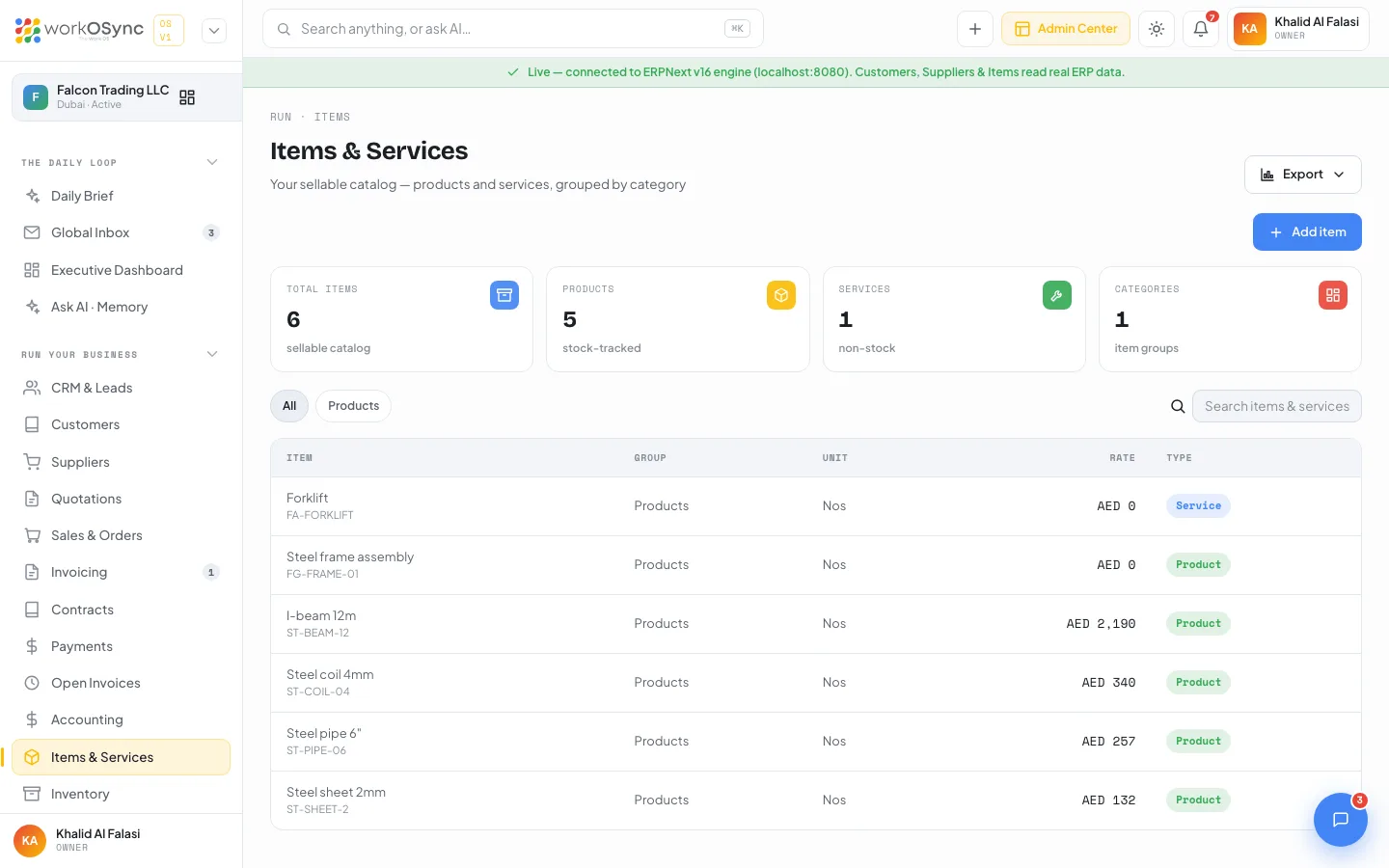
The catalogue page
- KPI tiles: Total items (sellable catalog), Products (stock-tracked), Services (non-stock) and Categories (item groups).
- Category chips (All plus each group) and a Search items & services… box.
- Table columns: Item (name and code), Group, Unit, Rate and Type (Product or Service).
- Export with the columns Code, Name, Group, Rate, UOM and Type.
Add new item
Add item opens the Add new item modal:
| Field | Default and notes |
|---|---|
| Description (required) | The item name. Placeholder e.g. Steel beam 6m / Consulting hour. Saving without it shows Description is required. |
| Long description | Optional detail printed under the name on documents. |
| Rate - AED (Base Currency) (required) | The default selling rate the picker fills in. |
| Tax 1 / Tax 2 | No Tax or VAT 5%. Shown for reference; documents apply the company VAT line. |
| Unit | Free text, defaults to Nos (placeholder Nos / Hour). |
| Item group | Defaults to Products. Options: Products, Services, Steel products, Consulting, Subscriptions, Other. |
| This is a service (no stock tracking) | Checkbox. Ticking it switches the item group from Products to Services. Services are created as non-stock items and never affect inventory. |
Save item creates an ERPNext Item (sales item, standard rate, stock UOM and group as entered) and adds it to the catalogue; Close discards the modal. In demo mode the modal shows ERPNext engine not connected (demo mode). Connect the engine to save catalog items. but the item is still added to the catalogue for this session so you can use it on the document you are building.
The item picker
On every document form the picker field reads Search item or service…. The dropdown starts with Type to filter… and a + New item entry, then lists items grouped by category, each showing the name, Product or Service with its unit, and the rate. Picking an item fills the rate. When nothing matches you see No matching items.
The quotation page
Click a quote to open /quotations/{id}. The title is the ID with a status badge and the subtitle reads {customer} · issued {date} · valid till {date}. Header buttons are Preview public page, Duplicate (creates a new quotation dated today with the same customer, lines and VAT line, and opens it) and Convert to order.
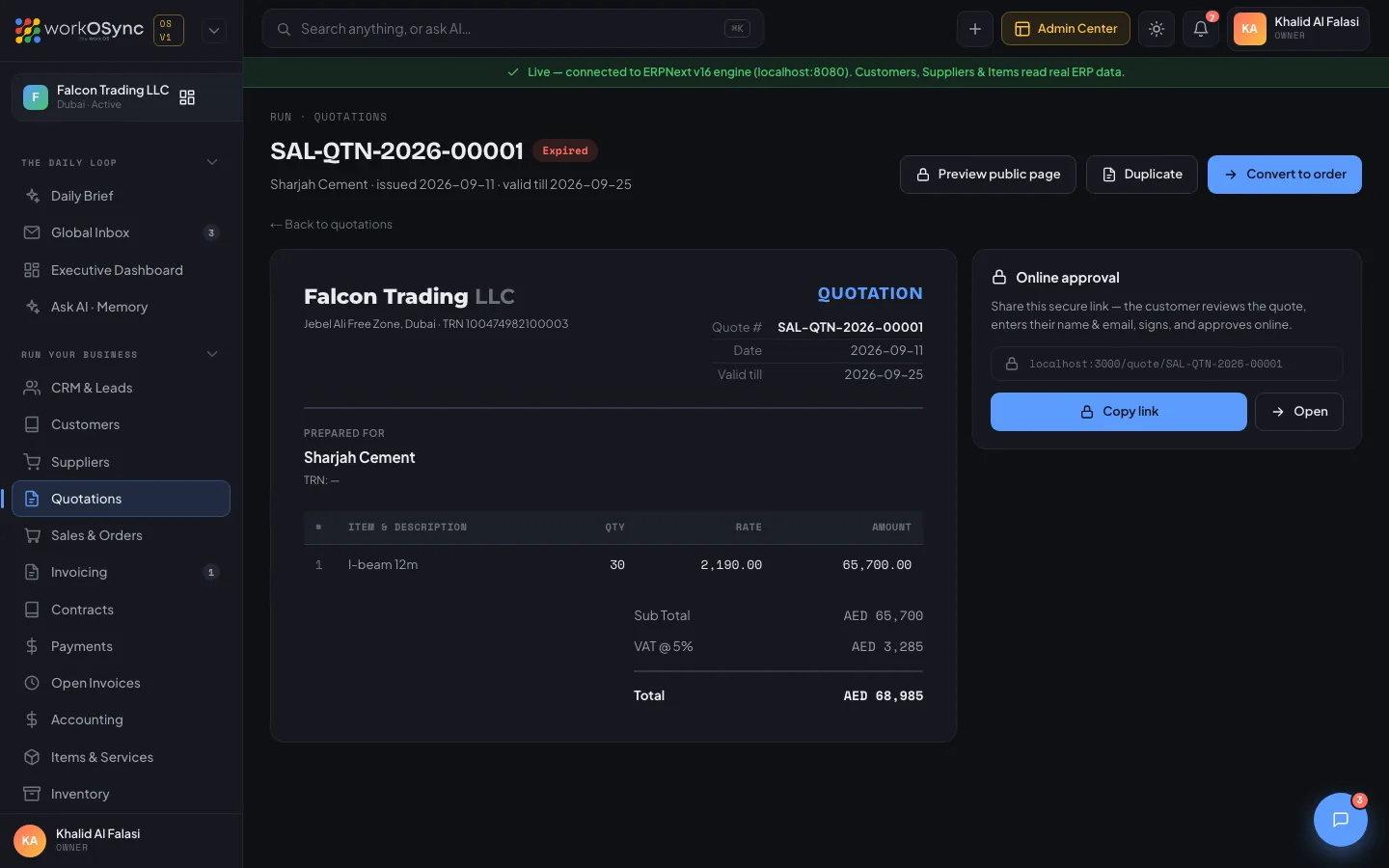
The document
- Company header: Falcon Trading LLC, address and TRN, from your company profile.
- QUOTATION block with Quote #, Date and Valid till.
- PREPARED FOR with the customer name and TRN.
- Lines: #, Item & description, Qty, Rate, Amount.
- Totals: Sub Total, VAT @ 5%, Total.
Online approval card
Before acceptance the card explains the approval flow and shows the public link with Copy link (which flashes Copied) and Open. Once accepted it shows an Accepted badge, Signed by {name}, the signer's email and on {date}. The acceptance is stored as a comment on the quotation in ERPNext.
The public approval page
The customer opens /quote/{id} without a login. A banner states the situation: QUOTATION · VALID UNTIL {date}, ACCEPTED · Approved by {name} on {date}, or THIS QUOTATION HAS EXPIRED - CONTACT US TO RENEW.
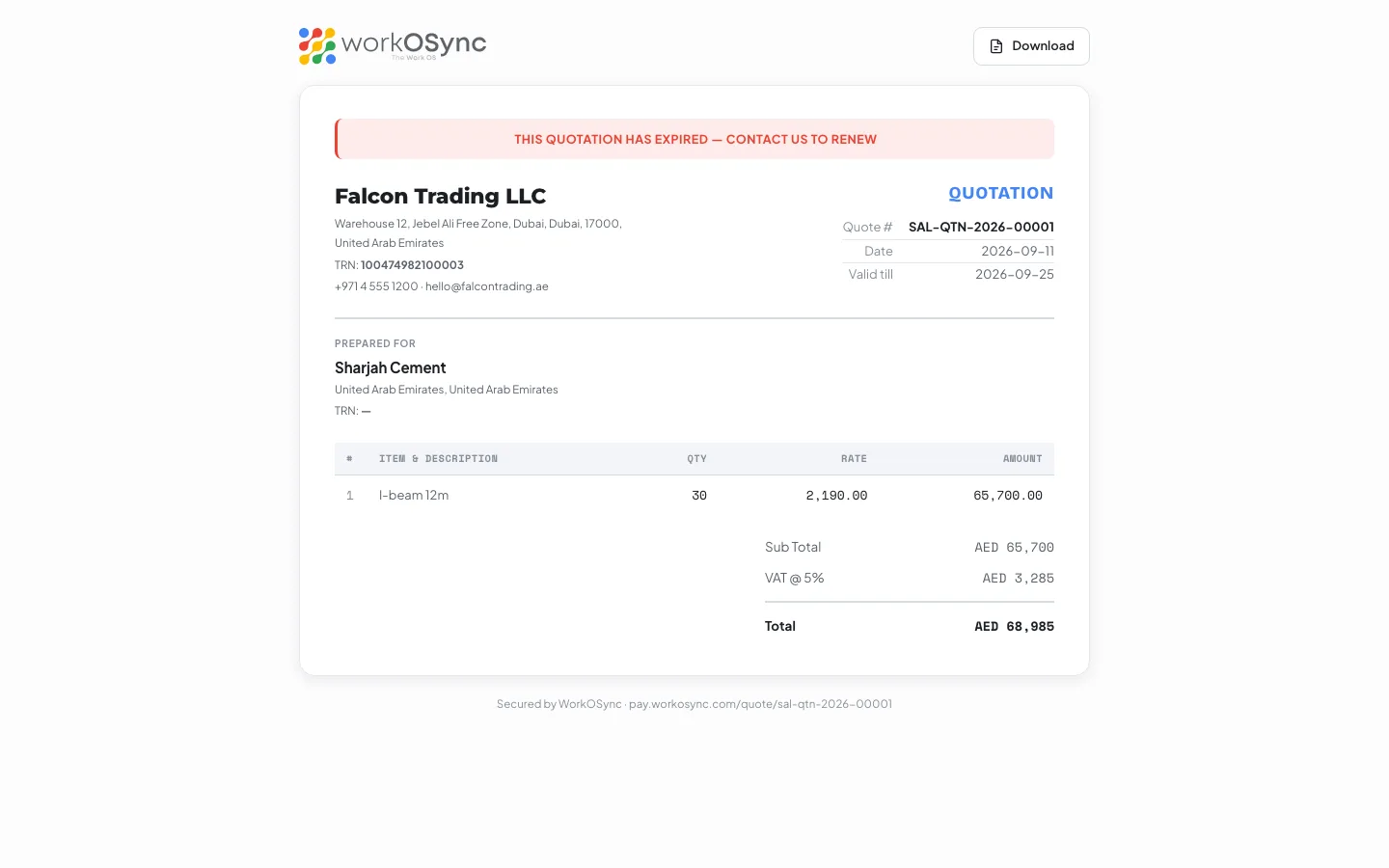
The top bar carries the WorkOSync logo and a Download button (print dialog). The document shows your company name or logo, address, TRN, phone and email, the QUOTATION block, PREPARED FOR with the customer, its city and TRN, the lines and the Sub Total, VAT @ 5% and Total. Below it sits Accept & sign this quotation with Full name, Email and a Signature drawing pad (Clear, with the hint Sign above with your mouse or finger). All three are required: the messages are Please enter your name and email., Please enter a valid email address. and Please add your signature below. Approve & accept quotation records the acceptance and shows Quotation accepted: Thank you, {name}. Falcon Trading LLC has been notified and will proceed with your order. The panel is hidden on an expired quotation. The footer reads Secured by WorkOSync · pay.workosync.com/quote/{id}.
Convert to a sales order
- Confirm acceptance
Check the Online approval card, or the customer's email, before converting.
- Convert
Click Convert to order on the quotation page (or Convert on the list). The message Converted to Sales Order {SO}. confirms it.
- Continue in Sales & orders
The quote moves to Ordered. Open the new order to issue a proforma, deliver and invoice, as described in Sales orders.
Contracts and e-signature
Contracts cover agreements, retainers and annual maintenance contracts. Open Contracts (/contracts), subtitled Agreements, retainers and AMCs - sign online, renew and track connected invoices.
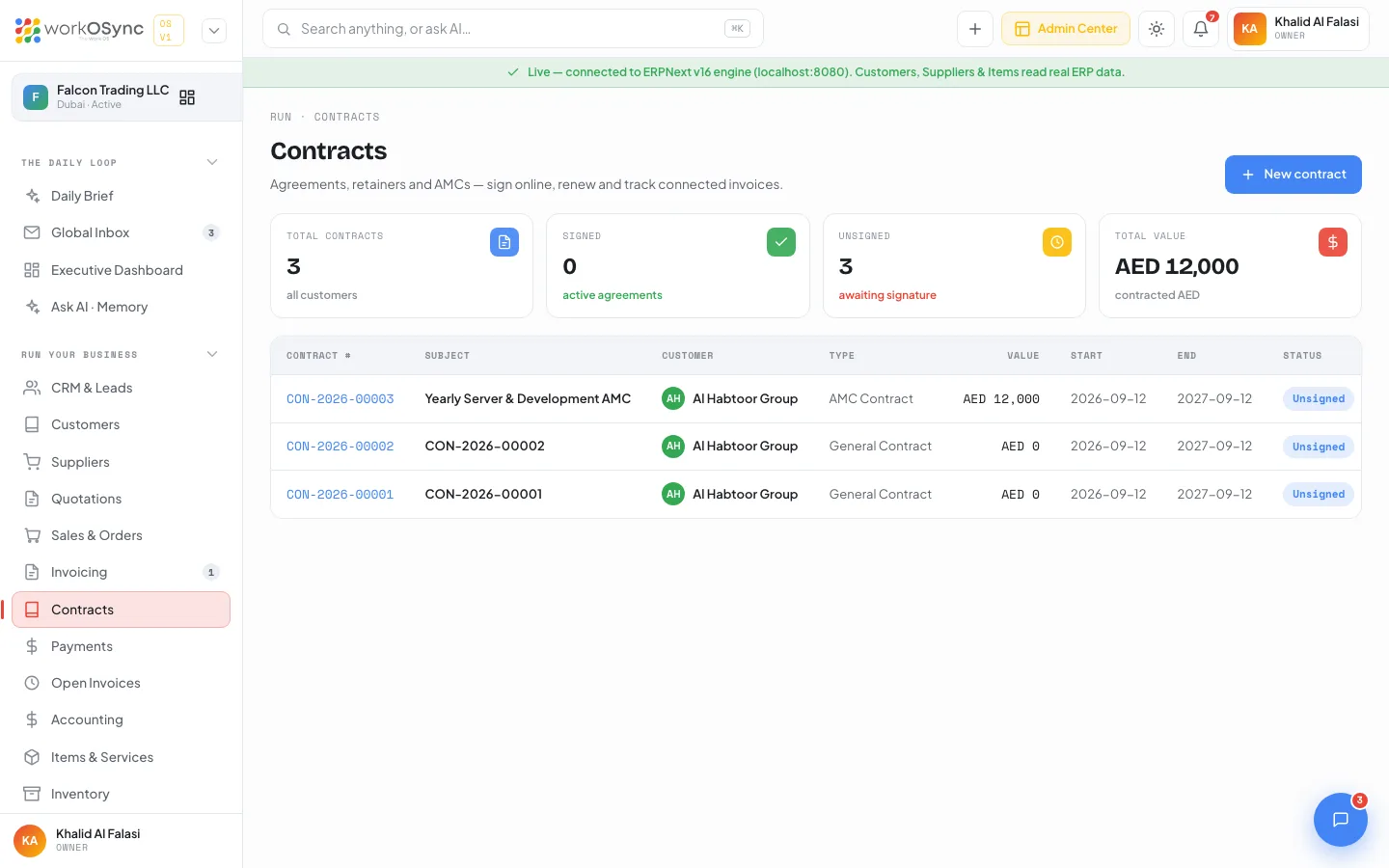
CON-2026-00003 when connected.List
- KPI tiles: Total contracts, Signed, Unsigned, Total value.
- Columns: Contract #, Subject, Customer, Type, Value, Start, End, Status. Empty state No contracts yet.
- Statuses: Signed, Expired (end date before today) and Unsigned.
New contract
New contract opens /contracts/new (Set the parties, term and value - then send it for online signature.):
| Field | Default and notes |
|---|---|
| Customer (required) | From the customer master. |
| Contract type | Defaults to General Contract. Options: Supply Contract, Service Contract, AMC Contract, NDA, Other. |
| Subject (required) | Placeholder e.g. Annual maintenance & support agreement. |
| Contract value | The agreed amount. |
| Start date (required) | Defaults to today. |
| End date | Drives the Expired status and renewals. |
| Description | Free text. |
Save contract creates it as Unsigned and opens its page. The subject, value and type are stored inside the ERPNext contract terms together with the description. Missing fields return Please choose a customer., A contract subject is required. or Start date is required.; in demo mode the page carries a Demo mode - connect the ERPNext engine to save contracts. banner.
Contract page
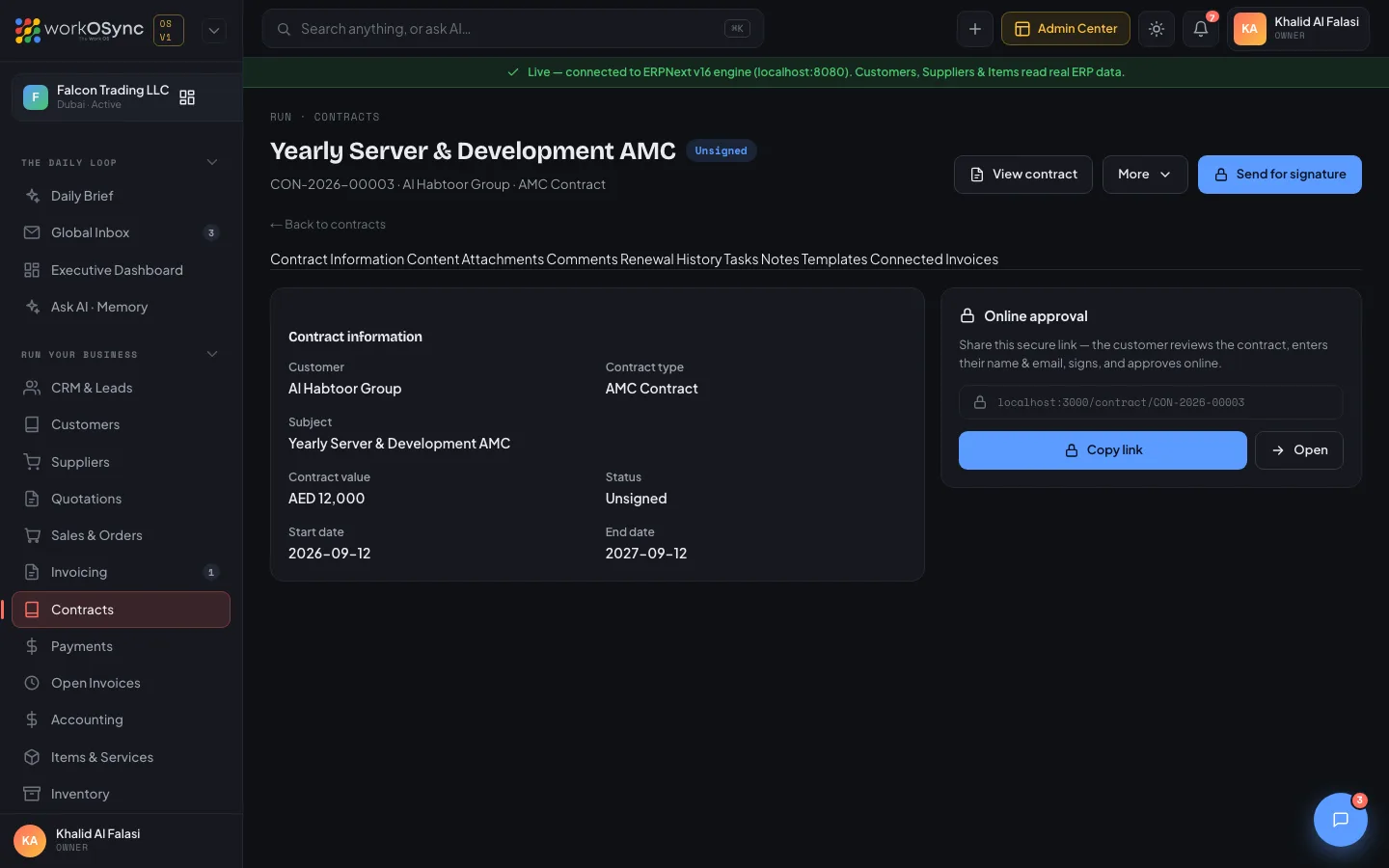
The title is the subject with a status badge and the subtitle {id} · {customer} · {type}. Header buttons: View contract (opens /contract/{id}), Send for signature (opens the public page) and a More menu.
| More menu item | What it does |
|---|---|
| Renew (new term) | Creates a new Unsigned contract for one year starting the day after the current end date. |
| Duplicate contract | Copies the contract as a new Unsigned record. |
| Mark as signed | Signs internally as Falcon Trading LLC (internal), for contracts signed on paper. |
| Email to customer | Opens your mail client with the signing link. |
| Print / Download PDF | Opens the print dialog. |
| View as customer | Opens the public page. |
| Tab | Contents |
|---|---|
| Contract Information | Customer, Contract type, Subject, Contract value, Status, Start date, End date, plus the Online approval card with Signed by and date, or the link with Copy link and Open. |
| Content | The contract body. Edit then Save content. Edits are kept in this browser. |
| Attachments | Upload file; file names are kept in this browser. |
| Comments | Write a comment… and Post. |
| Renewal History | The Original term and a Renew for another year action. |
| Templates | Annual Maintenance (AMC), Supply Agreement, Non-Disclosure (NDA) and Service Retainer, each with Apply template to fill the content. |
| Connected Invoices | The customer's submitted invoices: Invoice #, Date, Total, Outstanding, Status. |
| Tasks, Notes | Follow-ups linked to the contract. |
Content edits, attachment names, comments, tasks and notes on a contract are stored in the browser you use, until the ERPNext contract-content integration lands. The contract record itself, its signature and the renewal are saved in the engine.
Public signing page
The customer opens /contract/{id}. The banner reads CONTRACT · {TYPE}, or SIGNED · Accepted by {name} on {date} once signed. The document shows Contract #, Type, Start and End, BETWEEN your company and the customer, the SUBJECT, CONTRACT VALUE, TERM and TERMS & CONTENT.
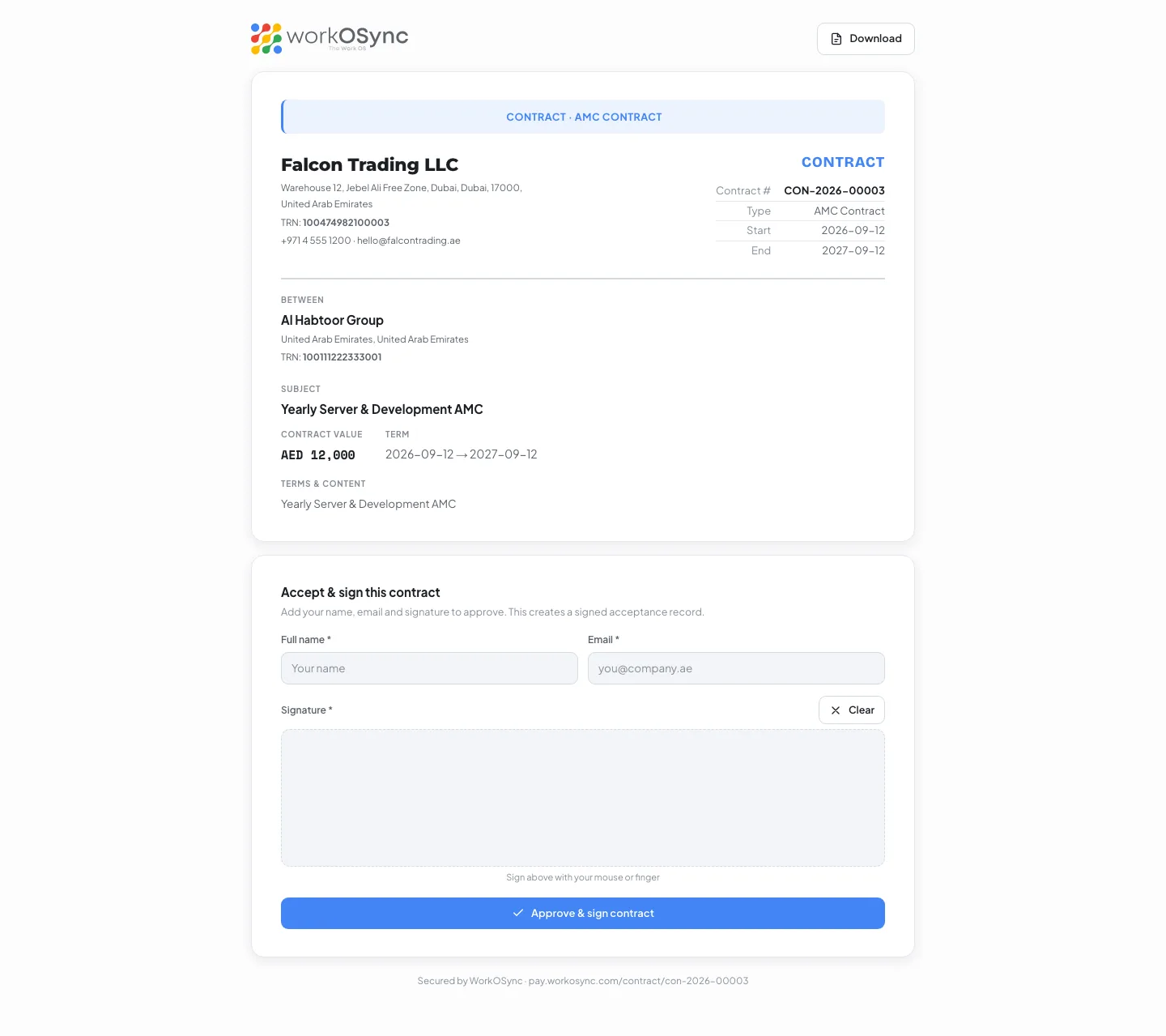
Accept & sign this contract asks for Full name, Email and a Signature, and Approve & sign contract shows Contract signed: Thank you, {name}. Falcon Trading LLC has been notified and a signed copy has been recorded. When connected, the contract is marked signed and the signer, date, signature image and a comment are stored on it.
A contract turns Expired the day after its end date. Use Renew (new term) a few weeks early so the new Unsigned contract is signed before the old one lapses, and the AMC keeps billing through recurring invoices.