Exports and printing
Almost every list in WorkOSync has an Export menu with three formats, and every document has a print view that saves as PDF. Exports run in your browser on the rows you can see, so what you download is exactly what is on screen.
The Export menu
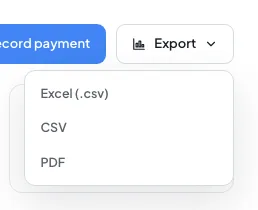
| Option | What you get |
|---|---|
| Excel (.csv) | A comma-separated file with a UTF-8 byte-order mark so Excel opens it with the right characters and columns. Named <page>.csv. |
| CSV | The same rows as plain CSV, with a header row and quoted fields, for other tools and imports. |
| Opens a clean table in a new window, headed with the report title and WorkOSync · your company · exported date, then opens the print dialog so you can save it as PDF or send it to a printer. |
Where Export appears
| Page | Columns exported |
|---|---|
| Customers | ID, Customer, City, TRN, Currency, Credit limit, Balance, Status |
| Suppliers | ID, Supplier, Category, City, Balance, Currency, Status |
| Quotations | Quotation, Customer, Date, Valid till, Total, Status |
| Sales & Orders | Order, Customer, Date, Delivery, Total, Delivered %, Status |
| Invoicing | Invoice, Customer, Date, Due, Amount, Outstanding, Status (plus an Export to Excel icon in the list toolbar with Amount, Tax, Paid and Due date) |
| Payments | Payment, Party, Date, Mode, Against, Direction, Amount |
| Open Invoices | Invoice, Customer, Date, Total, Paid / advance, Outstanding, % paid, VAT (full), VAT on paid |
| Items & Services | Code, Name, Group, Rate, UOM, Type |
| Accounting: Transactions | Date, Account, Voucher type, Voucher #, Against, Debit, Credit |
| Accounting: Bills | Bill #, Supplier, Date, Due, Amount, Outstanding, Status |
| HR & Payroll | ID, Employee, Department, Basic, Allowances, Net (AED) |
| Reports | The catalogue itself, and every report with its own columns |
| Platform Console | Platform payments and subscription invoices |
Printing documents
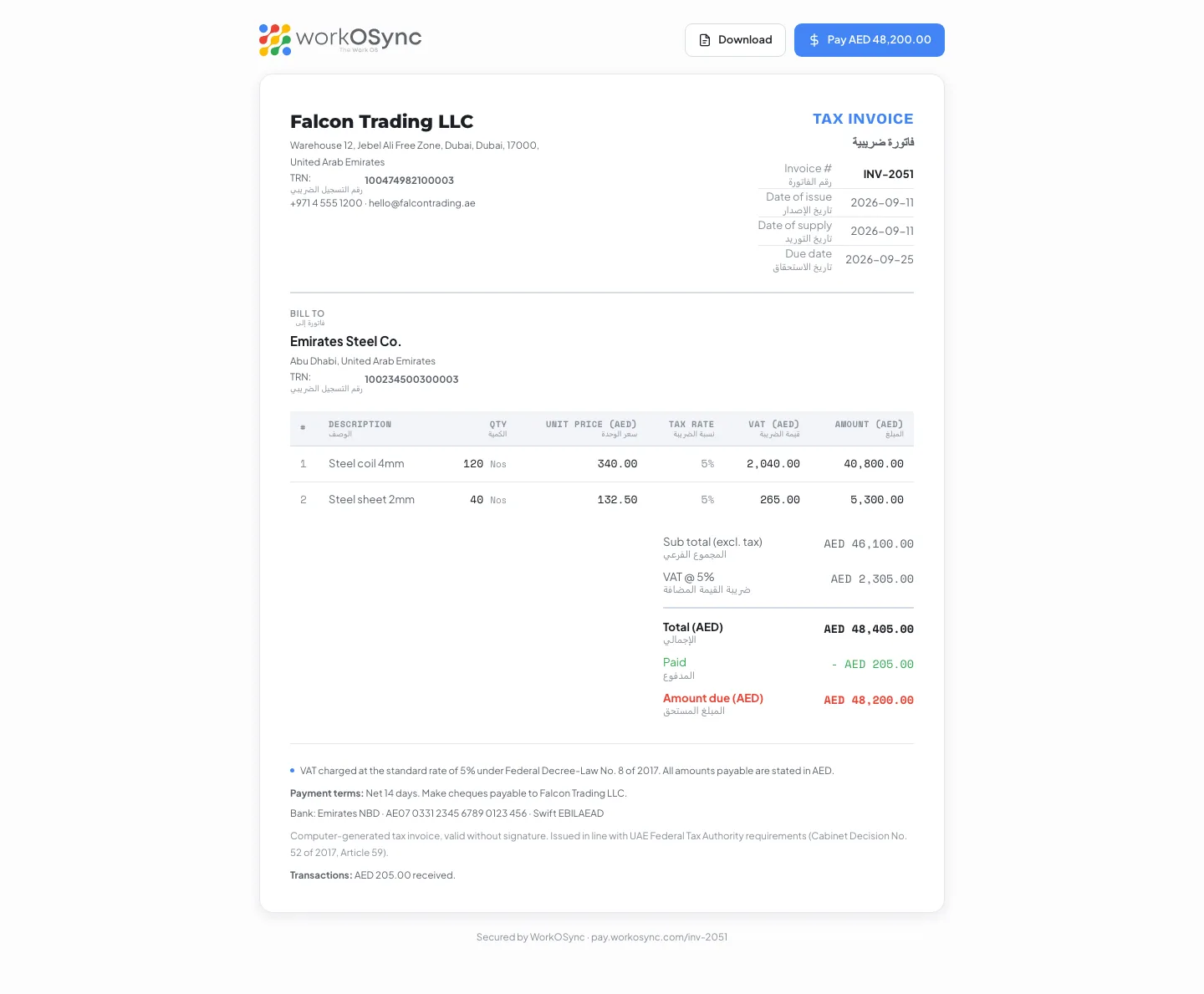
Documents are laid out for A4 and print without the app shell around them. Use Print or Download PDF on an invoice, Download on a public pay page, proforma or quotation, and Print / Export on a customer statement. Each opens the browser print dialog; choose Save as PDF as the destination to get a file.
- Open the document
For example an invoice from Invoicing, or its customer view from the View as customer icon.
- Click Print or Download
The print dialog opens with the document alone on the page.
- Choose Save as PDF
Set margins to default and background graphics on if you want the coloured banners, then save.
Importing from CSV
The Customers page has an Import CSV button. Download the template, fill one customer per row (name, TRN, phone, mobile, email, website, city, currency and credit limit are recognised, in any order), choose the file and review the preview of up to thirty rows, then click Import. The result tells you how many were created and lists any rows that failed. Details are in Customers.
Exports include the rows currently shown. On Invoicing, set the period, status and search before exporting to get exactly the slice you need, for example all overdue invoices this month.
The Excel option produces a CSV that Excel opens natively; a true .xlsx writer and server-rendered PDF attachments arrive with the reporting service in a later release.