Customers
Customers is the master list every sales document hangs off. Each customer carries a TRN, a currency, a credit limit and a running balance, and the client 360 profile pulls together the statement of account, invoices, payments, orders and estimates for that one account. Create customers by hand, convert them from leads, or import hundreds at once from a CSV file.
The customer list
Open Customers from the sidebar (/customers). The page is titled Customers with the subtitle Customer master, balances and statements of account - multi-currency. Three header buttons cover the common jobs: Export, Import CSV and New customer.
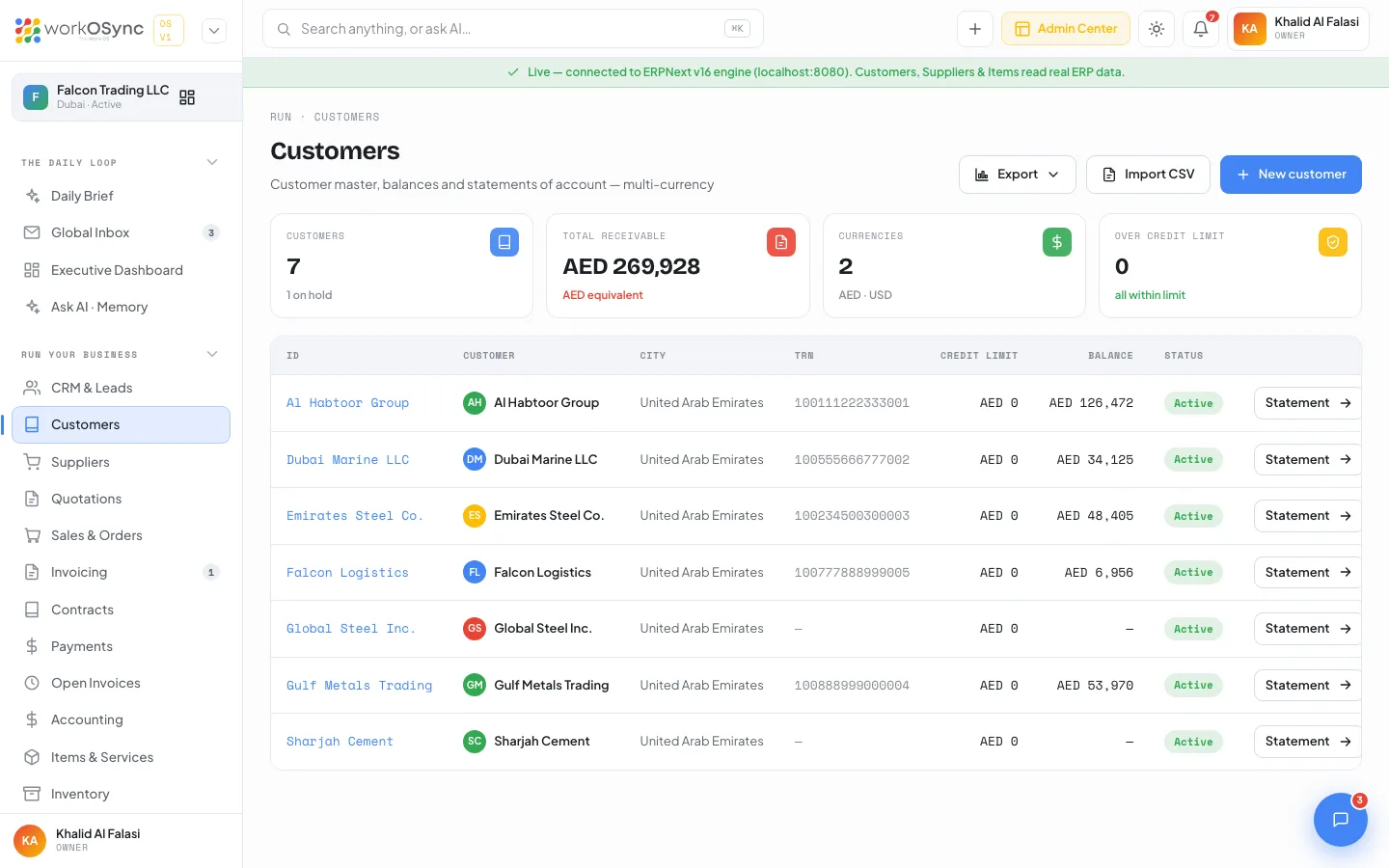
KPI tiles
| Tile | What it shows |
|---|---|
| Customers | The number of customers in the master (the 1 on hold note is a fixed sample caption). |
| Total receivable | Sum of all customer balances in AED; non-AED balances are converted at 3.67, hence the AED equivalent caption. |
| Currencies | Shows 2 with AED · USD, a fixed sample figure. |
| Over credit limit | Shows 0 with all within limit, a fixed sample figure. |
Table columns
| Column | Meaning |
|---|---|
| ID | The customer code, for example CUST-0001 in demo mode or the ERPNext name when connected. |
| Customer | Avatar and company name. Links to the profile. |
| City | The customer's city. In connected mode this is the ERPNext territory. |
| TRN | The UAE Tax Registration Number printed on tax invoices. |
| Credit limit | Approved credit in the customer's currency (0 when none is set in ERPNext). |
| Balance | The outstanding receivable. |
| Status | Active or Disabled when connected; Active or On hold in demo mode. |
| Statement → | Opens the profile on the statement of account. |
Exporting the list
Export opens a small menu with three formats. It is disabled when the list is empty. Every format carries the same columns: ID, Customer, City, TRN, Currency, Credit limit, Balance and Status.
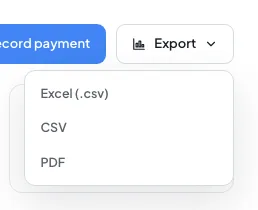
- Excel (.csv): a CSV with a UTF-8 byte-order mark so Excel opens Arabic names and symbols correctly.
- CSV: a plain comma-separated file for other tools.
- PDF: opens a print window headed WorkOSync · Falcon Trading LLC · exported {date}; save it as PDF from the print dialog.
See Exports and printing for the full behaviour.
Import customers from CSV
Moving from a spreadsheet or another system? Import CSV opens the Import customers from CSV modal. It lists the expected columns, offers a Download template link (customers-template.csv) and a Choose CSV file button.
Recognised headers
The importer reads the header row and matches columns by name, so you can keep your own spreadsheet layout as long as the headings are recognisable:
| Customer field | Accepted header names |
|---|---|
| Name | name, customer name, company, customer |
| TRN | trn, vat number, vat, tax_id |
| Phone | phone or mobile (both fill the phone field) |
email | |
| Website | website |
| City | city |
| Currency | currency |
| Credit limit | credit limit, credit_limit |
- Download the template
Click Download template (columns Name, TRN, Phone, Email, City, Currency with one sample row) and paste your data into it, or use your own file with the headers above. Rows without a name are skipped.
- Choose the file
Click Choose CSV file. The modal parses it in the browser and shows {n} customers ready to import - preview: with a table of Name, TRN, City and Email for up to 30 rows.
- Run the import
Click Import {n} customers. Each row is created in ERPNext in turn with the same fields as the New customer form (name, TRN, website and currency are written). The result reads {x} created, {y} failed. followed by up to eight error lines so you can fix problem rows and re-import them. In demo mode the modal shows Demo mode - connect the engine to import. and every row is reported as failed.
Duplicate names create duplicate customers. Trim your sheet before importing, and keep TRNs as the 15-digit number without spaces so they print correctly on tax invoices.
New customer
New customer opens /customers/new, titled New customer with the subtitle Add a customer to the master - invoices, statements and balances attach automatically.
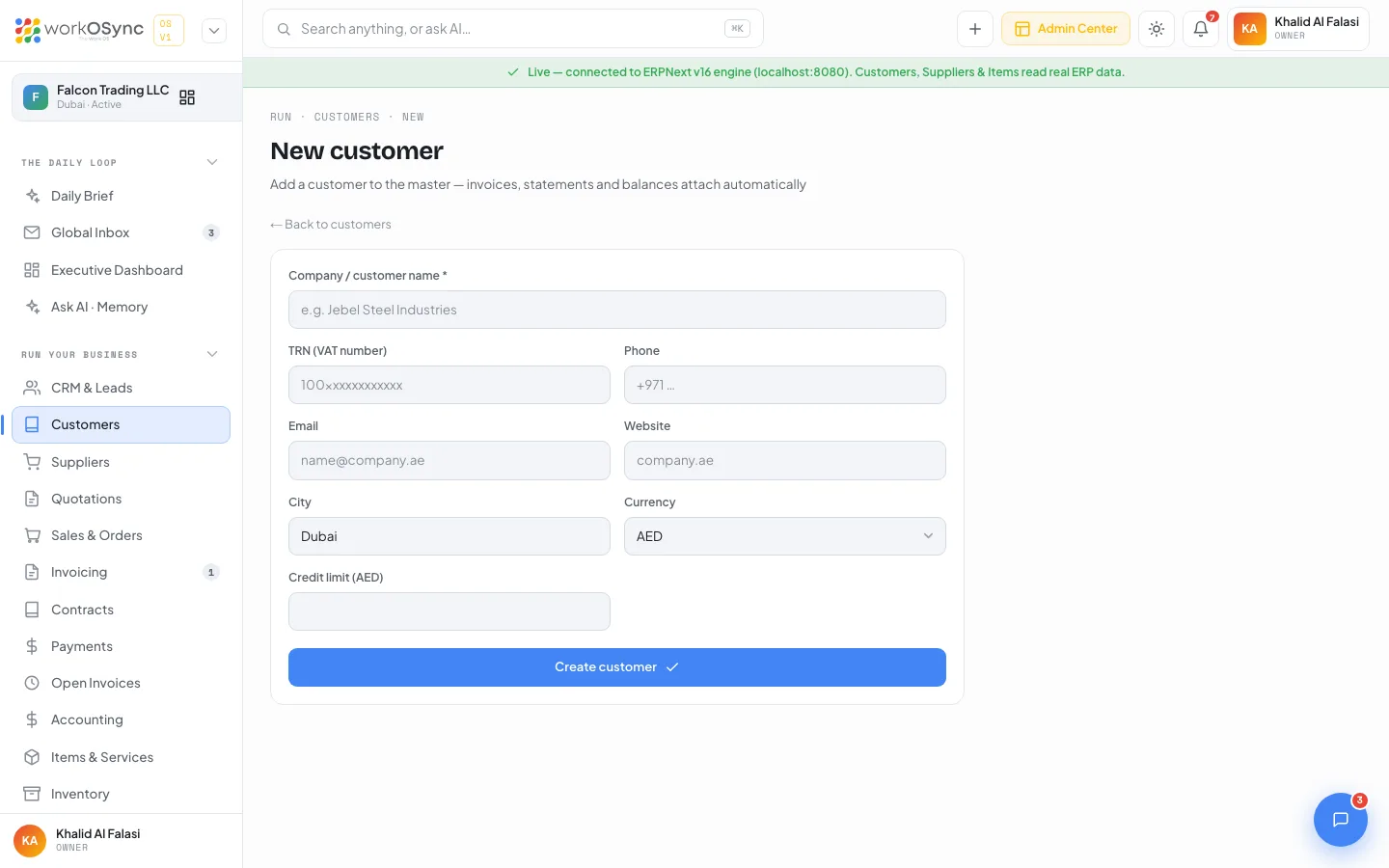
| Field | Default and notes |
|---|---|
| Company / customer name (required) | The legal name printed on documents. |
| TRN (VAT number) | Placeholder 100xxxxxxxxxxxx. Required by the FTA on tax invoices to VAT-registered customers. |
| Phone | Main number. |
| Where invoices and pay links are addressed. | |
| Website | Company website. |
| City | Defaults to Dubai. |
| Currency | Defaults to AED. Options: AED, USD, EUR, SAR, GBP. |
| Credit limit ({currency}) | Approved credit; the label updates with the currency. |
Click Create customer. The name, TRN, website and currency are written to the ERPNext Customer record (as a Company in the Commercial group, territory United Arab Emirates); phone, email, city and credit limit stay on the form and are not written yet. On success you land on the new customer's profile. Saving without a name returns Customer / company name is required., and in demo mode the page carries a Demo mode - connect the ERPNext engine to save customers. banner.
The client 360 profile
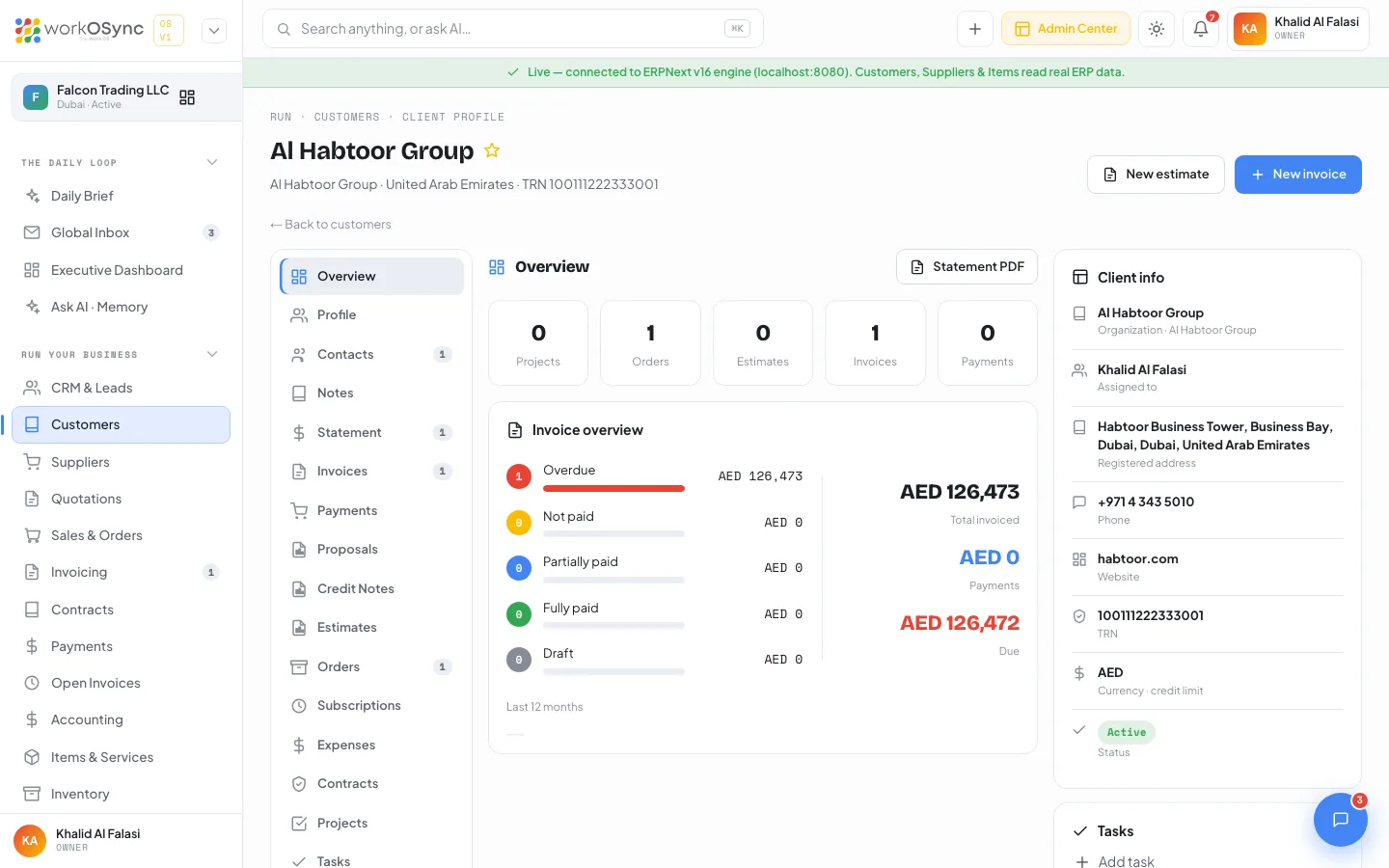
Click a customer to open its profile. The breadcrumb reads Run · Customers · Client profile, the title is the customer name with a star, and the subtitle shows {ID} · {city} · TRN {trn}. The header has a New estimate button that opens the estimate builder and a New invoice button that opens the invoice form, plus a ← Back to customers link.
Section menu
The left-hand menu lists every section: Overview, Profile, Contacts, Notes, Statement, Invoices, Payments, Proposals, Credit Notes, Estimates, Orders, Subscriptions, Expenses, Contracts, Projects, Tasks, Tickets, Files, Reminders and Map. Contacts, Statement, Invoices, Payments, Estimates, Proposals, Orders and Projects show a count next to the name when they have rows. The section heading repeats the count, and on the Overview and Statement sections a Statement PDF button sits next to it (see below).
Overview
- Counters for Projects, Orders, Estimates, Invoices and Payments.
- An Invoice overview with a bar for each state: Overdue, Not paid, Partially paid, Fully paid and Draft, each with a count and an amount.
- Totals for Total invoiced, Payments and Due.
- A Last 12 months chart of invoice values by month.
Profile
Three sub-tabs. Customer Details lists Company, Balance, VAT / TRN Number, Phone, Website, City, Currency, Default Language, Credit limit, Assigned to and Status as read-only fields, with the Address underneath. Billing & Shipping shows a Billing address and a Shipping address card, both built from the customer's primary address, city and TRN. Customer Admins is a contacts card titled Customer admins with an Assign admin button that opens the same contact modal as the Contacts section.
Statement of account
The statement lists every ledger movement for the customer with a running balance. It is the page the Statement → link on the list opens. The Statement PDF button opens the statement in a print window headed Statement of account: {customer} with the columns Date, Reference, Type, Debit, Credit and Balance; the message Statement opened in a print window. Choose "Save as PDF". confirms it. With no transactions it shows No transactions to export yet.
| Column | Meaning |
|---|---|
| Date | Posting date of the entry. |
| Reference | The document number (invoice, payment or credit note). |
| Type | Invoice, Payment or Credit Note. |
| Debit | Amounts that increase what the customer owes (invoices). |
| Credit | Amounts that reduce it (payments and credit notes). |
| Balance | The running balance after each line. |
Documents sections
| Section | Columns |
|---|---|
| Invoices | Invoice (link), Date, Due (On receipt when blank), Total, Outstanding, Status, plus a New invoice button. |
| Payments | Payment, Date, Mode, Against, Amount. |
| Orders | Order (links to the sales order), Date, Delivery, Total, Status. |
| Estimates and Proposals | Quote (link), Date, Valid till, Total, Status and a Public link button that opens the approval page. Both sections list the same quotations; when there are none you see No estimates yet or No proposals yet with a New estimate / New proposal button. |
| Projects | Project (link), Status, Progress, Budget, or No projects yet with a New project button. |
Contacts, notes, tasks, reminders, tickets and files
| Section | What you can do |
|---|---|
| Contacts | Lists the primary contact (badged Primary) and anyone you add. Add contact opens a modal with Full name (required), Designation, Email and Phone; Save contact creates an ERPNext Contact linked to the customer when connected, or keeps it in this workspace in demo mode. |
| Notes | Type a note and click Add (or press Enter). Notes can be ticked off and removed. Empty state: Nothing here yet. |
| Tasks | The same list with a date field; an unticked task past its date is flagged red. |
| Reminders | Titled Reminders (private), with a date, ticked off like tasks. |
| Tickets | A Tickets card with Open and Closed tabs, a search box and Add ticket (Subject required, Priority Low, Medium or High). Each ticket gets an ID such as TK-XXXXX and a Close / Reopen control. An Events calendar with Add event sits beside it. |
| Files | Upload picks one or more files; the table lists File, Type, Uploaded and Size. |
| Map | The customer's address with an Open in Google Maps button that searches the name, address and city. |
Credit Notes, Subscriptions, Expenses and Contracts show an empty state with a shortcut: Open invoices (credit notes are issued from an invoice's More menu), Recurring invoices, Record expense (a journal entry) and New contract.
Client info sidebar
The right-hand Client info panel repeats the essentials: Organization (with the ID), Assigned to, Registered address, Phone, Website, TRN, Currency · credit limit and Status. Below it, Add task, Add note and Reminders (Private) - Add reminder switch the profile to its Tasks, Notes and Reminders sections. Company-wide follow-ups still live in Tasks and Notes and reminders.
Contacts and events are written to ERPNext when the engine is connected. Notes, tasks, reminders, tickets and file names on the profile are kept in the browser you use (this workspace), as are contacts and events in demo mode. Invoices, payments, orders, estimates, projects and the statement always come from the engine. Contracts are managed from the Contracts page.
Typical workflow
- Create or convert
Add the customer here, or convert a won lead from CRM.
- Complete the tax details
Enter the TRN and currency so every tax invoice is FTA-compliant from the first one.
- Sell and invoice
Raise quotations, sales orders and invoices. They all appear on the profile automatically.
- Collect and reconcile
Record payments and watch the balance, the statement and the Invoice overview bars update together.