One-tap approvals
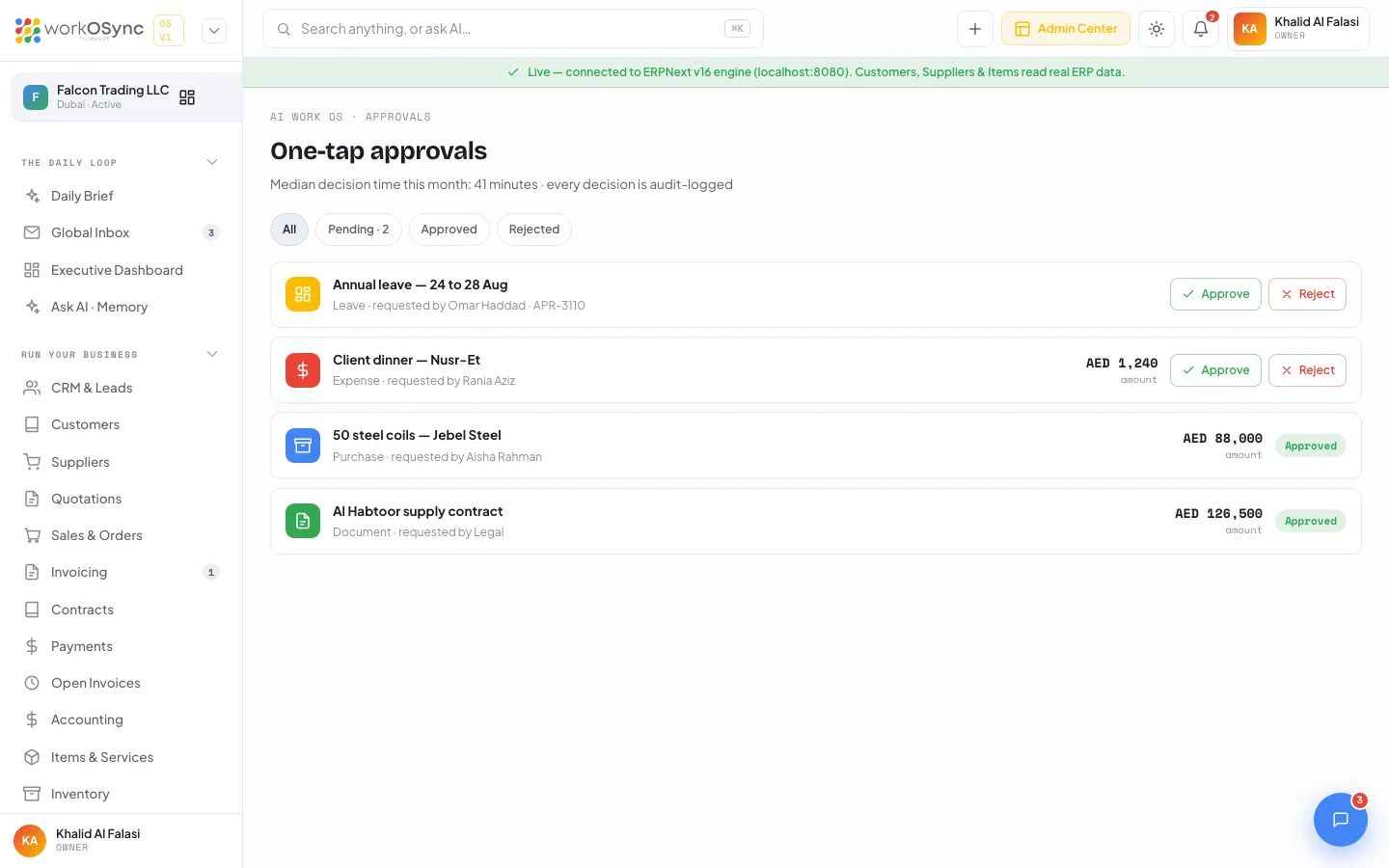
One-tap approvals is a single queue for everything that needs the owner's or a manager's decision: leave, expenses, purchases and documents. Each row is decided with one click, and every decision is stamped with the time it was audit-logged.
Open it from AI Work OS · One-Tap Approvals in the sidebar (the badge shows pending requests), from the Awaiting me KPI on the Daily Brief, or from the Decide link in the AI synthesis card. The page title is One-tap approvals, subtitle "Median decision time this month: 41 minutes · every decision is audit-logged".
Filters
Four chips above the queue control what you see. The active chip is highlighted.
| Chip | Shows |
|---|---|
| All | Every request, regardless of status. |
| Pending · N | Requests still waiting for a decision. N updates as you decide. |
| Approved | Requests you or a colleague approved. |
| Rejected | Requests that were declined. |
When a filter has nothing to show, the queue displays Nothing here with "No {filter} approvals."
Reading a row
- Icon and colour: a calendar for Leave (amber), a coin for Expense (red), a box for Purchase (blue), a document for Document (green).
- Title: what is being requested, for example "Annual leave - 24 to 28 Aug".
- Subtitle: {type} · requested by {person}. Requests with no amount also show their reference, such as
APR-3110. - Amount: shown on the right in AED with the label "amount" when the request carries money.
- Actions or status: pending rows show Approve and Reject; decided rows show a green Approved or red Rejected badge.
- Audit stamp: after you decide, the subtitle gains · audit-logged HH:MM with the time of the decision.
Request types
The queue in the demo workspace is seeded with one request of each type so you can try every path.
| Type | Seeded request | Requested by | Amount | Initial status |
|---|---|---|---|---|
| Leave | Annual leave - 24 to 28 Aug | Omar Haddad | Pending | |
| Expense | Client dinner - Nusr-Et | Rania Aziz | AED 1,240 | Pending |
| Purchase | 50 steel coils - Jebel Steel | Aisha Rahman | AED 88,000 | Approved |
| Document | Al Habtoor supply contract | Legal | AED 126,500 | Approved |
Leave requests come from HR and payroll, expenses and purchases from the spend side of Accounting and Suppliers, and documents from quotations and contracts that need sign-off before they go to a customer.
Approve or reject a request
- Filter to Pending
Click Pending · N so only open requests are listed.
- Check the details
Read the title, who asked, and the amount. For a purchase, confirm the supplier and value against the quotation or purchase order.
- Click Approve or Reject
The buttons are replaced by the status badge and the subtitle gains the audit-logged stamp with the current time. The pending count on the chip and in the sidebar badge drops by one.
- Review later
Use the Approved or Rejected chips to find past decisions. Every decision is written to the audit trail: see Audit logs.
Decisions and their time stamps persist in this browser so the queue stays consistent across reloads while you evaluate the product. Notifying the requester and posting back to the source record arrive with the workflow service in a later release. There is no undo: a decided request cannot be reopened from this screen.
Approvals on the Daily Brief
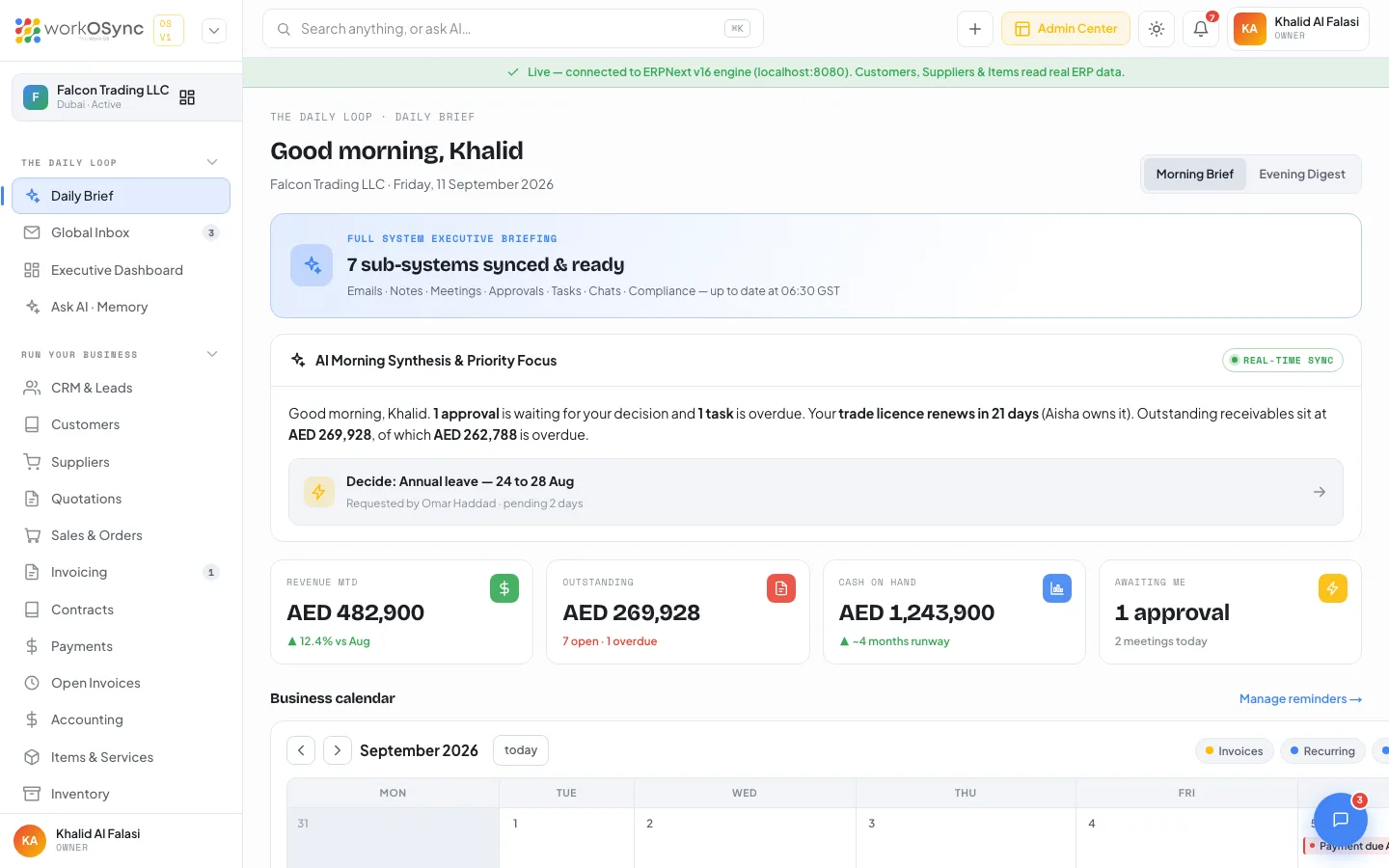
The morning synthesis on the Daily Brief names the pending approval and shows a one-tap link: Decide: Annual leave - 24 to 28 Aug with the meta line "Requested by Omar Haddad · pending 2 days". Clicking it opens this queue. The Awaiting me KPI counts pending approvals, the evening digest carries them forward as For tomorrow, and the "Today across your business" list links here with an Awaiting you badge. The Executive dashboard shows Approvals stuck for the month or quarter.
Who can approve
Owner and Administrator always see the queue. HR Manager has it by default so leave requests can be decided in HR. Other roles gain it when an administrator ticks the One-Tap Approvals module for that role in Users & access; the full matrix is in Roles and permissions.