Timesheets
Timesheets records the hours your team works against projects: who did the work, on which project and activity, for how long, and whether it is billable to the customer. Those hours feed two things at once, the cost and billing of a project, and the time behind payroll. The module keeps a running read on hours logged, billable hours and utilization, so you can see how much of the team's time is earning.
With the ERPNext engine connected, logging a timesheet submits a real ERPNext timesheet and confirms with Timesheet {name} submitted. In demo mode the entry is kept in this workspace (flagged New in the table) and the form notes Demo mode: the timesheet is kept in this workspace. Connect the ERPNext engine to submit real timesheets.
Opening the module
Open Timesheets from the sidebar, or go to /timesheets. The breadcrumb reads Run · Timesheets, the title is Timesheets and the subtitle is Time logged against projects, for costing and billing. The header carries an Export menu and a New timesheet button.
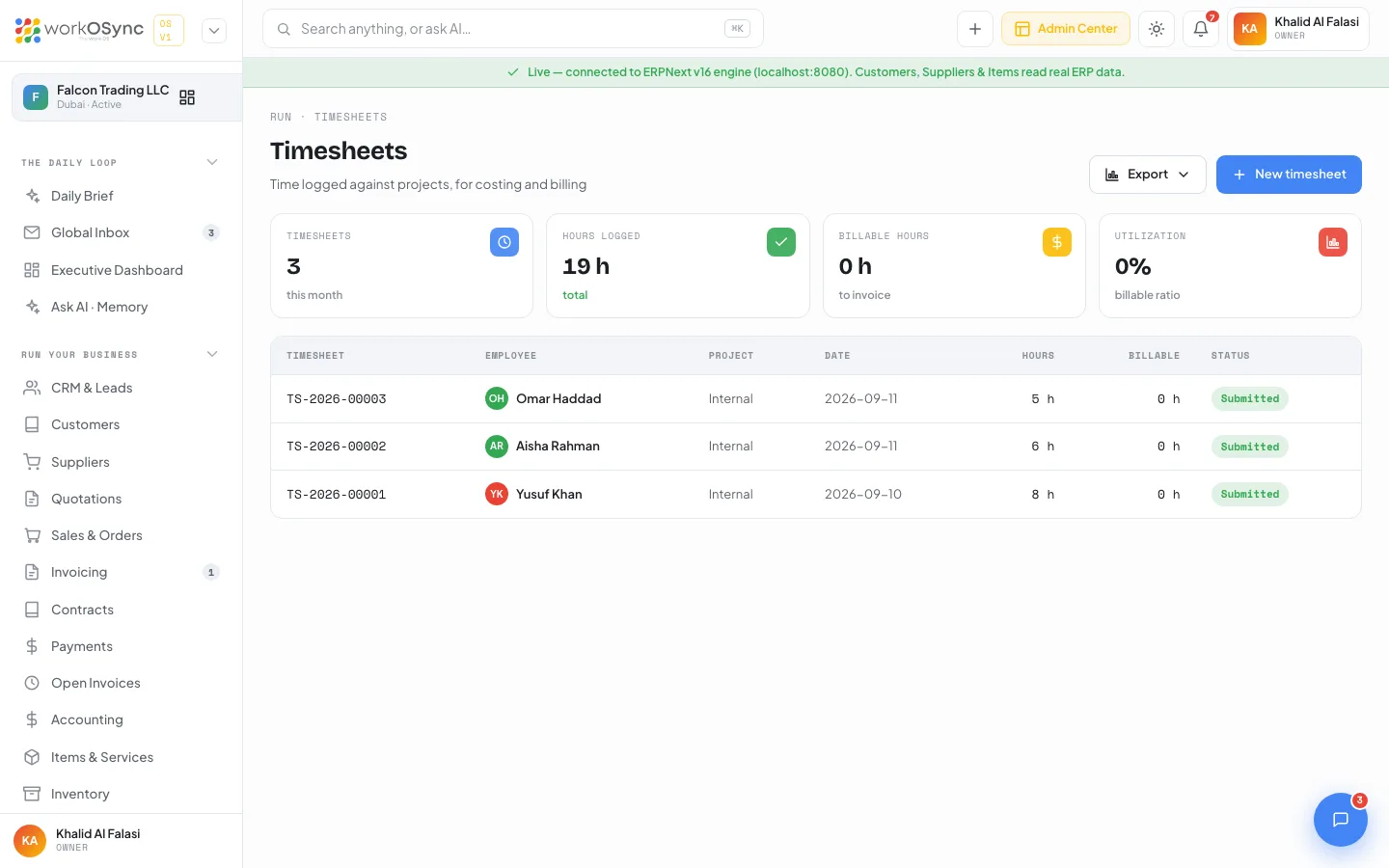
| Tile | What it shows |
|---|---|
| Timesheets | How many timesheets have been logged. |
| Hours logged | Total hours across all timesheets. |
| Billable hours | The hours marked billable, the time you can invoice. |
| Utilization | Billable hours as a percentage of total hours, the billable ratio. |
The table lists each entry with its Timesheet reference, Employee, Project (or Internal when none), Date, Hours, Billable hours and Status.
Logging time
New timesheet opens a short form:
| Field | Notes |
|---|---|
| Employee | Who did the work, from the employee list. |
| Project | The project the time is against, or Internal (no project) for non-project work. |
| Date | The day worked; defaults to today. |
| Hours | How long, in half-hour steps; must be greater than zero. |
| Activity | Execution, Planning, Meeting, Support or Travel. |
| Billing | A Billable to the customer checkbox, on by default. Billable hours count toward what you can invoice; non-billable hours are tracked but not billed. |
Log time saves the entry. The billable flag sets the billable hours on the row, which roll up into the Billable hours and Utilization tiles.
Billable, costing and payroll
Every hour you log does three jobs. It records cost against the project, so the budget and progress on Projects and tasks reflect the effort spent. If it is billable, it is time you can invoice the customer, surfaced as hours to bill. And it is the time record behind payroll, feeding the hours that HR and payroll pays against. Keeping the billable flag honest is what makes the Utilization figure meaningful: a high utilization means most of the team's logged time is earning.
Logging a week
- Pick the person and project
Choose the employee and the project (or Internal), and set the date.
- Enter the hours and activity
Log the hours in half-hour steps and pick the activity.
- Mark billable or not
Leave Billable on for client work; turn it off for internal time so utilization stays accurate.
- Review the totals
Check Hours logged, Billable hours and Utilization, and export the table when you need it for billing or payroll.
Billable hours are the basis for a time-and-materials bill. Raise the invoice for that time in Invoicing, and track the project it belongs to in Projects and tasks.