Meetings and AI notes
Meetings is where the calendar meets the task board. Schedule a call on Google Meet, Microsoft Teams or Zoom, and the notetaker bot joins to record with consent, write the summary, list the decisions and create the action items as tasks. The meeting detail is the record of what was agreed.
Open it from AI Work OS · Meetings & AI Notes in the sidebar. The page title is Meetings & AI notes, subtitle "Meetings that write their own notes and create their own tasks". The primary button is Schedule meeting.
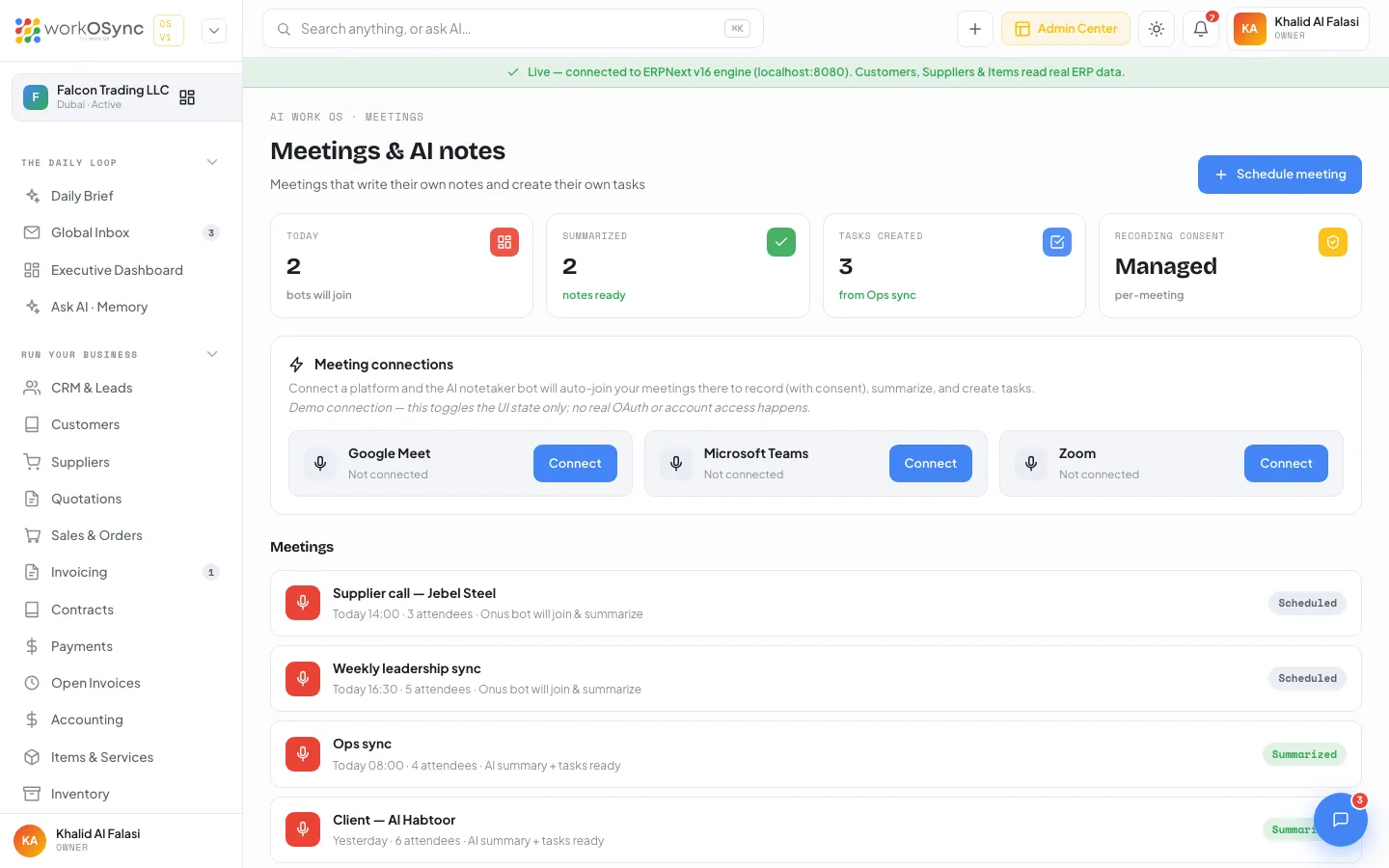
KPIs
| Tile | Demo value | Meaning |
|---|---|---|
| Today | 2 (bots will join) | Meetings scheduled for today. |
| Summarized | 2 (notes ready) | Meetings whose AI notes are ready to read. |
| Tasks created | 3 (from Ops sync) | Action items turned into tasks on the task board. |
| Recording consent | Managed (per-meeting) | Consent is handled per meeting before the bot records. |
Meeting connections
The Meeting connections card lists Google Meet, Microsoft Teams and Zoom. Each shows Not connected or a green Connected badge, with a Connect or Disconnect button. Connect a platform and the AI notetaker bot can auto-join meetings held there.
Connect and Disconnect toggle the connection state, which is remembered in this browser. No OAuth screen opens and no calendar or account is accessed. The real OAuth handshake arrives with the meeting service in a later release. Everything else on the page (the warning in the schedule form, the "bot will auto-join" label) reacts to the toggle, so you can rehearse the flow end to end.
Schedule a meeting
- Click Schedule meeting
A modal opens. Click outside it, the X, or Cancel to close without saving.
- Title (required)
For example "Supplier call - Jebel Steel". Add meeting stays disabled until a title is entered. Pressing Enter in the title field submits.
- Date and Time
Optional date and time pickers. If both are blank the meeting is listed as Upcoming; otherwise the list shows the date and time you chose.
- Platform
Google Meet (default), Microsoft Teams or Zoom. If the chosen platform is not connected, the form shows "{Platform} isn't connected yet - connect it above so the AI notetaker can auto-join". You can still add the meeting.
- Attendees
A number, default 3, minimum 1. Anything below 1 or non-numeric is stored as 1.
- Add meeting
The meeting appears at the top of the list with status Scheduled and the meta line "{when} · {N} attendees · {Platform}". When the platform is connected the line ends with · bot will auto-join. An X on the row removes a meeting you added.
The meeting list
Meetings you add are listed first, then the seeded meetings. Each seeded row links to its detail page.
| Meeting | When | Attendees | Status | Meta |
|---|---|---|---|---|
| Supplier call - Jebel Steel | Today 14:00 | 3 | Scheduled | Onus bot will join & summarize |
| Weekly leadership sync | Today 16:30 | 5 | Scheduled | Onus bot will join & summarize |
| Ops sync | Today 08:00 | 4 | Summarized | AI summary + tasks ready |
| Client - Al Habtoor | Yesterday | 6 | Summarized | AI summary + tasks ready |
Scheduled means the meeting has not happened yet; Summarized means the notes are ready. Under the list, the card AI notes - Ops sync (08:00) previews the latest summary: the team agreed to trial Jebel Steel for one 50-coil order (AED 88,000) pending a quality check, on 30-day terms, and 3 tasks were created and assigned automatically.
Meeting detail
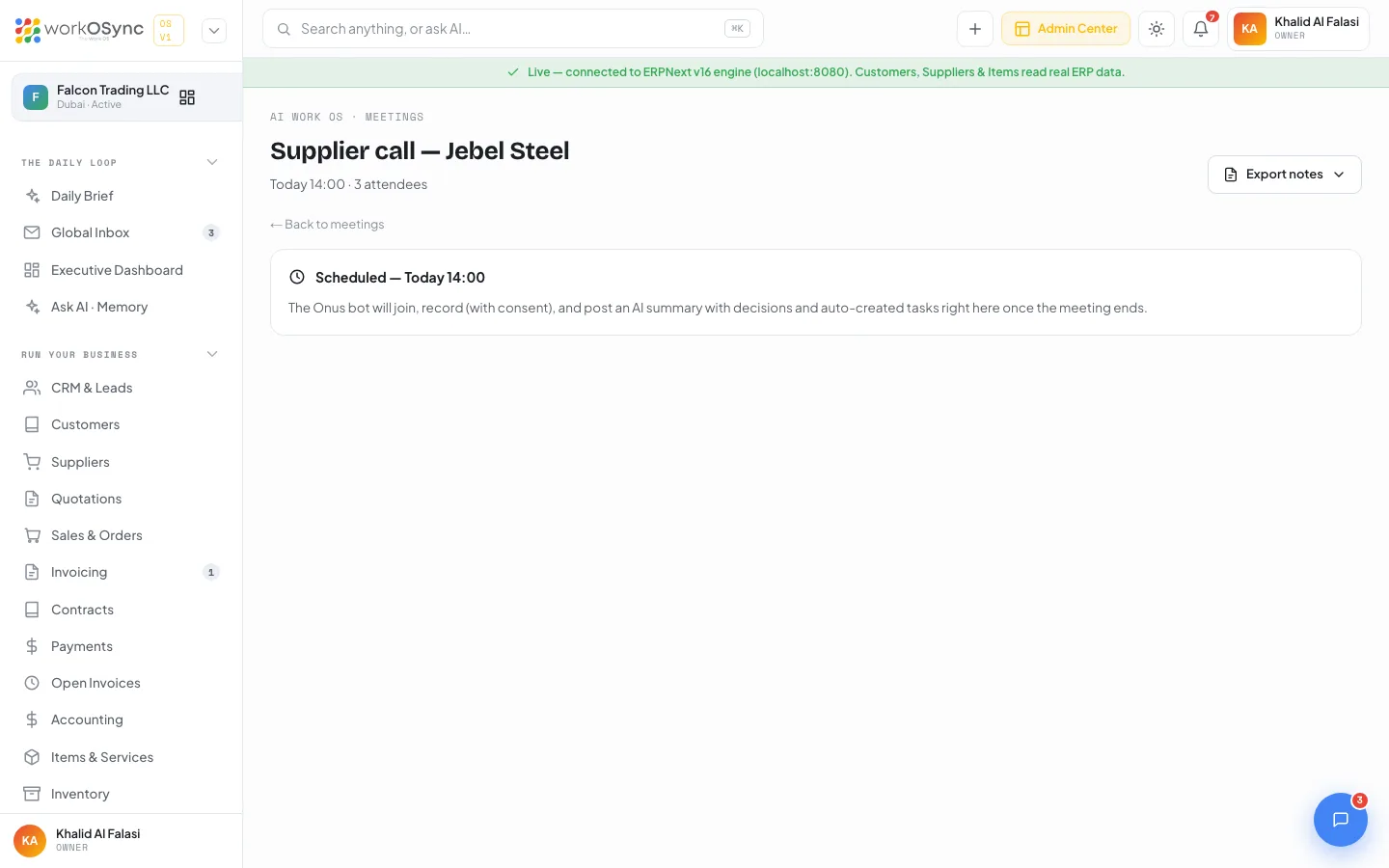
Click a seeded meeting to open /meetings/{id}. The header shows the title and the subtitle "{when} · {N} attendees", an Export notes button, and a ← Back to meetings link.
With AI notes (Summarized)
- KPIs: Status Summarized, Decisions (count captured), Action items (count, auto-assigned), Consent Managed (recorded).
- AI summary card: one paragraph describing what the meeting covered, followed by a Decisions list. For the Ops sync: trial Jebel Steel with one 50-coil order (AED 88,000); QA the first delivery before repeat orders; file Q3 VAT by 20 Sep.
- Action items → tasks: one row per action with the task text, "Assigned to {person}" and a green Created badge. For the Ops sync: send the Jebel Steel PO (Rania Aziz), QA the first delivery (Omar Haddad), file the Q3 VAT return (Khalid Al Falasi). These are the tasks counted by Tasks created and they live on the task board.
- Attendees: avatars for the people who attended.
Without notes (Scheduled)
A single card reads Scheduled - {when} and explains that the Onus bot will join, record with consent, and post an AI summary with decisions and auto-created tasks on this page once the meeting ends.
Export notes
Export notes opens a menu with Markdown (.md), Plain text (.txt), PDF / print and Copy to clipboard. The export contains the title, meeting reference, when, attendee count, the AI summary, the decisions and the action items as a checklist. A scheduled meeting exports a placeholder saying notes will be captured when the meeting ends. See Exports and printing.
Recording consent
Consent is managed per meeting. The bot announces that it is recording, and the detail page records Consent: Managed so there is a trace of it beside the notes. In the UAE, recording a call without the participants' knowledge can breach privacy law, so leave the consent step in place for external calls with customers and suppliers.
The Daily Brief's Awaiting me KPI notes how many meetings are today, and its "Today across your business" list links here with a Summarized badge. Decisions made in meetings often become approvals or chat threads; the Ops sync above is the same Jebel Steel purchase that appears in both.