Contracts
Contracts records the agreements behind the work: service agreements, supply contracts, retainers, annual maintenance contracts and NDAs. Each contract carries its parties, value, term and status, can be sent to the customer for online signature, renewed for a new term, and tied to the invoices raised against it. It is the formal counterpart to an estimate: where a quotation wins the work, a contract sets the terms it runs under.
Contracts save to the ERPNext engine when it is connected. In demo mode the new-contract form shows Demo mode - connect the ERPNext engine to save contracts. and the list, templates and signing flow still work so you can see the whole lifecycle.
The contracts list
Open Contracts from the sidebar, or go to /contracts. The breadcrumb reads Run · Contracts, the title is Contracts and the subtitle is Agreements, retainers and AMCs - sign online, renew and track connected invoices. A New contract button sits in the header.
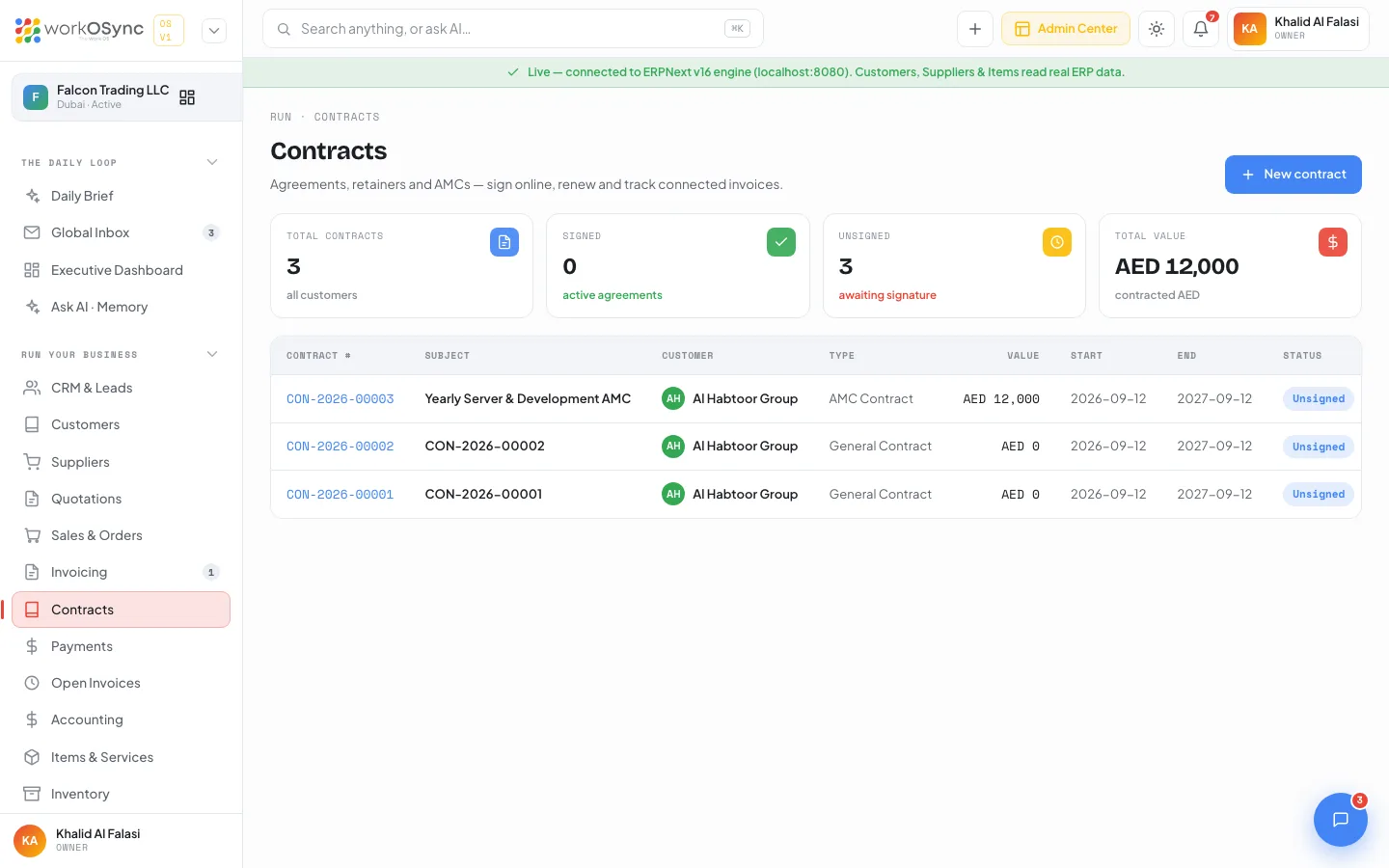
| Tile | What it shows |
|---|---|
| Total contracts | All contracts across customers. |
| Signed | Active agreements that have been signed. |
| Unsigned | Contracts still awaiting signature. |
| Total value | The contracted value in AED across all contracts. |
The table shows Contract #, Subject, Customer, Type, Value, Start, End and Status, and each row opens the contract.
Creating a contract
New contract opens /contracts/new. The Contract information form sets the parties and term:
| Field | Notes |
|---|---|
| Customer | The counterparty, from the customer master. Required. |
| Contract type | General Contract, Supply Contract, Service Contract, AMC Contract, NDA or Other. |
| Subject | What the agreement covers, for example an annual maintenance and support agreement. Required. |
| Contract value | The value in AED. |
| Start date | When the term begins. Required. |
| End date | When it ends; optional for an open-ended agreement. |
| Description | Scope, deliverables and terms. |
Save contract creates it and opens its page.
The contract page
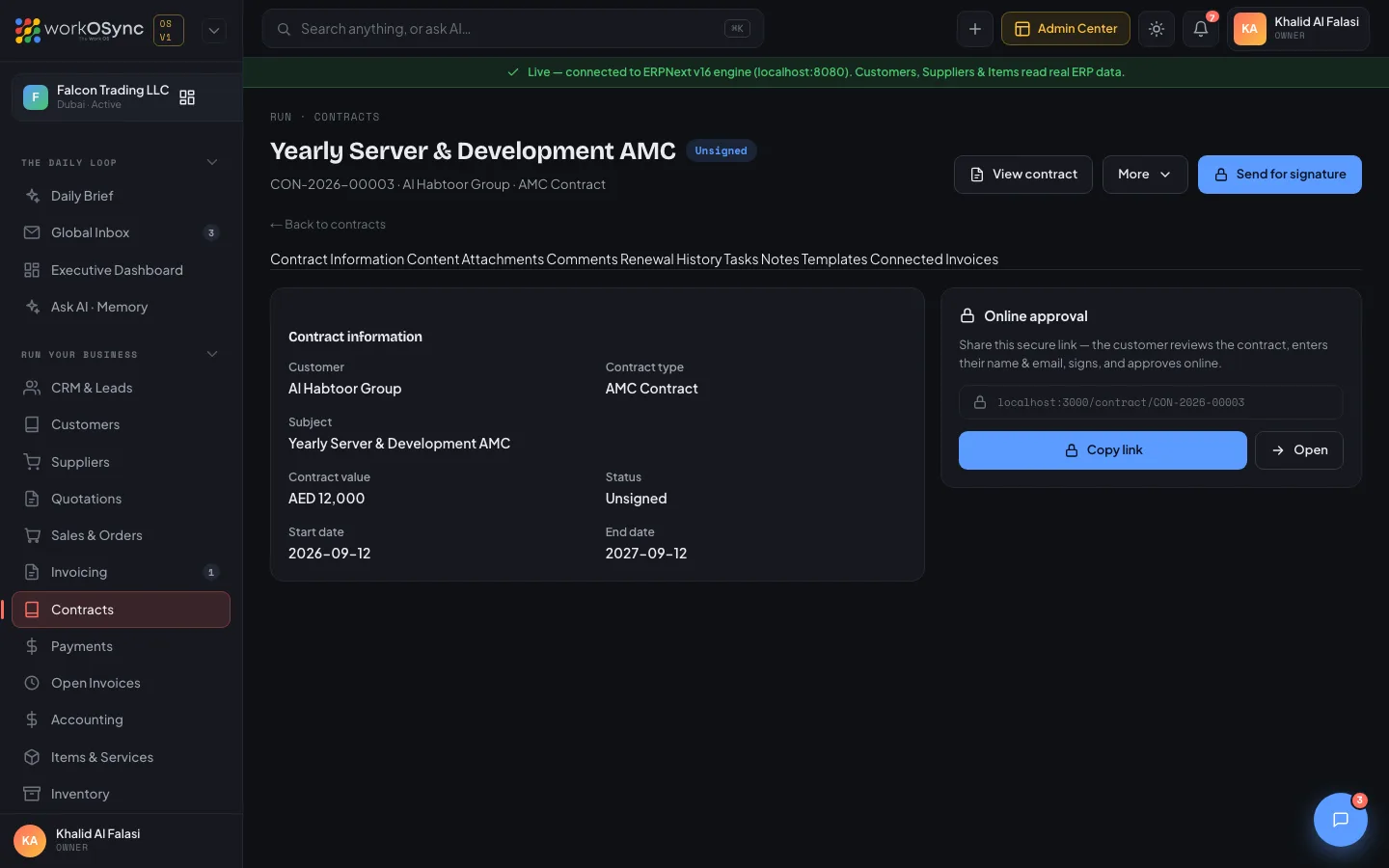
A saved contract opens at /contracts/{name}, titled with its subject and a status badge. The header carries View contract, a More menu (Renew, Duplicate, Mark as signed, Email to customer, Download PDF, View as customer) and a Send for signature button. Its tabs organise everything about the agreement:
| Tab | Contents |
|---|---|
| Contract Information | The read-only terms, and an Online approval card with the signing status or the shareable signing link. |
| Content | The body of the agreement, editable, or filled from a template. |
| Attachments | Signed PDFs, appendices and supporting documents. |
| Comments | Team discussion on the contract. |
| Renewal History | The original term and each renewal, with a Renew for another year action. |
| Tasks | Follow-ups and renewal actions as a checklist. |
| Notes | Internal notes on the contract. |
| Templates | Starter templates to apply to the content: Annual Maintenance (AMC), Supply Agreement, Non-Disclosure (NDA) and Service Retainer. |
| Connected Invoices | The invoices raised for this customer, each linking to Invoicing with its total, outstanding and status. |
Signing online
Every contract has a public page at /contract/{name} that needs no login. Send for signature and the Online approval card share this secure link: the customer reviews the contract, enters their name and email, and approves it online. Copy link copies the URL and Open previews it. Mark as signed records an internal signature when you have signed off your own side. Once signed, the card shows who signed and when, and the Signed KPI goes up.
Renewing and reusing
The More menu and the Renewal History tab Renew a contract for a new term, keeping the history; Duplicate contract copies it as a starting point for a similar agreement; and Email to customer opens a message with the public link. A retainer recorded here pairs naturally with a recurring invoice profile in Recurring invoices.
- Create the contract
Set the customer, type, subject, value and term, then save it.
- Draft the body
Apply a template from the Templates tab and edit the content to suit the engagement.
- Send for signature
Share the public signing link; the customer signs online, or use Mark as signed for an internal record.
- Bill and renew
Raise invoices against the customer and watch them on the Connected Invoices tab; renew the contract for a new term when it is due.