Payments
Payments is money in and money out, reconciled to the ledger. Record a customer receipt against an open invoice and the invoice, the customer balance and the bank account all update together. The companion Open invoices & advances page shows every partially paid and unpaid invoice with the VAT split between what has been received and what has not, which is what a cash-basis VAT return needs.
The payments list
Open Payments from the sidebar (/payments). The page is titled Payments & receipts with the subtitle Money in and out - reconciled to the ledger, incl. online card payments. The header carries Record payment and Export (columns Payment, Party, Date, Mode, Against, Direction, Amount).
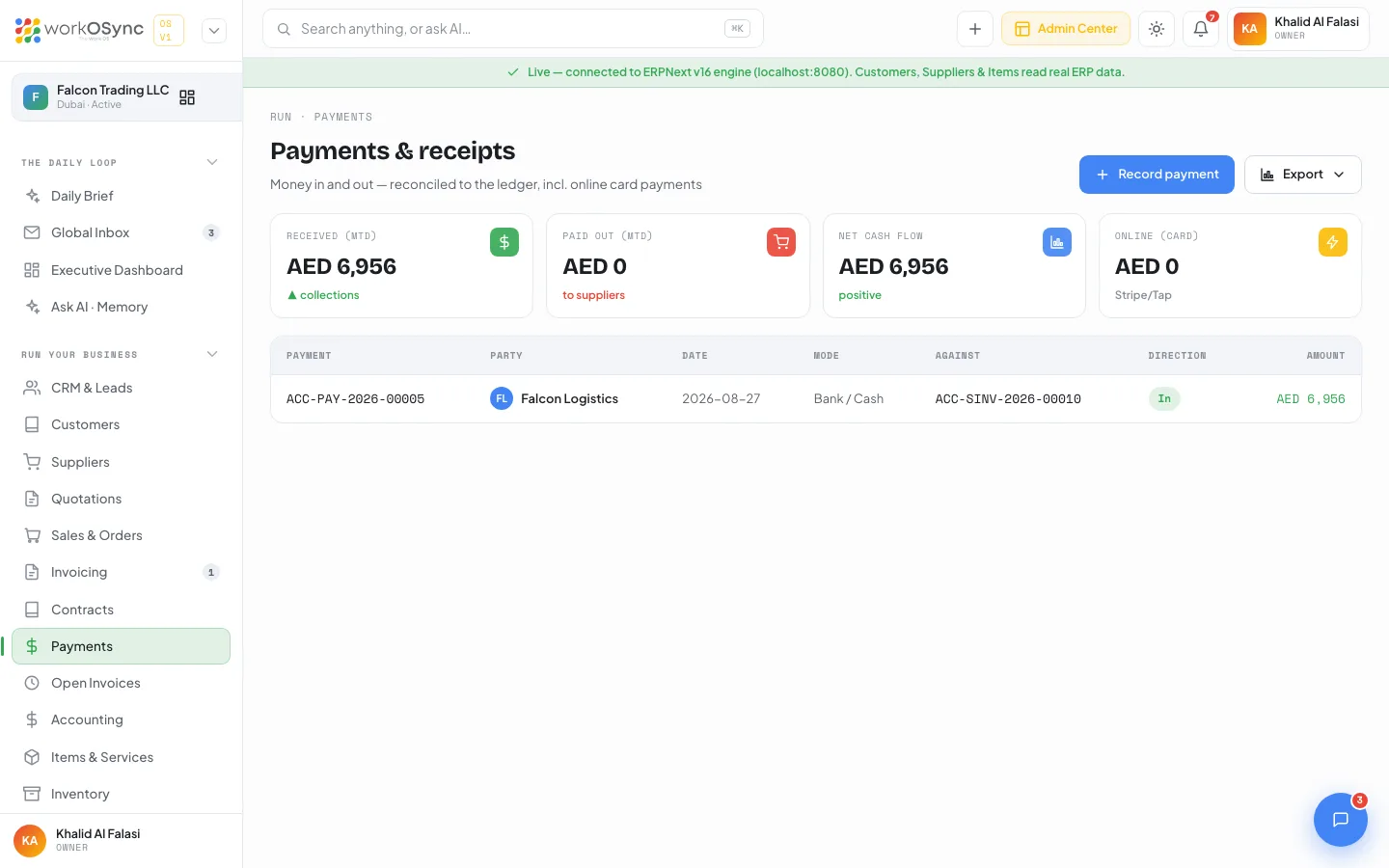
KPI tiles
| Tile | What it shows |
|---|---|
| Received (MTD) | The total of the receipts (direction In) in the list. |
| Paid out (MTD) | The total of the payments made (direction Out) in the list. |
| Net cash flow | Received minus paid out. |
| Online (card) | The total of payments whose mode mentions card, online, Stripe or Tap, captioned Stripe/Tap. |
Table columns
| Column | Meaning |
|---|---|
| Payment | The payment entry number, for example PAY-0088 in demo mode. |
| Party | The customer or supplier. |
| Date | Posting date. |
| Mode | The ERPNext mode of payment (for example Bank transfer, Cash, Cheque or Credit card), or Bank / Cash when none is set. |
| Against | The reference number recorded on the payment (the invoice or bill it settles), or a dash when there is none. |
| Direction | In (green) for receipts, Out (amber) for payments made. |
| Amount | The amount in AED. |
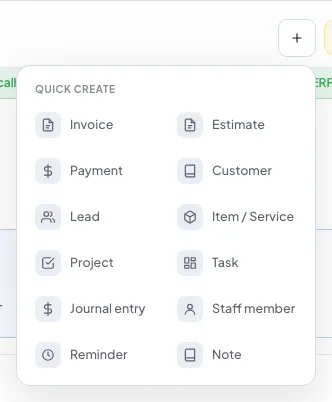
Record payment on this list opens the record-payment form described below. The same form is reached from Add payment on the Invoicing page, Record payment on an invoice, the Payment button in the invoice preview pane, or Quick create > Payment from the top bar.
Record a payment
The form at /payments/new is titled Record payment with the subtitle Receive a customer payment - reconciles against an open invoice and posts to the ledger.
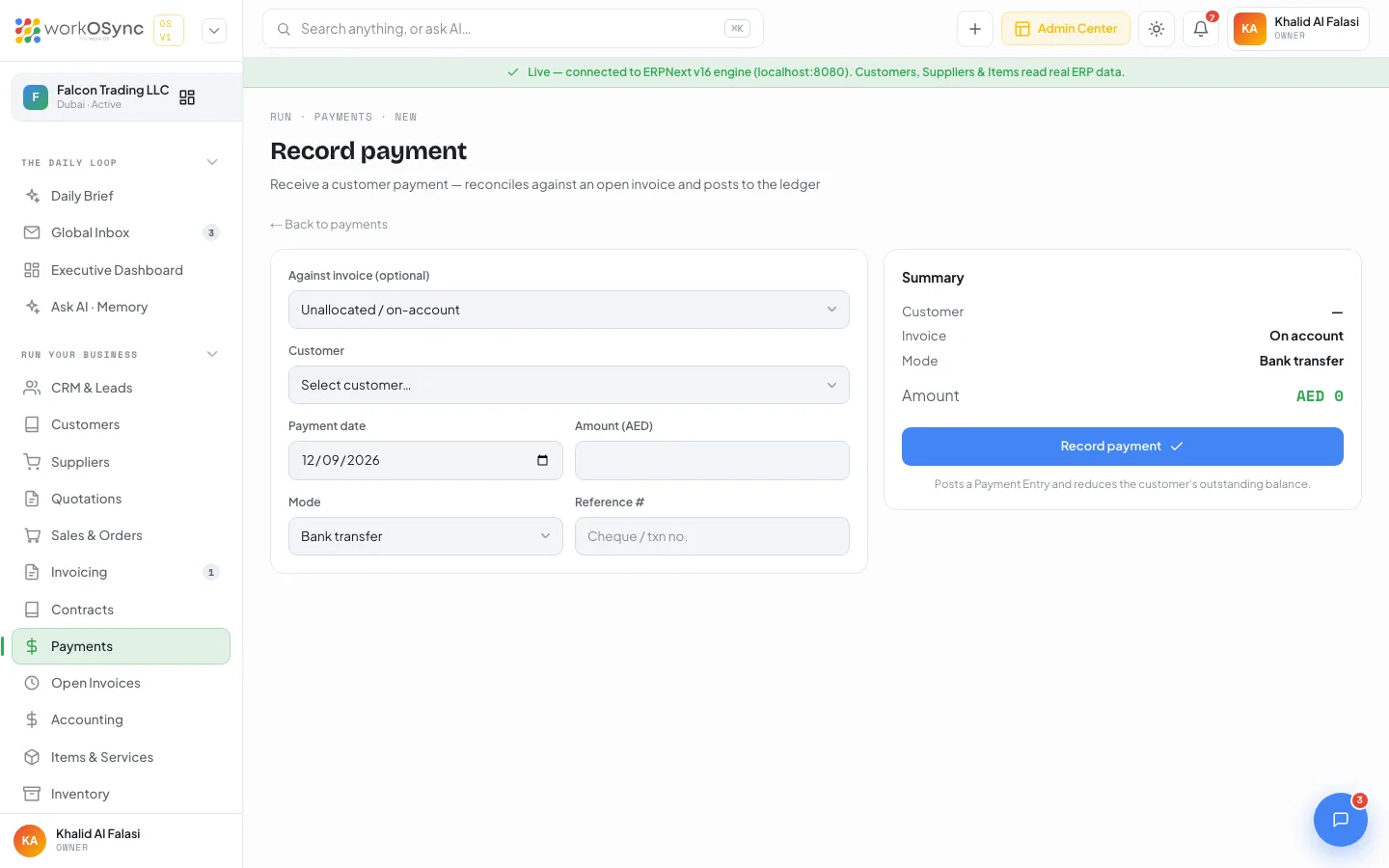
| Field | Default and notes |
|---|---|
| Against invoice (optional) | Unallocated / on-account, or one open invoice shown as {id} - {customer} · AED {outstanding}. Choosing an invoice fills the customer and the amount. |
| Customer | Narrows the invoice list to that customer. Required. |
| Payment date | Defaults to today. |
| Amount (AED) | Must be greater than zero. Pre-filled with the invoice outstanding when you choose an invoice while the amount is still empty. |
| Mode | Defaults to Bank transfer. Options: Cash, Bank transfer, Cheque, Credit card. |
| Reference # | Cheque or transaction number. |
The summary card repeats Customer, Invoice (On account when none is chosen), Mode and Amount. Record payment is captioned Posts a Payment Entry and reduces the customer's outstanding balance. It submits an ERPNext Payment Entry of type Receive from Debtors to the Cash account, with the invoice allocated when one is chosen and the reference number and date when a reference is given. Validation messages are Choose a customer. and Enter an amount greater than zero. On success you return to the payments list. In demo mode the page carries a Demo mode - connect the ERPNext engine to actually record payments. banner and saving returns an engine-not-connected error.
- Open the form
From an invoice's Record payment button, the payments list, Invoicing or Quick create. The form always opens blank, so pick the invoice from the list.
- Pick the invoice or leave it on account
Choose the invoice to allocate the receipt. For an advance or a lump sum that covers several invoices, leave Unallocated / on-account and pick the customer.
- Enter the amount, mode and reference
Enter a partial amount if the customer paid part of the invoice; the invoice becomes Partially Paid.
- Record payment
The Payment Entry posts, the invoice outstanding falls, and the entry appears on the customer statement as a credit.
Record every receipt as it lands, even a partial one. The invoice preview's Amount Due, the customer's Due total and the Open invoices page all read from the same allocations, so a partial payment recorded today keeps tomorrow's chasing list accurate.
Open invoices and advances
Open /open-invoices, titled Open invoices & advances with the subtitle Every partially-paid & unpaid invoice in one place - with VAT on the paid portion. The header carries Record advance and Export (columns Invoice, Customer, Date, Total, Paid / advance, Outstanding, % paid, VAT (full), VAT on paid).
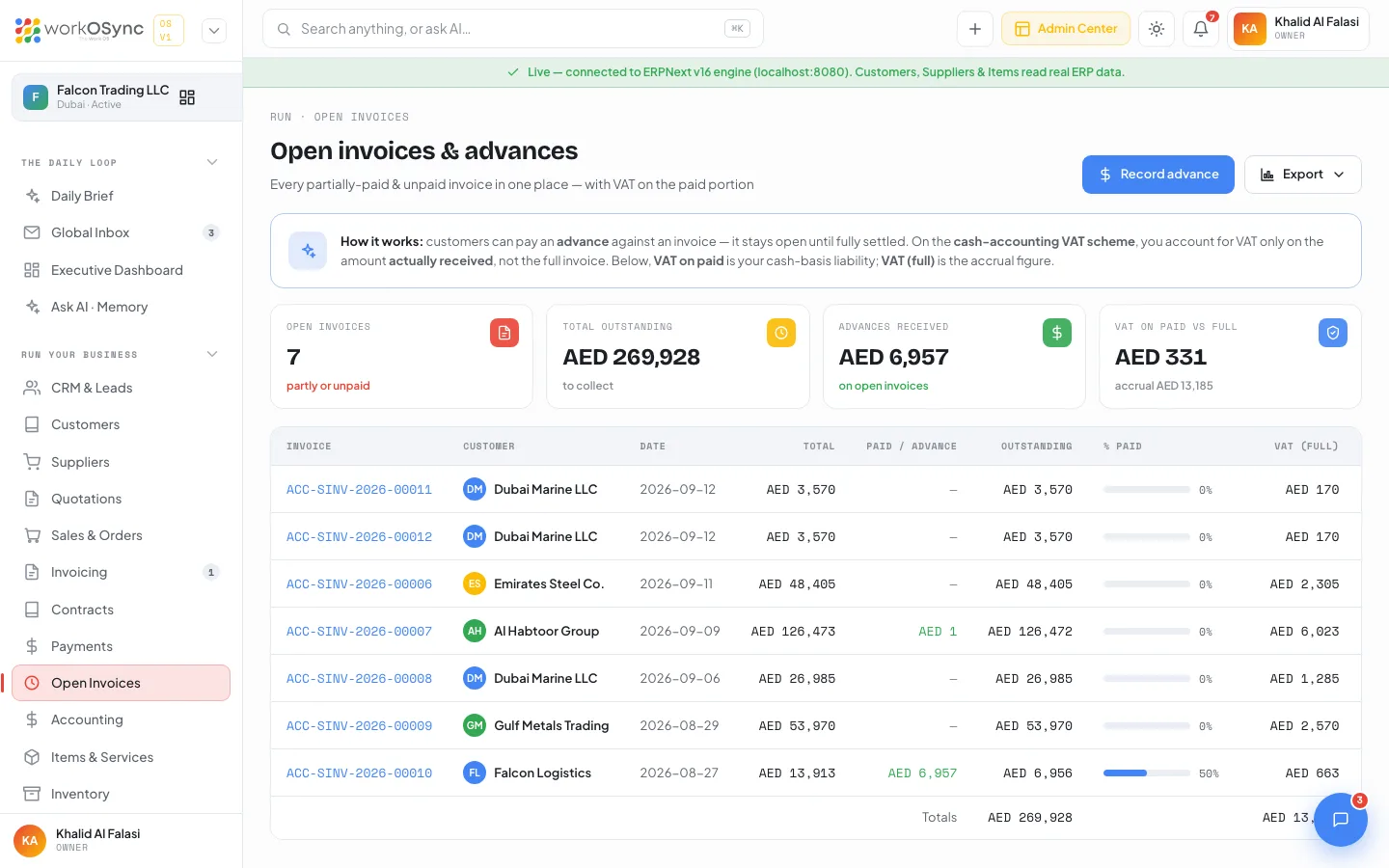
How it works
The explainer at the top of the page sets out the rules:
- An advance stays open against its invoice until the invoice is fully settled.
- On the cash-accounting VAT scheme, VAT is due only on the amount actually received.
- VAT on paid is the cash-basis figure; VAT (full) is the accrual figure.
KPI tiles
| Tile | What it shows |
|---|---|
| Open invoices | How many invoices are partly or fully unpaid. |
| Total outstanding | The amount still to collect. |
| Advances received | Payments received against invoices that remain open. |
| VAT on paid vs full | Cash-basis VAT, with the accrual figure underneath as accrual {full VAT}. |
Table columns
| Column | Meaning |
|---|---|
| Invoice | Links to the invoice page. |
| Customer | The billed customer. |
| Date | Invoice date. |
| Total | Grand total including VAT. |
| Paid / advance | Amount received so far. |
| Outstanding | Total minus paid. |
| % paid | A progress bar. |
| VAT (full) | The invoice's whole VAT amount (accrual basis). |
| VAT on paid | The VAT total split in proportion to the amount paid (cash basis). |
A Totals row sums every column. When nothing is outstanding the page shows No open invoices - everything is settled.
Record advance opens the record-payment form above. Leave the invoice on Unallocated / on-account for an advance against a proforma, or choose the tax invoice once it exists so the paid portion and its VAT show on this page. See UAE compliance for the cash-basis rules.
Online payments
Every invoice has a public pay page at /pay/{id} where the customer sees the tax invoice and a Pay AED X button offering card, bank transfer and Apple Pay / Google Pay. The page and its checkout are described in Invoicing. The checkout is a demo today, so record card receipts through the payment form with Mode set to Credit card.
Supplier payments
Payments to suppliers are recorded with Pay supplier on the supplier profile (bill, amount, date, mode and reference). They appear in this list with direction Out and on the profile under Payments made. The payables side, including the Bills view and bank reconciliation, is covered in Accounting.
Exporting payments
Export offers Excel (.csv), CSV and PDF with the columns Payment, Party, Date, Mode, Against, Direction and Amount, which is enough for a bank reconciliation in a spreadsheet. See Exports and printing.