Items and inventory
Items are what you sell; inventory is what you hold. The Items & Services catalogue feeds every quotation, sales order and invoice, while the Inventory screens track on-hand quantities by warehouse, reorder levels, valuation and the stock ledger behind each SKU. This page also covers the fixed asset register and the team password vault.
Items and inventory read the ERPNext engine when it is connected and fall back to demo data when it is not. The demo company is a Dubai steel trader with two warehouses, Jebel Ali WH and Sharjah WH.
Items & Services catalogue
Open Run then Items, or go to /items. The page is titled Items & Services: your sellable catalogue, products and services grouped by category. An Export menu in the header downloads the catalogue as items with the columns Code, Name, Group, Rate, UOM and Type.
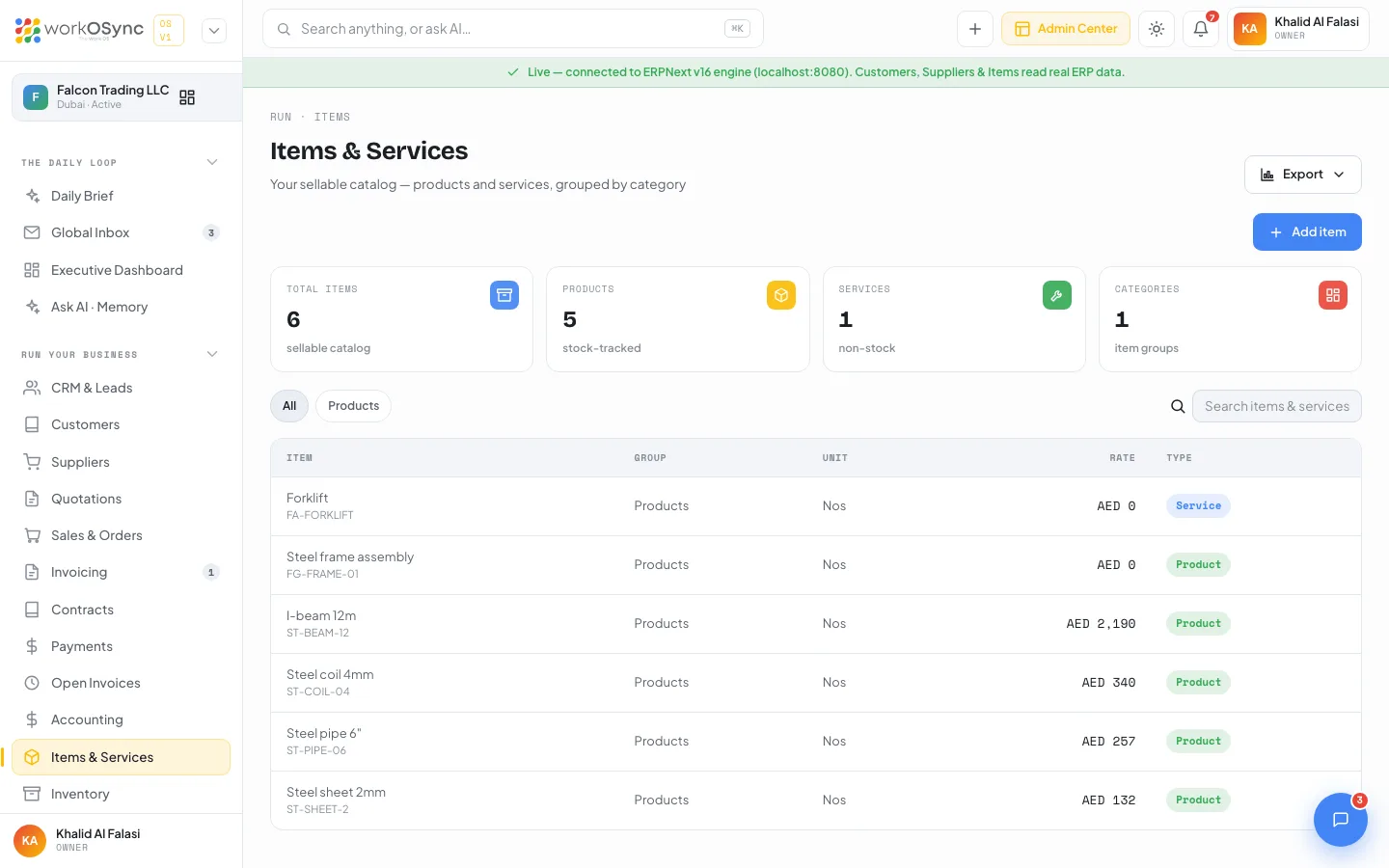
KPI tiles
- Total items: every entry in the sellable catalogue.
- Products: stock-tracked items.
- Services: non-stock items such as consulting hours.
- Categories: the number of distinct item groups.
Filtering and the table
A chip row lists All plus one chip per item group found in the catalogue, sorted alphabetically. The search box ("Search items & services") matches against the item name, code and group at once, and combines with the selected chip. The table has Item (name with the item code beneath it), Group, Unit, Rate and a Type badge that reads Product or Service. When nothing matches, the table shows "No items match your filters."
The Add item modal
Add item opens the Add new item modal. The same modal opens from the item picker on any document, so you never have to leave a quotation or invoice to create an item.
| Field | Default | Validation and notes |
|---|---|---|
| Description | Empty | Required; this is the item name shown on documents. Example placeholder: "Steel beam 6m / Consulting hour". Saving without it shows "Description is required." |
| Long description | Empty | Optional detail printed on documents. Falls back to the description when blank. |
| Rate - AED (Base Currency) | 0 | Required numeric field, minimum 0. The unit price that the picker copies onto a document line. |
| Tax 1 | VAT 5% | No Tax or VAT 5%. |
| Tax 2 | No Tax | No Tax or VAT 5%. |
| Unit | Nos (Hour for a service) | Free text, for example Nos, Hour, kg. |
| Item group | Products (Services for a service) | Products, Services, Steel products, Consulting, Subscriptions, Other. |
| This is a service (no stock tracking) | Off | Ticking it switches the group from Products to Services automatically. Services never appear in Inventory. |
Save item creates the item in the engine and adds it to the top of the catalogue. Close discards the form. If the engine cannot save (for example in demo mode) the modal shows the error but still hands the item back to the screen that opened it, so you can keep working on the document in the current session.
The item picker on documents
On the quotation, sales order and invoice forms, each line starts with the item picker ("Search item or service"). Click it to open a dropdown with a filter box ("Type to filter"), a New item shortcut that opens the Add item modal, and the catalogue grouped by item group. Each option shows the name, Product or Service with its unit, and the rate. Picking an item copies the code, name, rate and unit onto the line. When the filter matches nothing the list reads "No matching items."
- Open the picker on a document line
Click the item field. The dropdown opens with the filter box focused.
- Filter or browse
Type part of a name, code or group. Groups are listed alphabetically with their items beneath.
- Pick, or create on the spot
Click an item to place it on the line, or click New item, fill the modal and save. The new item is picked automatically.
Inventory
Open Run then Inventory, or go to /inventory. The page is titled Inventory with the subtitle "Items, warehouses and stock ledger valuation". Three header controls: an Export menu that downloads the filtered table as inventory (SKU, Product, Warehouse, On hand, Reorder, Status), Stock entry which opens the stock entry modal, and New item which opens the Add item modal.
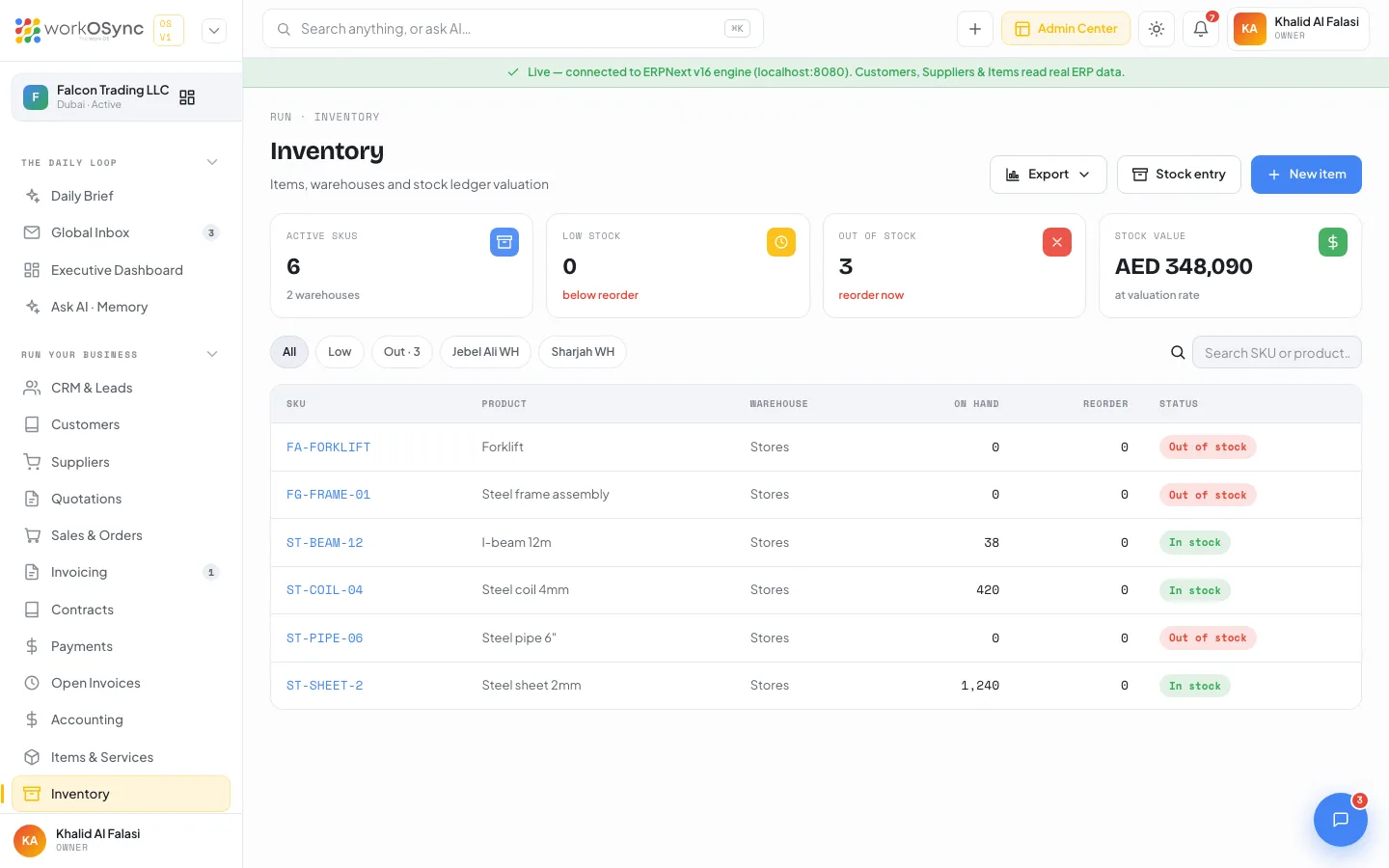
KPI tiles
| Tile | What it shows |
|---|---|
| Active SKUs | Stock-tracked items, with the number of warehouses beneath. |
| Low stock | SKUs whose on-hand quantity is below the reorder level. |
| Out of stock | SKUs with zero on hand, flagged "reorder now". |
| Stock value | Quantity multiplied by valuation rate, summed across SKUs, "at valuation rate". |
The stock table
Columns are SKU (linked to the item stock page), Product, Warehouse, On hand, Reorder and Status. The chip row above it filters the table: All, Low and Out (each showing its count when there are any), then one chip per warehouse, Jebel Ali WH and Sharjah WH. The search box ("Search SKU or product") narrows the rows further and the Export menu downloads exactly what is showing. When nothing matches the table reads "No items match this filter."
| Status | Rule | Colour |
|---|---|---|
| In stock | On hand is at or above the reorder level. | Green |
| Low | On hand is below the reorder level but above zero. | Amber |
| Out of stock | On hand is zero. | Red |
The demo stock illustrates each state:
| SKU | Product | Warehouse | On hand | Reorder | Status |
|---|---|---|---|---|---|
ST-COIL-04 | Steel coil 4mm | Jebel Ali WH | 420 | 200 | In stock |
ST-BEAM-12 | I-beam 12m | Jebel Ali WH | 38 | 50 | Low |
ST-PIPE-06 | Steel pipe 6" | Sharjah WH | 0 | 120 | Out of stock |
ST-SHEET-2 | Steel sheet 2mm | Jebel Ali WH | 1,240 | 400 | In stock |
Warehouses and valuation
Each row is one item in one warehouse, so an item stocked in two locations appears twice. With the live engine the warehouse is the ERPNext bin the stock sits in, and an item with no bin yet is shown under Stores. Stock value uses the item's valuation rate, which is the per-unit cost the engine carries for it; the demo uses a flat AED 205 across SKUs.
Posting a stock entry
Stock entry opens the Stock entry modal from the Inventory header or from any item's stock page (where the item is preselected).
| Field | Default | Notes |
|---|---|---|
| Item | The first (or current) item | Shown as name and code. Picking an item switches the warehouse to the one it is stocked in. |
| Type | Material receipt (stock in) | Material receipt (stock in), Material issue (stock out) or Transfer between warehouses. |
| Quantity | Empty | Must be greater than zero. |
| Warehouse (or From warehouse on a transfer) | The item's warehouse | Jebel Ali WH or Sharjah WH. |
| To warehouse | Sharjah WH | Transfers only. Must differ from the source ("Pick a different destination warehouse."). |
| Remarks | Empty | GRN or other reference, optional. |
Post entry validates ("Choose an item.", "Quantity must be greater than zero.") and posts. With the live engine it creates an ERPNext Stock Entry and the toast names it; in demo mode the movement is applied in this workspace (browser storage) with an STE- reference, and the on-hand figures, KPIs and the item ledger update immediately.
Adding an item from Inventory
New item opens the same Add item modal described above. With the live engine the item is created in ERPNext and the page refreshes. In demo mode a stock-tracked item is added to this workspace at Jebel Ali WH with zero on hand and a reorder level of 10, so it shows as Out of stock until you post a receipt; a service is added to the catalogue only.
Item stock ledger
Click a SKU to open /inventory/[name]. The title is the item name and the subtitle shows the item code and warehouse. Header controls: Export ledger (the ledger rows as stock-ledger-{code}), Stock entry (the modal above with this item preselected) and Reorder. A Back to inventory link returns to the list.
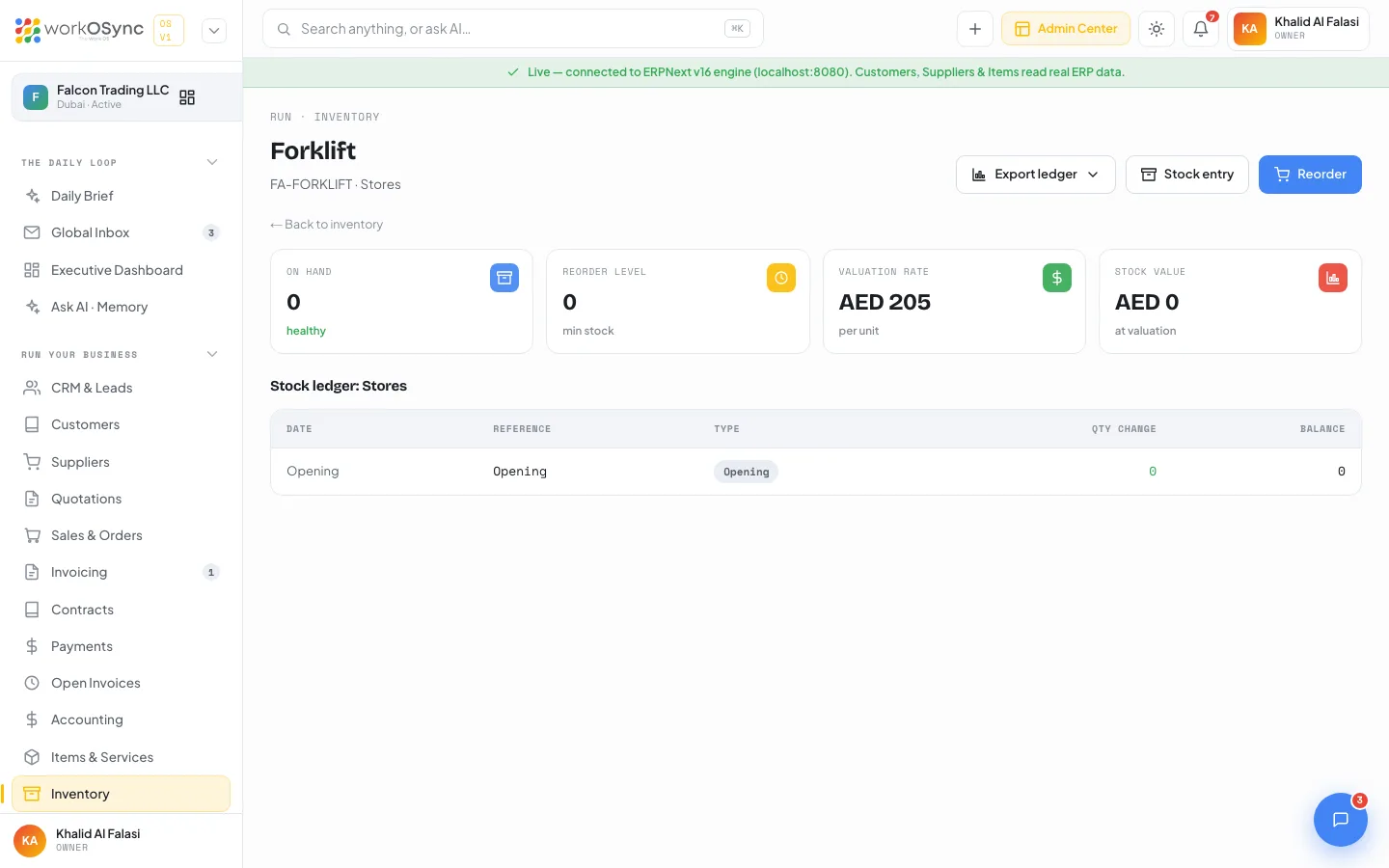
- On hand: the current quantity, labelled "below reorder" or "healthy".
- Reorder level: the minimum stock you want to hold.
- Valuation rate: the per-unit cost.
- Stock value: on hand at valuation.
The Stock ledger section, titled with the warehouse name, lists every movement: Date, Reference, Type (Receipt in green, Delivery in amber, Transfer in grey), Qty change (positive in green, negative in red) and the running Balance. For the demo coil, an Opening of +300, purchase receipt PR-0442 of +170 and delivery note DN-1188 of -50 leave a balance of 420. Stock entries you post in this workspace are appended to the ledger with their STE- reference and roll into the balance.
Raising a reorder
Reorder opens the Reorder {item} modal with Quantity (suggested so that stock reaches twice the reorder level), Deliver to (warehouse), Required by (a date) and Preferred supplier (Any, or one of your suppliers). Raise request needs a quantity greater than zero. With the live engine it creates an ERPNext Material Request; in demo mode a request with an MR- reference and the status Pending is kept in this workspace and listed both on the item page and under Open reorder requests on the Inventory page, where Close marks it received. Supplier records live in Suppliers.
Every receipt and delivery also posts to the Inventory - Stock in Hand account in Accounting, and the Stock Balance and Stock Ledger reports in Reports give the same movements across every warehouse at once.
Batch and serial tracking
Some items need to be traced to the exact unit or production run that was received and sold. WorkOSync tracks stock-managed items in three ways, set on the item:
| Mode | How it is tracked | When to use it |
|---|---|---|
| Quantity only | A simple on-hand number per warehouse. | Interchangeable stock such as fasteners or raw steel. |
| Batch (lot) | A batch number per receipt, with a manufacture and expiry date, carried through to the delivery. | Goods with a shelf life or a recall risk: food, chemicals, paint, pharma. |
| Serial | A unique serial number per unit, from receipt through delivery. | High-value or warrantied units: machinery, electronics, vehicles. |
A batch or serial is captured when stock is received (on a goods receipt or a stock entry) and again when it ships (on a delivery note), so you can answer which customer got which batch, and whether a serial is still in date for a warranty claim. The item stock ledger shows the batch or serial against each movement.
Reorder levels
Every stock-tracked item carries a reorder level, the minimum quantity you want to hold, and a reorder quantity, how much to buy back when it drops below. These drive the Low stock and Out of stock KPIs and the amber and red statuses on the stock table. When on-hand falls below the reorder level, the item is flagged and a Reorder raises a material request that can start the purchasing cycle. Set the level per item and per warehouse so a slow location is not reordered to the same depth as your main one.
Stock reconciliation
A stock reconciliation corrects the system quantity to match a physical count. After a stocktake you enter the counted quantity (and, where tracked, the valuation) per item and warehouse, and WorkOSync posts the difference: a count higher than the system books a stock gain, a count lower books a stock loss, each against the Inventory - Stock in Hand account in Accounting. The item stock ledger shows the adjustment as a movement with its reference, so the count is auditable. Use it for an opening balance, after a stocktake, or to write off breakage and shrinkage.
Quality inspection
Quality inspection records that stock met a standard at a control point, typically on a goods receipt before it is accepted, or on a finished good before it ships. An inspection holds the item (and batch or serial), the sample checked, the readings against each criterion, and an Accepted or Rejected result with the inspector and date. Rejected stock is held rather than made available to sell. For the production-side quality checks by category, see Manufacturing.
Fixed assets
/assets is the asset register: categories and depreciation for the equipment and vehicles the business owns. KPIs: Assets (registered), Gross value (at purchase), Categories (asset classes) and Depreciation, which shows the method, Straight-line. The table has Asset ID, Name, Category, Location, Cost and Status. For the full lifecycle, depreciation schedules, movements, maintenance and disposal, see Fixed assets.
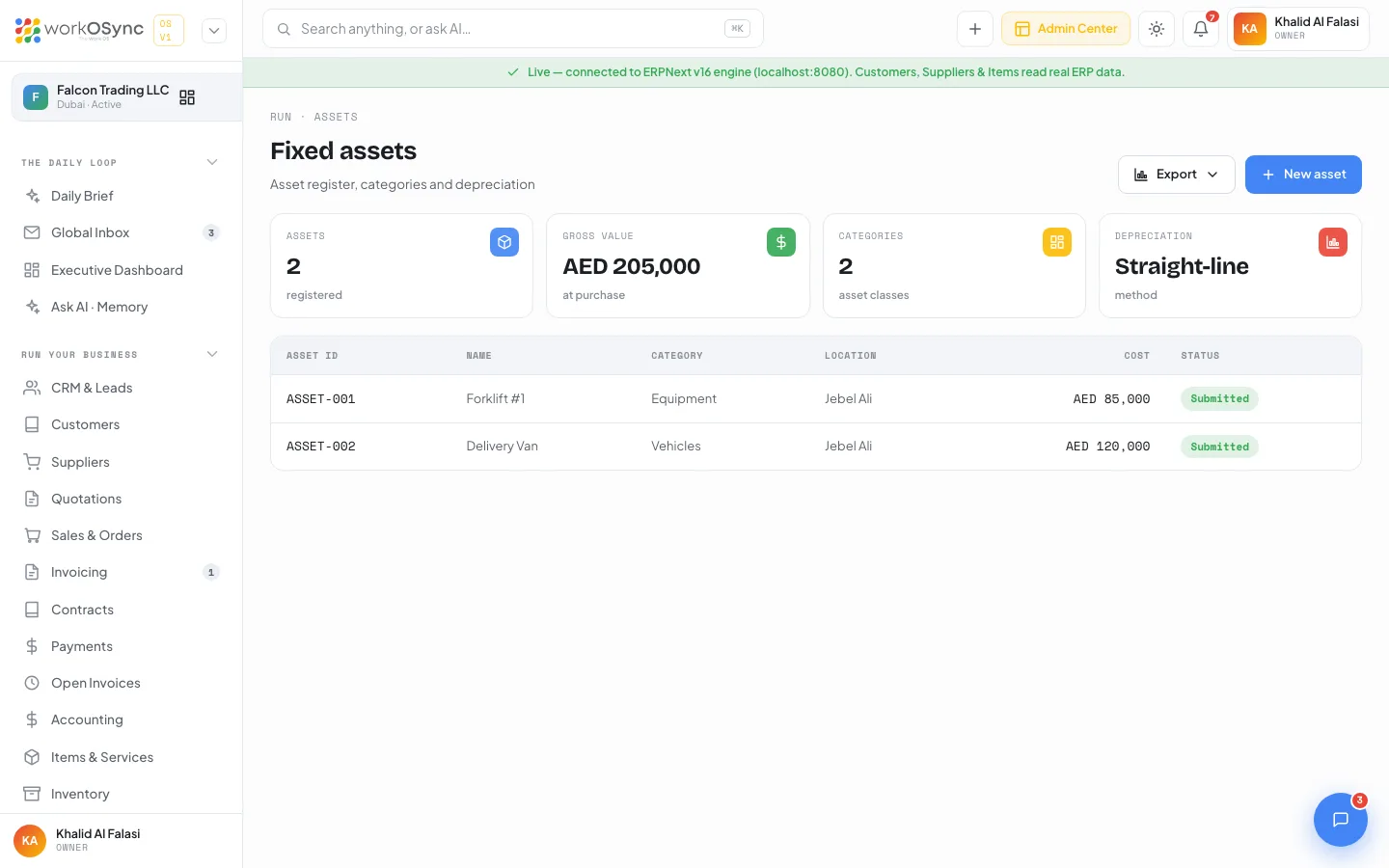
When the register is empty the page reads "No assets yet. Add your first asset to start the register." Submitted assets are the ones that have been posted and are being depreciated against the Fixed Assets - Equipment account. The Export menu downloads the register as assets.
Registering an asset
New asset opens the Register a new asset modal.
| Field | Default | Notes |
|---|---|---|
| Asset name | Empty | Required ("Asset name is required."). Example: Forklift #2. |
| Category | Equipment | Equipment, Vehicles, Furniture, IT hardware, Buildings, Tools. |
| Location | Jebel Ali | Jebel Ali, Sharjah, Head office, Site. |
| Purchase cost (AED) | Empty | Feeds the Gross value tile. |
| Purchase date | Today | The start of depreciation. |
Save asset posts it to the ERPNext asset register with the live engine. In demo mode the asset is kept in this workspace with an ASSET- id, the status Submitted and a New badge.
Password vault
/passwords, under Team & tools, is the Team password vault: shared credentials, access-controlled per team. The header has a Search vault box that matches title, username, URL and category, and an Add credential button. A banner explains that entries you add to the demo vault are kept only in this browser, and that in production secrets are encrypted at rest with AES-256 and revealed only to authorised team members.
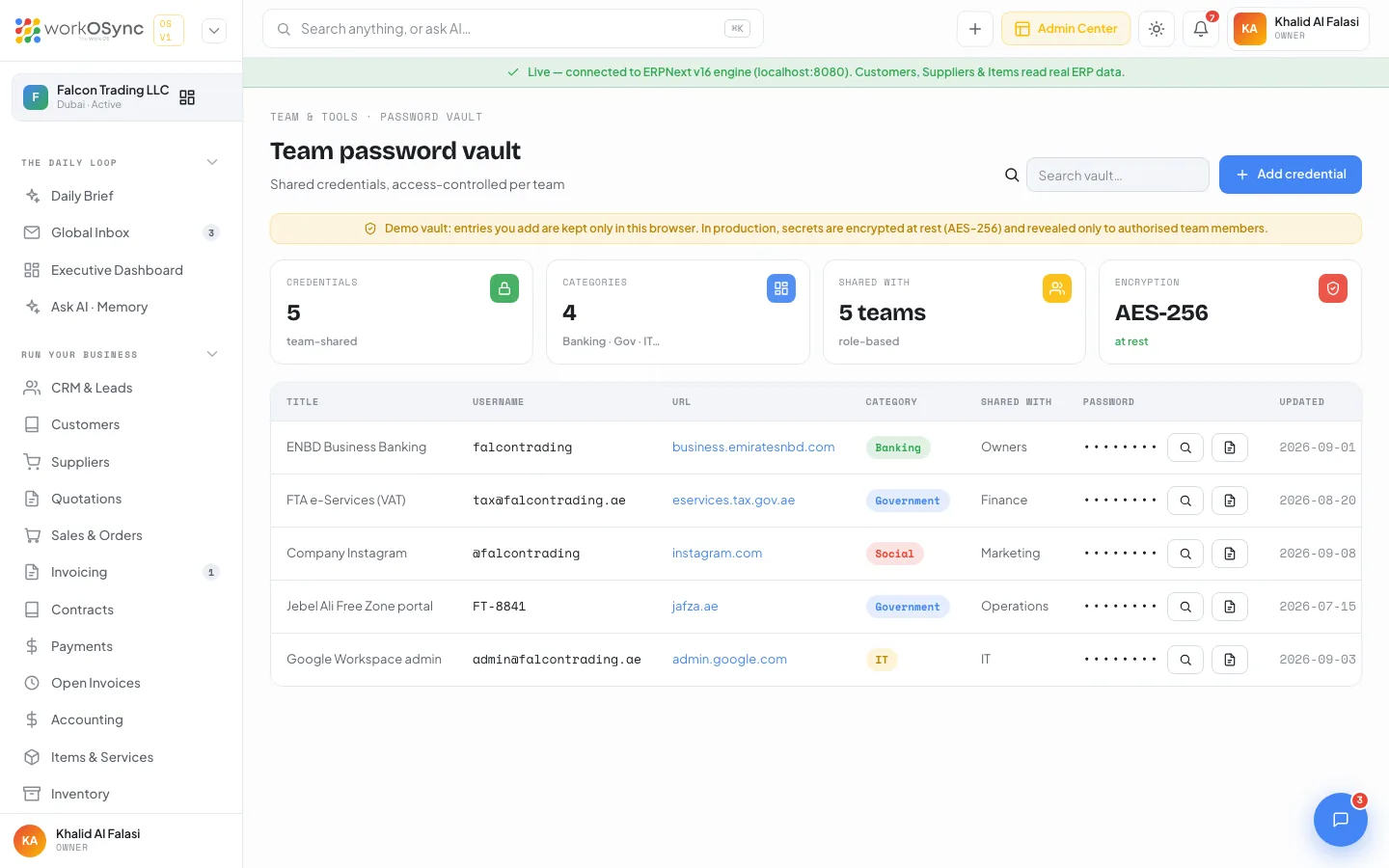
KPIs: Credentials (team-shared), Categories, Shared with (the number of teams) and Encryption (AES-256). The table has Title, Username, URL (opens in a new tab), Category (Banking, Government, Social, IT, Operations), Shared with, Password and Updated. The password cell is masked; Reveal shows it, Hide masks it again and Copy puts it on the clipboard. Entries you added yourself carry a remove control at the end of the row.
Adding a credential
Add credential opens a modal with Title (required, for example "Etisalat business portal"), Username, URL, Category, Shared with (Owners, Finance, Marketing, Operations, IT or Sales) and Password (required) with a Generate button that produces a random 16-character password. Save to vault adds the row, dated today.
In this build the vault has no server side: credentials you add are stored in this browser only, and the seeded rows show a demo value, not a real secret. Do not put production passwords in it until the encrypted vault is connected. Read Security for how secrets and sessions are protected across the platform.