Accounting
Accounting is the double-entry core of WorkOSync. Every invoice, bill, payment and manual journal lands in one general ledger, and the statements you file from are read straight out of it. This page walks through the accounting dashboard, each working screen and every financial statement, as they appear for the demo company Falcon Trading LLC in AED.
Every accounting screen reads the ERPNext engine when it is connected and falls back to demo data when it is not. The demo company is Falcon Trading LLC, the currency is AED and the statement dates sit around 11 to 12 September 2026. See ERP core for how the engine is wired.
The accounting dashboard
Open Run then Accounting, or go to /accounting. The page is titled Accounting with the subtitle "Chart of accounts, journals, VAT & financial statements". Two buttons sit in the header: Reports opens the report catalogue at /reports and the primary Journal entry button opens a blank manual posting.
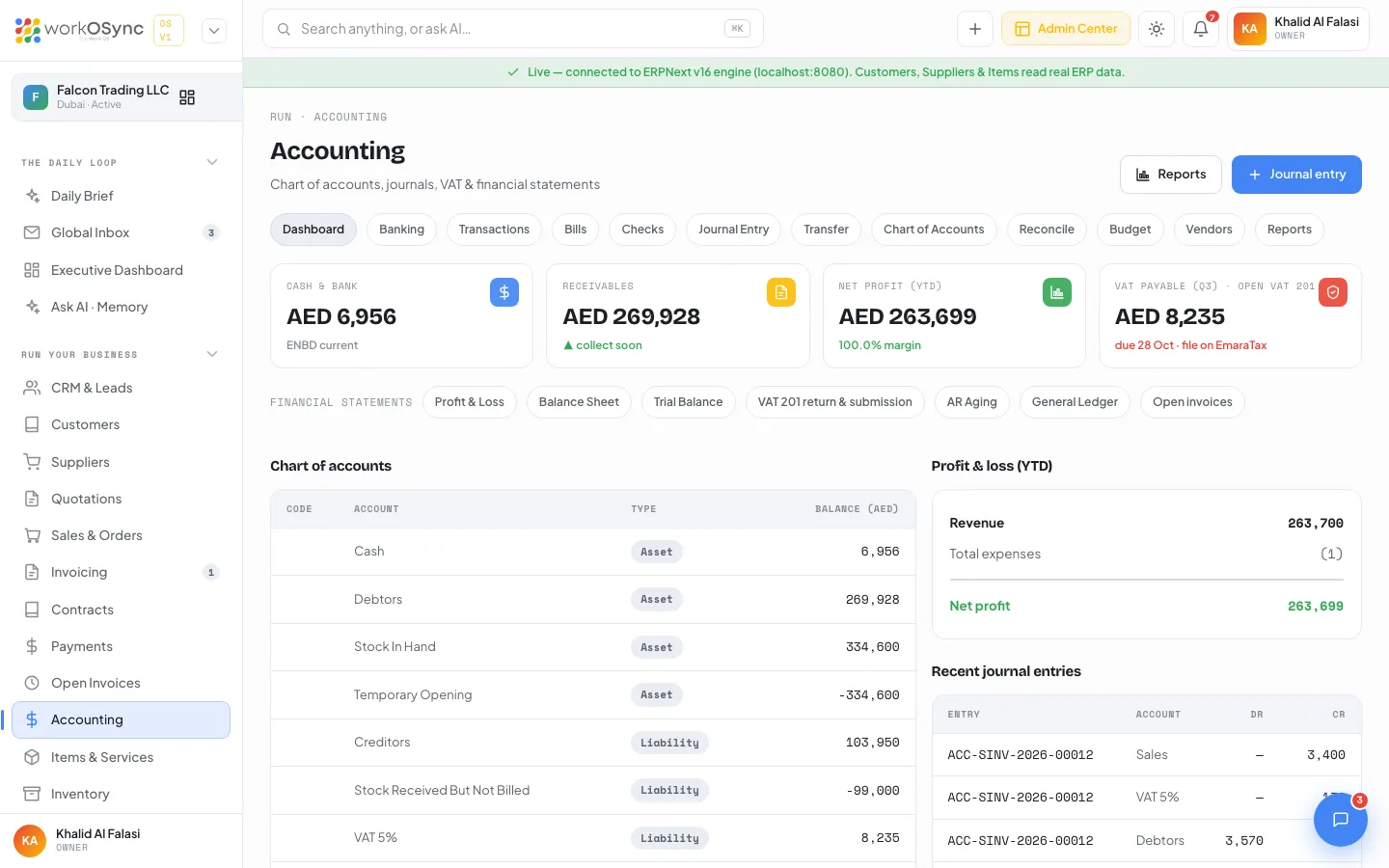
KPI tiles
| Tile | What it shows | Sub-label |
|---|---|---|
| Cash & bank | Balance of the cash and bank accounts. | ENBD current |
| Receivables | Open accounts receivable. | collect soon |
| Net profit (YTD) | Income minus expenses for the year to date. | The margin percentage. |
| VAT payable (Q3) · open VAT 201 | Net VAT due to the FTA for the quarter. The whole tile is a link that opens the VAT 201 return. | due 28 Oct · file on EmaraTax |
The AcctNav chip row
Every working accounting screen carries the same row of twelve chips, with the current one highlighted, so you can move between ledgers without going back to the dashboard: Dashboard, Banking, Transactions, Bills, Checks, Journal Entry, Transfer, Chart of Accounts (which returns to the dashboard), Reconcile, Budget, Vendors and Reports. The statement pages (P&L, balance sheet, trial balance, VAT return, AR ageing, general ledger and the journal form) show a Back to accounting link instead of the chip row.
Below the KPIs, a Financial statements chip row links to every statement: Profit & Loss, Balance Sheet, Trial Balance, VAT 201 return & submission, AR Aging, General Ledger and Open invoices.
Chart of accounts
The left-hand Chart of accounts table lists every leaf account with its Code, Account name, Type badge and Balance (AED). Accounts are sorted by type in the order Asset, Liability, Equity, Income, Expense. Group accounts are not shown, only the leaf accounts you can post to. The demo UAE chart is:
| Code | Account | Type |
|---|---|---|
1100 | Cash & Bank - ENBD | Asset |
1310 | Accounts Receivable | Asset |
1320 | VAT Recoverable (Input) | Asset |
1400 | Inventory - Stock in Hand | Asset |
1600 | Fixed Assets - Equipment | Asset |
2100 | Accounts Payable | Liability |
2210 | VAT Payable (Output) | Liability |
3100 | Share Capital | Equity |
3200 | Retained Earnings | Equity |
4100 | Sales Revenue | Income |
4200 | Other Income | Income |
5100 | Cost of Goods Sold | Expense |
5200 | Salaries & Wages | Expense |
5300 | Rent & Utilities | Expense |
The right-hand column holds a Profit & loss (YTD) card (Revenue, Total expenses, Net profit) and a Recent journal entries list with Entry, Account, Dr and Cr. Hover a row to see the voucher it came from.
Journal entries
A journal entry is a manual double-entry posting. Open it from the Journal entry button, the Journal Entry chip, or /accounting/journal-entry/new. The subtitle states the rule up front: debits must equal credits before it posts to the ledger.
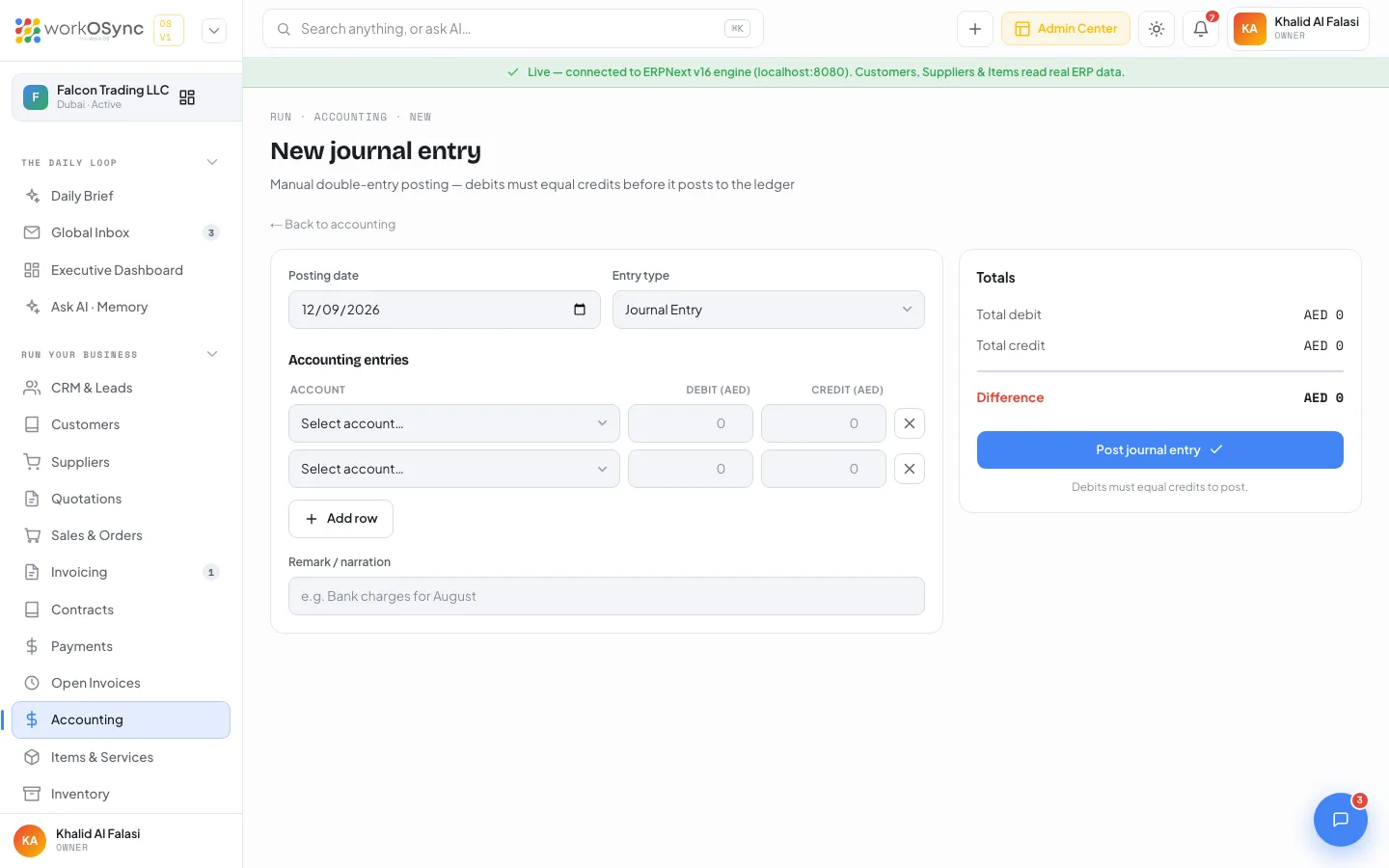
Fields
| Field | Default | Notes |
|---|---|---|
| Posting date | Today (2026-09-12 in the demo) | The ledger date of the entry. |
| Entry type | Journal Entry | Journal Entry, Bank Entry, Cash Entry, Credit Card Entry, Contra Entry, Opening Entry, Depreciation Entry, Write Off Entry. |
| Accounting entries | Two empty lines | Each line has an Account picker (shown as code · name), Debit (AED), Credit (AED) and a remove control. Typing a debit clears the credit on that line, so a line is never both. |
| Add row | Appends another line. Two lines is the minimum. | |
| Remark / narration | Empty | Free text, for example "Bank charges for August". |
How to post a journal entry
- Set the date and entry type
Leave Entry type as Journal Entry for a general adjustment, or pick Bank Entry, Cash Entry, Contra Entry and so on so the voucher is classified correctly in the ledger.
- Fill at least two lines
Choose an account on each line and enter either a debit or a credit. Use Add row for split entries.
- Watch the Totals panel
It shows Total debit, Total credit and either a green Balanced check or a red Difference with the amount still out.
- Post
Click Post journal entry. It is disabled until the entry balances and shows "Posting" while it saves. On success you return to the accounting dashboard.
The server rejects an entry with fewer than two lines ("A journal entry needs at least two lines.") or one that does not balance. Entries post to the cost centre Main - FT.
Banking
/accounting/banking shows your bank and cash accounts and their recent movements. KPIs: Combined balance (with the number of accounts), Money in (recent), Money out (recent) and Cash accounts (petty and till). Each account is a card with a Bank or Cash badge, the name, a masked number and the balance. The demo accounts are Emirates NBD - Current (•••• 6789), ADCB - USD account (•••• 1122) and Petty cash.
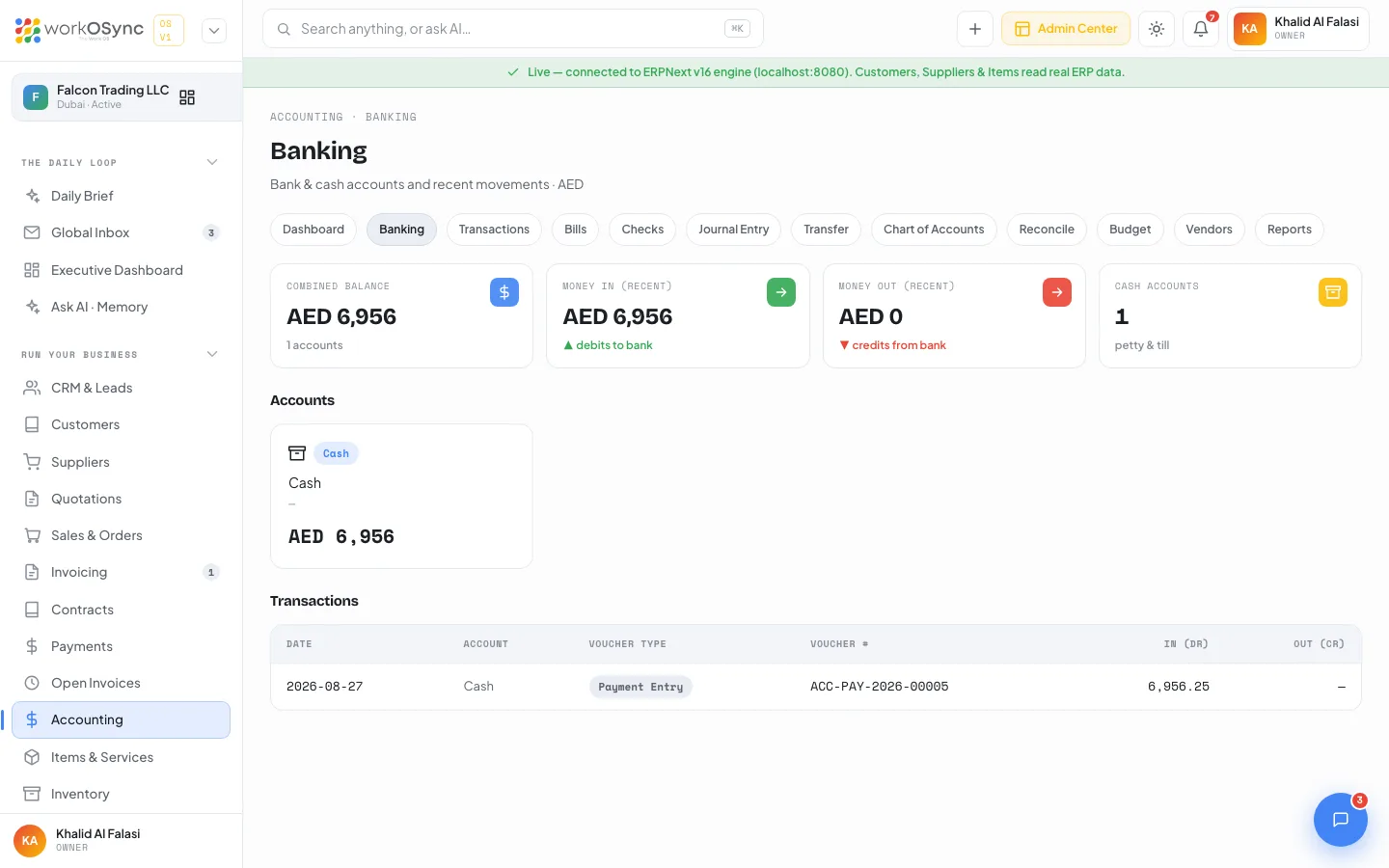
The Transactions table lists up to 30 rows for cash and bank accounts: Date, Account, Voucher type, Voucher #, In (Dr) and Out (Cr). There are no filters and no bank feed on this screen; matching against a statement happens in Reconcile.
To bring money in and out straight from a downloaded bank statement, matching each line to an invoice or bill and posting the payment for you, use the dedicated Banking and reconciliation workspace. The Reconcile screen below ticks already-posted entries against a statement; Banking creates the entries from the statement itself.
Transactions
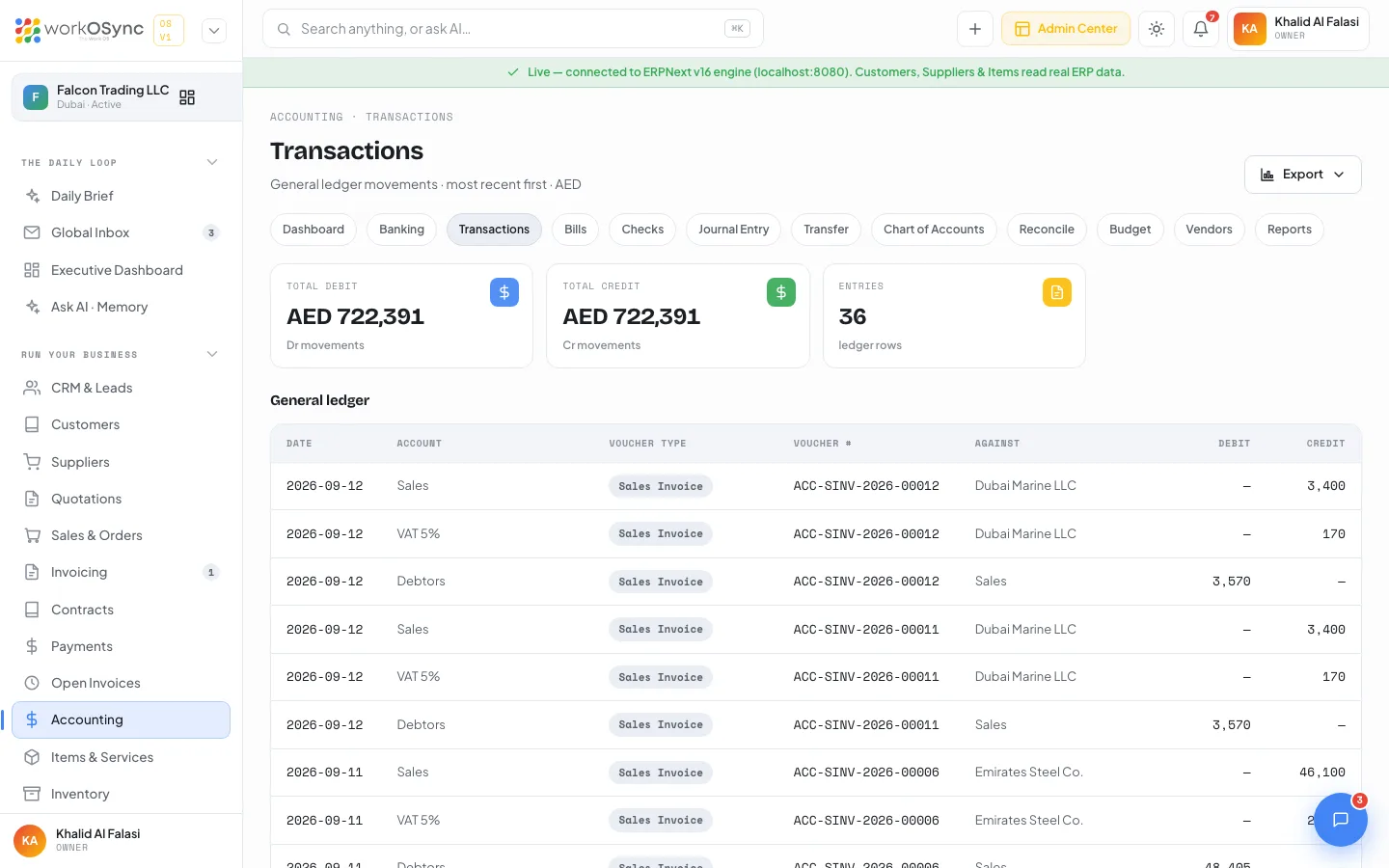
/accounting/transactions is the general ledger movement list, most recent first. KPIs: Total debit, Total credit and Entries. The table has Date, Account, Voucher type, Voucher #, Against, Debit and Credit, showing the latest 60 postings. The Export menu downloads the list as gl-transactions under the title "General ledger".
Bills
/accounting/bills lists supplier purchase invoices and what you owe on them. KPIs: Total payable (outstanding), Overdue (past due date) and Paid bills (of the total count). The Supplier bills table has Bill #, Supplier, Date, Due, Amount, Outstanding and Status.
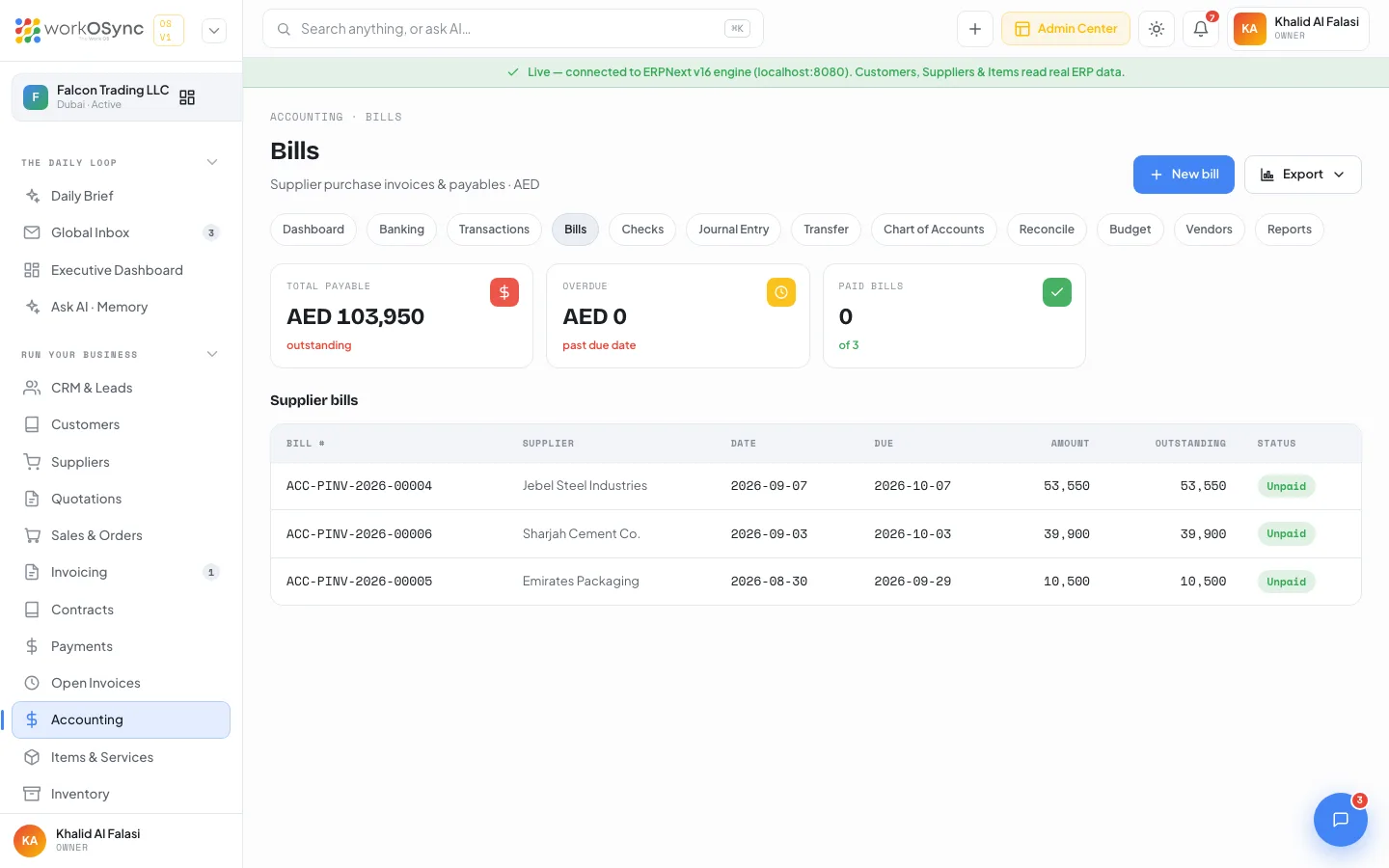
| Status | Meaning |
|---|---|
| Unpaid | Outstanding and not yet past its due date. |
| Paid | Fully settled; outstanding is zero. |
| Overdue | Outstanding and the due date has passed. |
New bill opens the journal entry form so you can post the payable directly, and Export downloads the table as bills ("Supplier bills"). Supplier records themselves live in Suppliers.
Checks
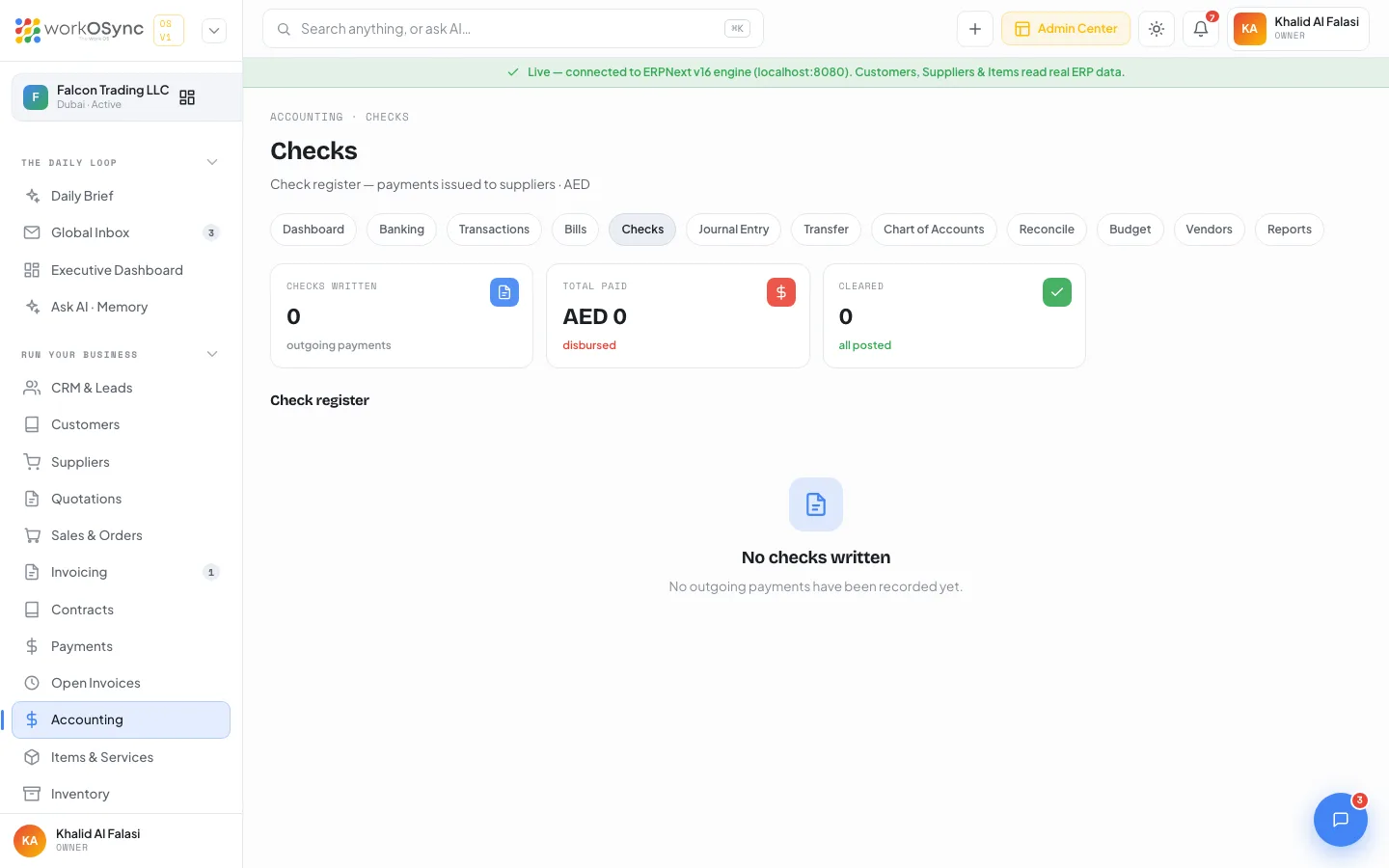
/accounting/checks is the check register: payments issued to suppliers. KPIs: Checks written, Total paid and Cleared. The register columns are Check #, Payee, Date, Mode, Reference, Amount and Status. Rows are your outgoing payment entries; in this build every row reads Cleared. When nothing has been paid by check the page reads "No checks written".
Transfer
/accounting/transfer moves funds between bank and cash accounts. The New transfer form has From account ("Select source account", with each option showing the name and current balance), To account, Amount (AED) and Date (defaults to today). The right-hand Recent transfers & payments list shows Reference, Party, Date, Mode and Amount.
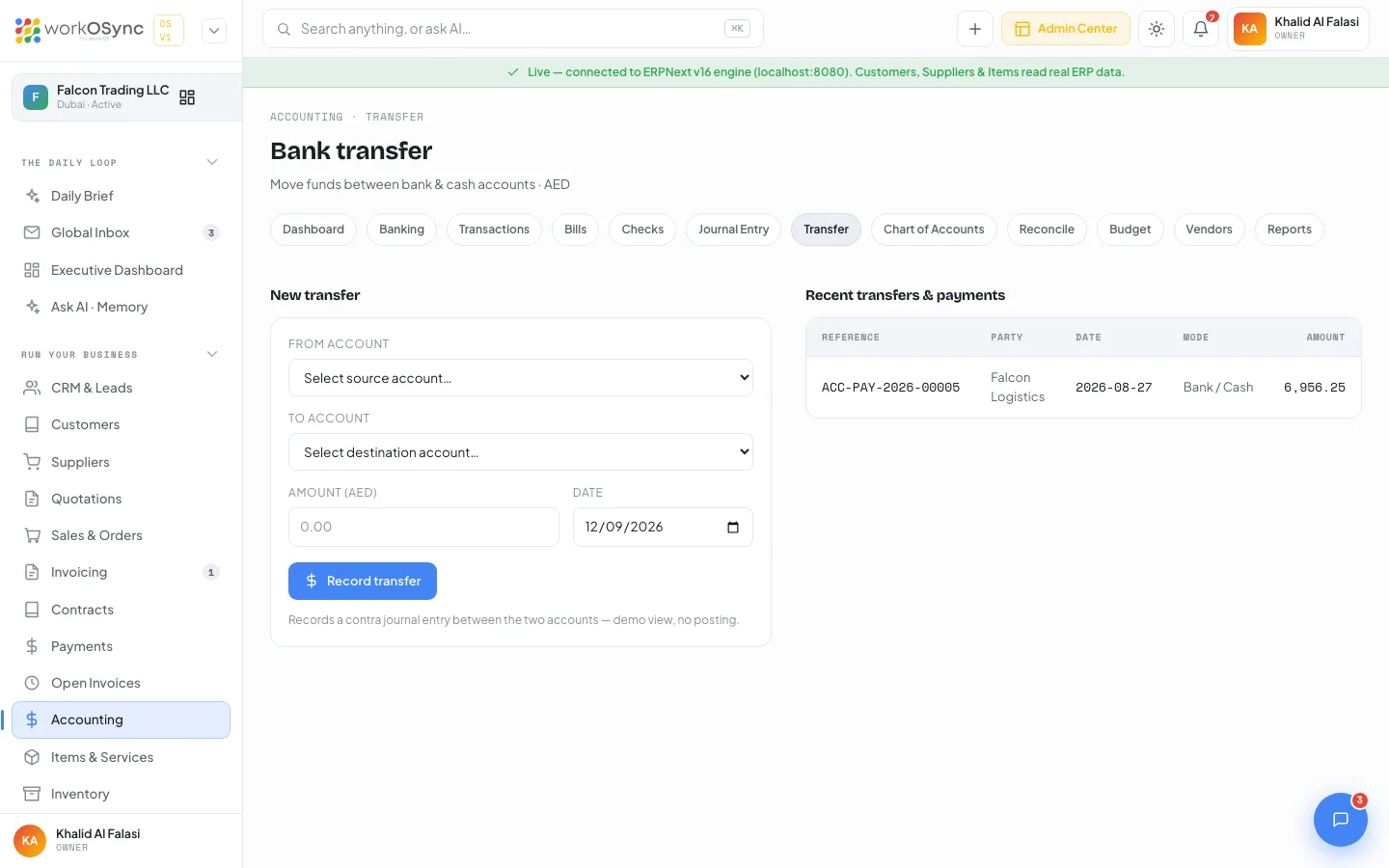
A transfer is a contra journal entry between the two accounts. In the current build the form is a demo view and Record transfer does not post; to move money today, post a Contra Entry from the journal form. Direct posting from this form arrives with the ERPNext accounting integration.
Reconcile
/accounting/reconcile matches ledger entries against your bank statement. Pick the Bank account from the dropdown, then tick rows in the Unreconciled transactions table (Clear checkbox, Date, Account, Voucher #, Debit, Credit). Ticked rows fade out and the KPIs update live: Statement balance, Cleared balance (with the count of entries ticked) and Difference, which reads reconciled in green when it reaches zero and unreconciled in red otherwise.
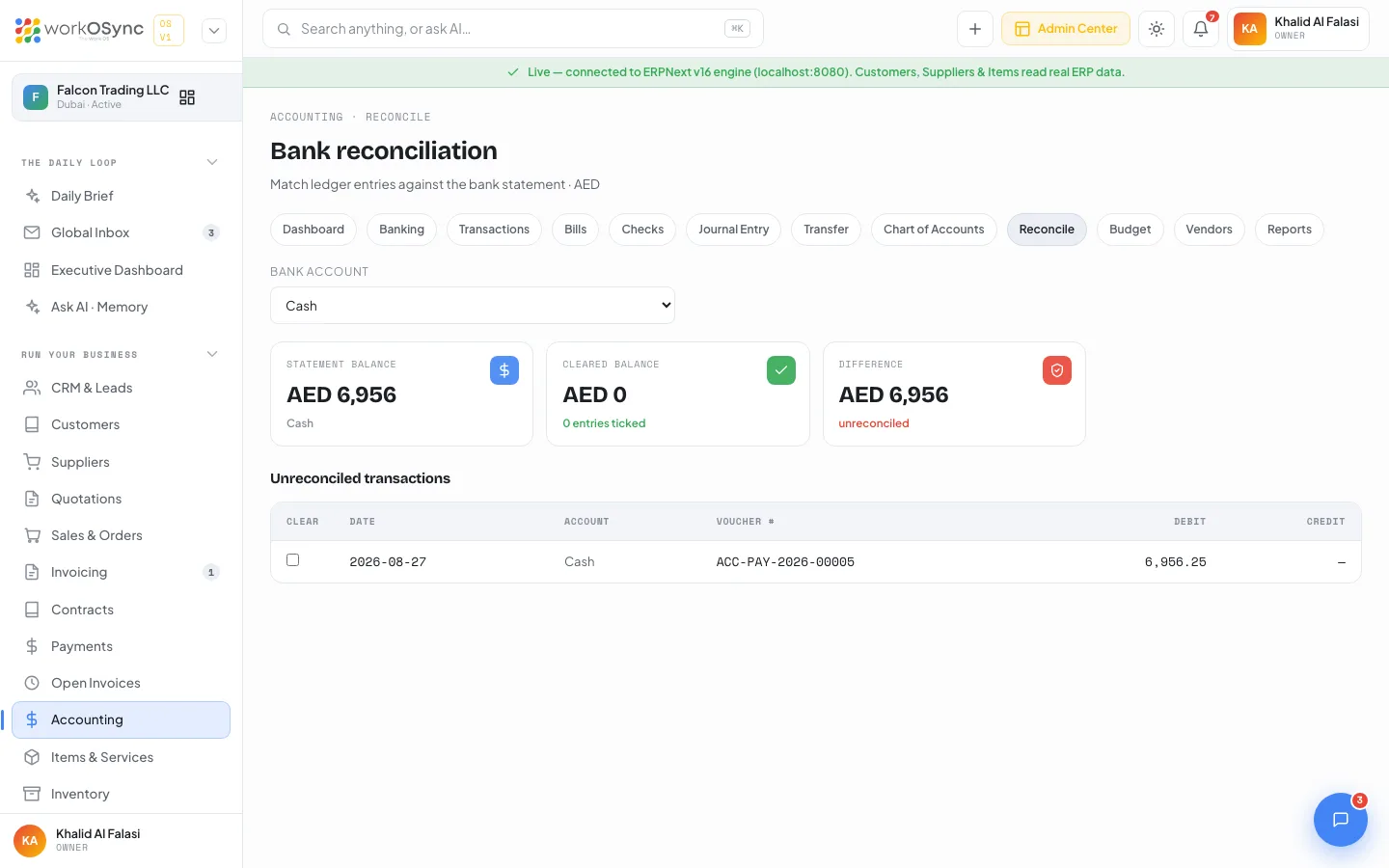
Ticks are not saved between visits and there is no statement upload in this build. Use the screen to check a period, then leave it; persistent clearing arrives with the ERPNext bank reconciliation integration.
Budget
/accounting/budget compares planned and actual spend by account. KPIs: Total budget (with the number of budgeted accounts), Spent (as a percentage of budget) and Over budget, which reads "accounts over" in red or "all within" in green. The Budget vs actual table has Account, Budget, Actual, Variance (green when under, red when over) and % used as a bar. The demo rows are Cost of Goods Sold - FT, Salaries & wages, Rent & utilities and Marketing, which is over budget.
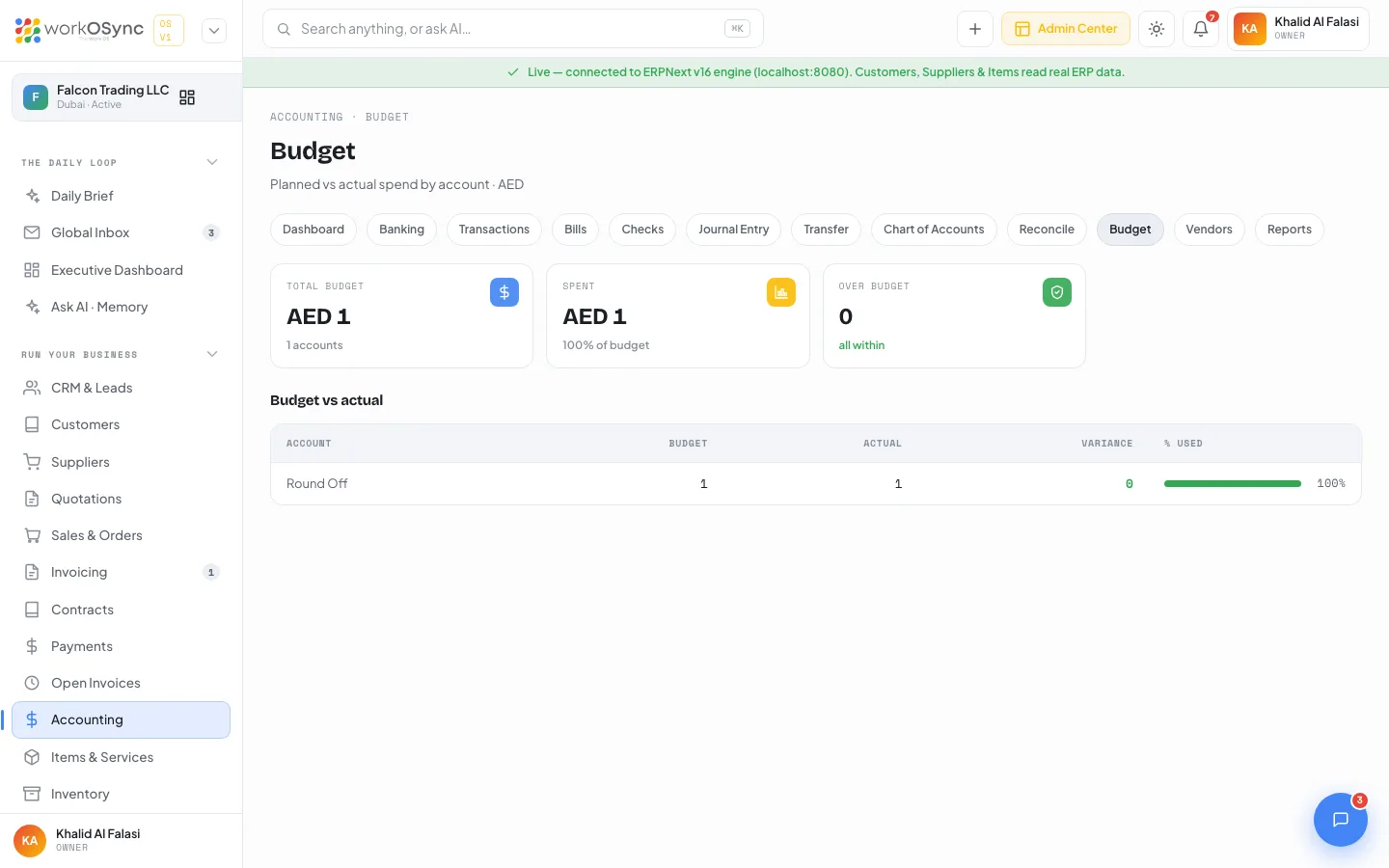
Budget figures are read from the engine and are not editable in the UI in this build.
Vendors
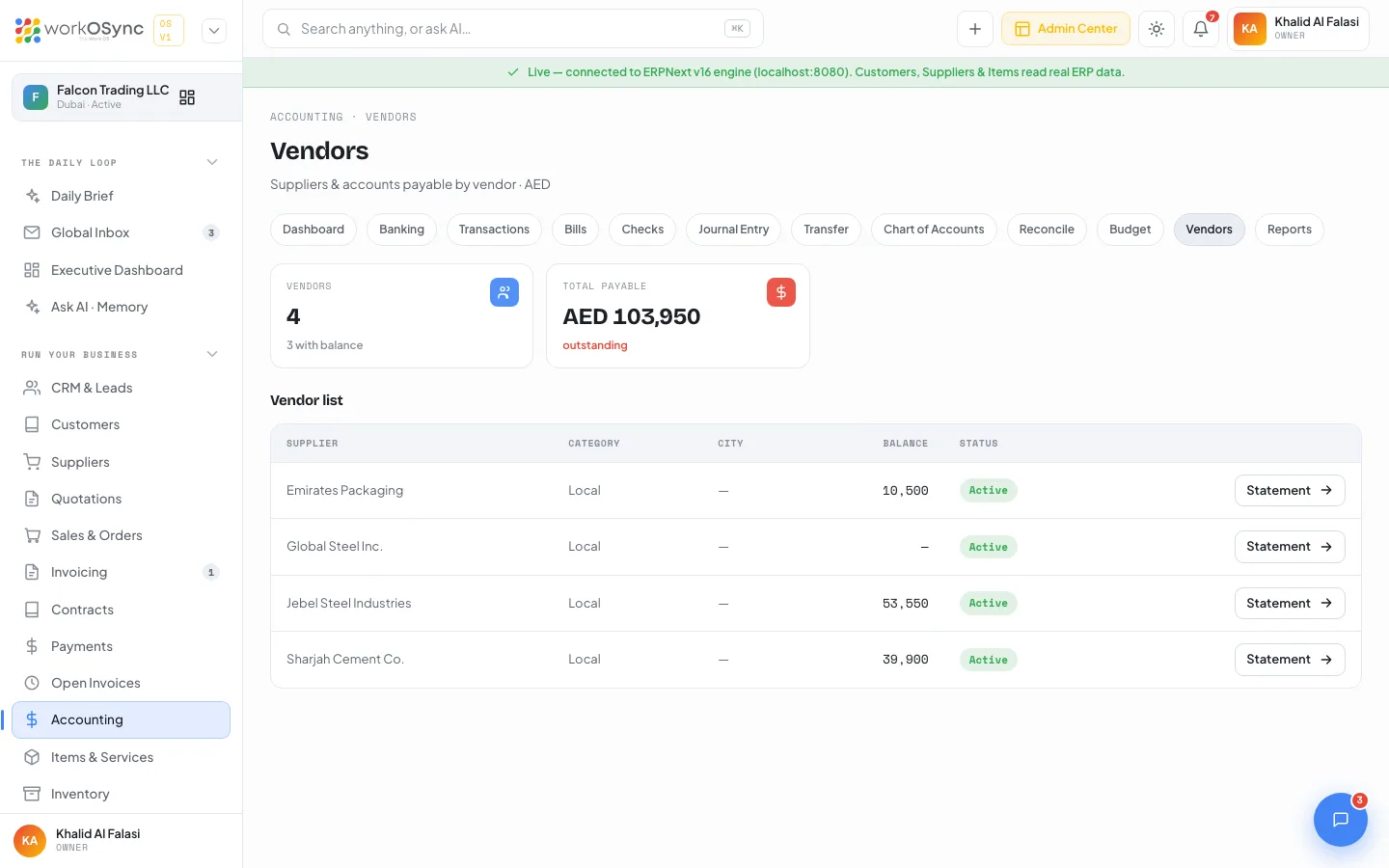
/accounting/vendors is accounts payable by supplier. KPIs: Vendors (with how many carry a balance) and Total payable. The Vendor list has Supplier (linking to the supplier record), Category, City, Balance, Status and a Statement link. Demo vendors are Jebel Steel Industries, Sharjah Cement Co., Emirates Packaging and Global Steel Inc., which trades in USD.
Financial statements
The statements are rendered from the ledger for Falcon Trading LLC in AED. The P&L, balance sheet, trial balance, general ledger and AR ageing have no period selector in this build; the P&L covers 1 Jan to 11 Sep 2026 and the others are as at the dates in their subtitles. The VAT 201 return has its own tax period selector. For the parameterised versions with yearly and quarterly presets, use the Reports catalogue.
Profit & Loss
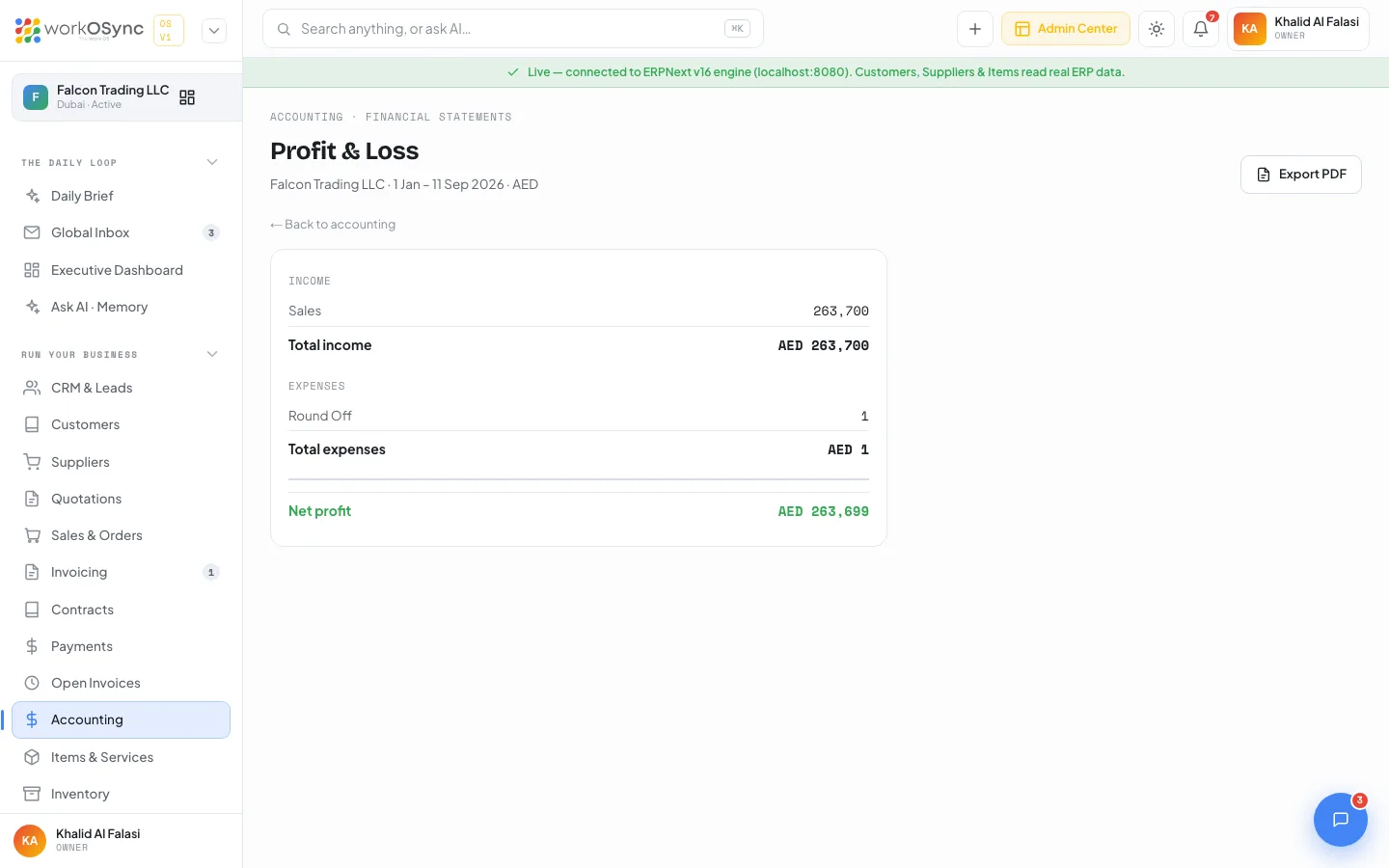
/accounting/pnl, crumb "Accounting · Financial statements". The statement card lists each Income account with a Total income line, each Expenses account with Total expenses, and closes with Net profit in green.
Balance Sheet
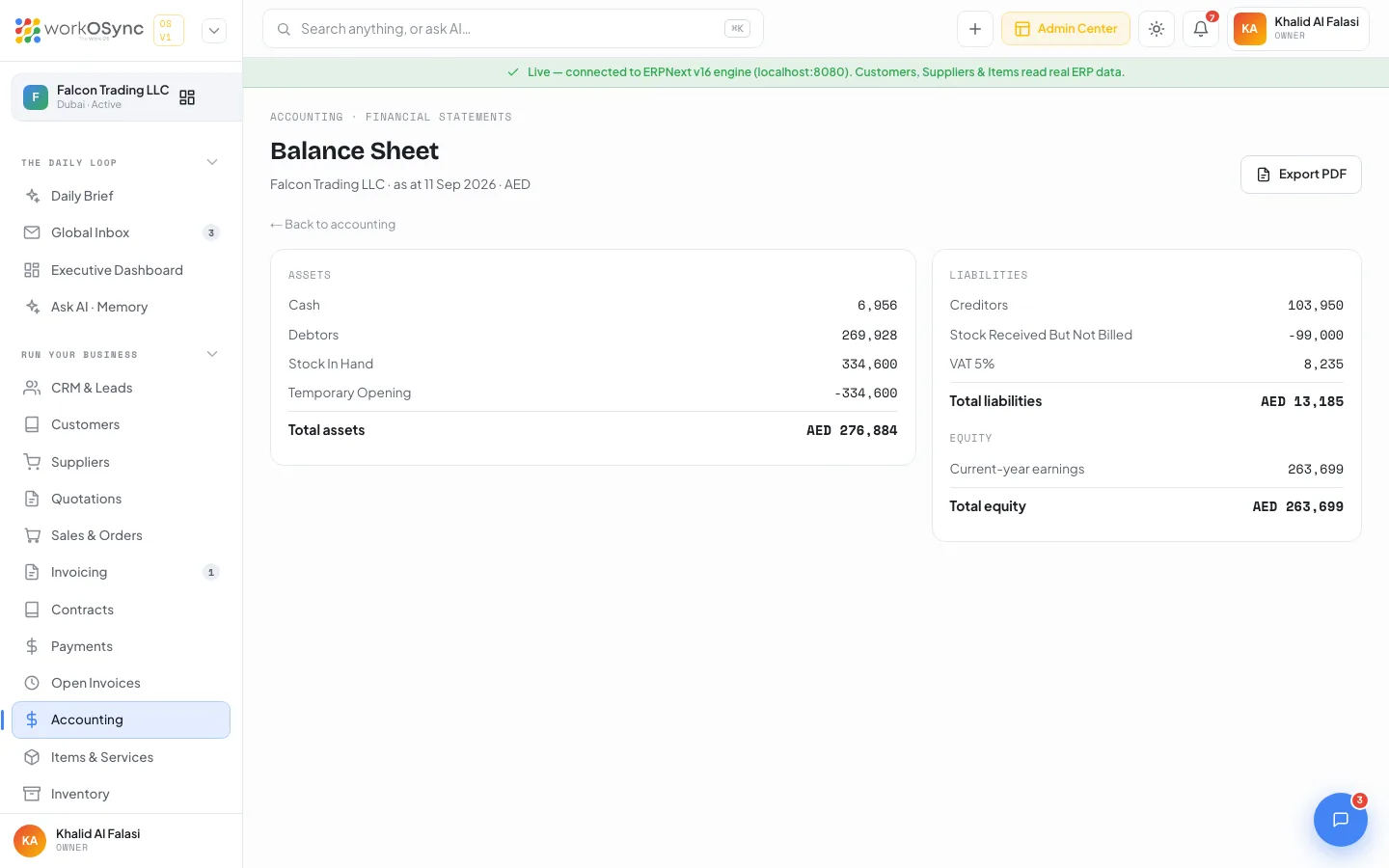
/accounting/balance-sheet, as at 11 Sep 2026. Assets with Total assets sit on the left. Liabilities with Total liabilities and Equity with Total equity sit on the right. Equity includes a Current-year earnings line so the two sides balance without a year-end close.
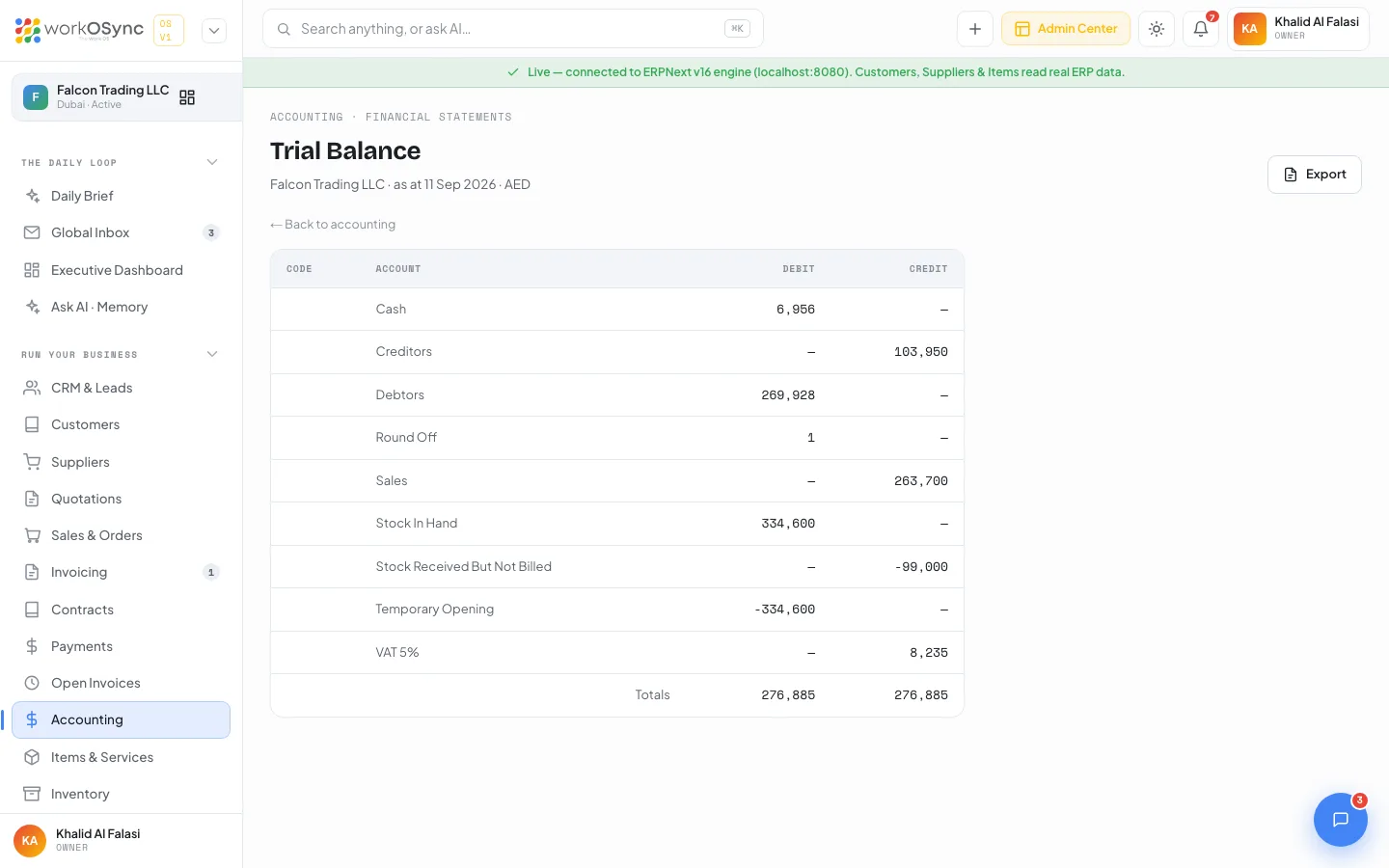
Trial Balance
/accounting/trial-balance lists every account with Code, Account, Debit and Credit, plus a Totals row. Asset and Expense balances sit in the Debit column; Liability, Equity and Income balances sit in Credit. The two totals should be equal.
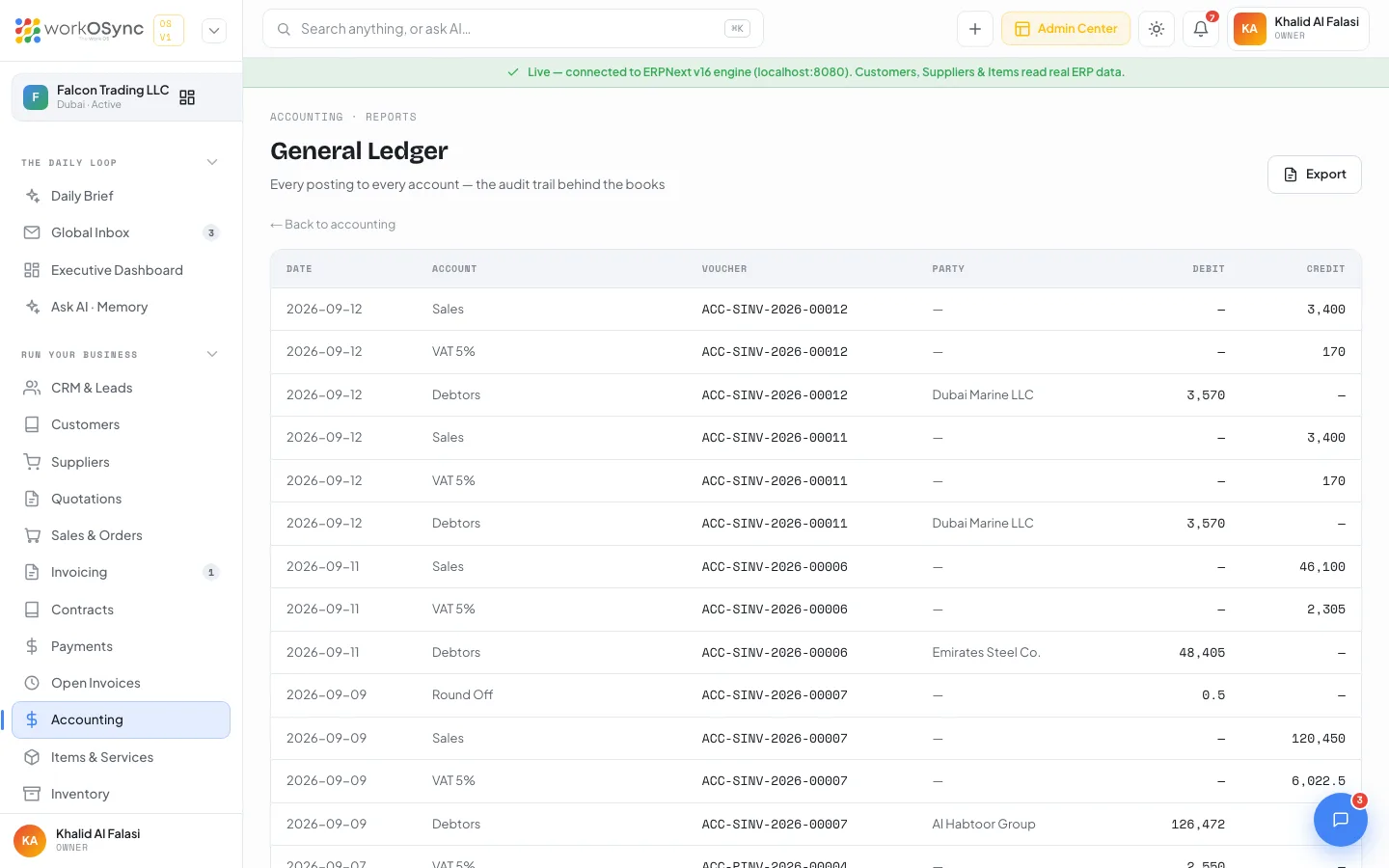
General Ledger
/accounting/general-ledger is every posting to every account, the audit trail behind the books. Columns: Date, Account, Voucher (hover for the voucher type), Party, Debit and Credit. It shows the latest 80 rows with a Totals (last 80) line.
Accounts Receivable ageing
/accounting/ar-aging answers who owes you and how overdue they are, as at 12 Sep 2026. KPIs: Total receivable (with the count of open invoices), Overdue (as a percentage of AR), Current (not due) and 90+ days (flagged "escalate").
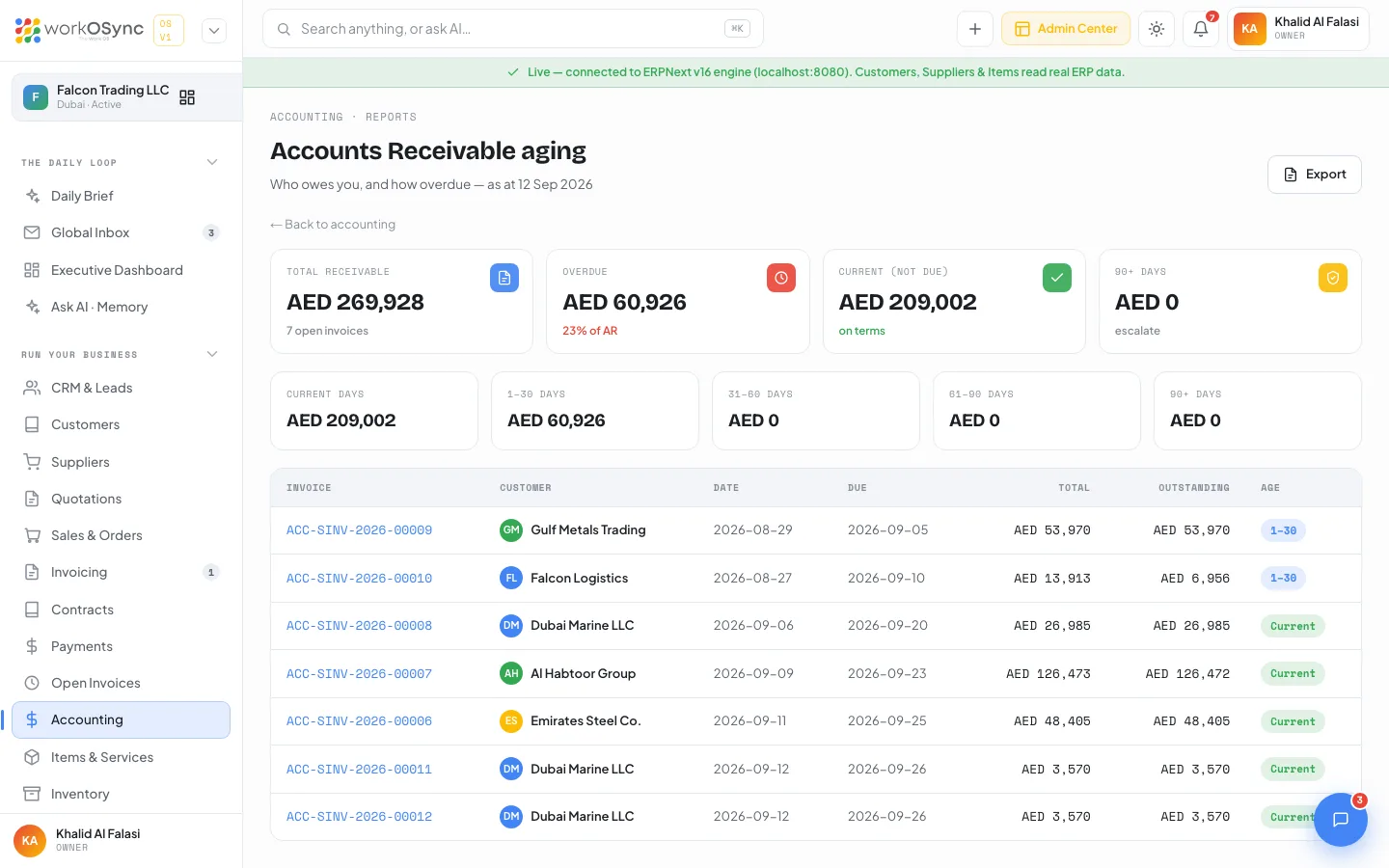
| Bucket | Age, measured from the due date |
|---|---|
| Current | Not yet due. |
| 1 to 30 | 1 to 30 days past due. |
| 31 to 60 | 31 to 60 days past due. |
| 61 to 90 | 61 to 90 days past due. |
| 90+ | More than 90 days past due. |
The table lists Invoice (linked), Customer, Date, Due, Total, Outstanding and an Age badge. When everything is paid it reads "Nothing outstanding - all paid up." For the payable side, run the Accounts Payable report from the Reports catalogue.
VAT Return (FTA VAT 201)
/accounting/vat-return, crumb "Accounting · FTA VAT 201", is a complete VAT 201 workflow: the return computed box by box from the ledger, an EmaraTax entry sheet, the workings behind every figure, and a submission record that walks the return from Draft to Submitted. The subtitle names the company, its TRN, whether the period is quarterly or monthly, and whether the figures are computed live from the ledger or from the demo ledger.
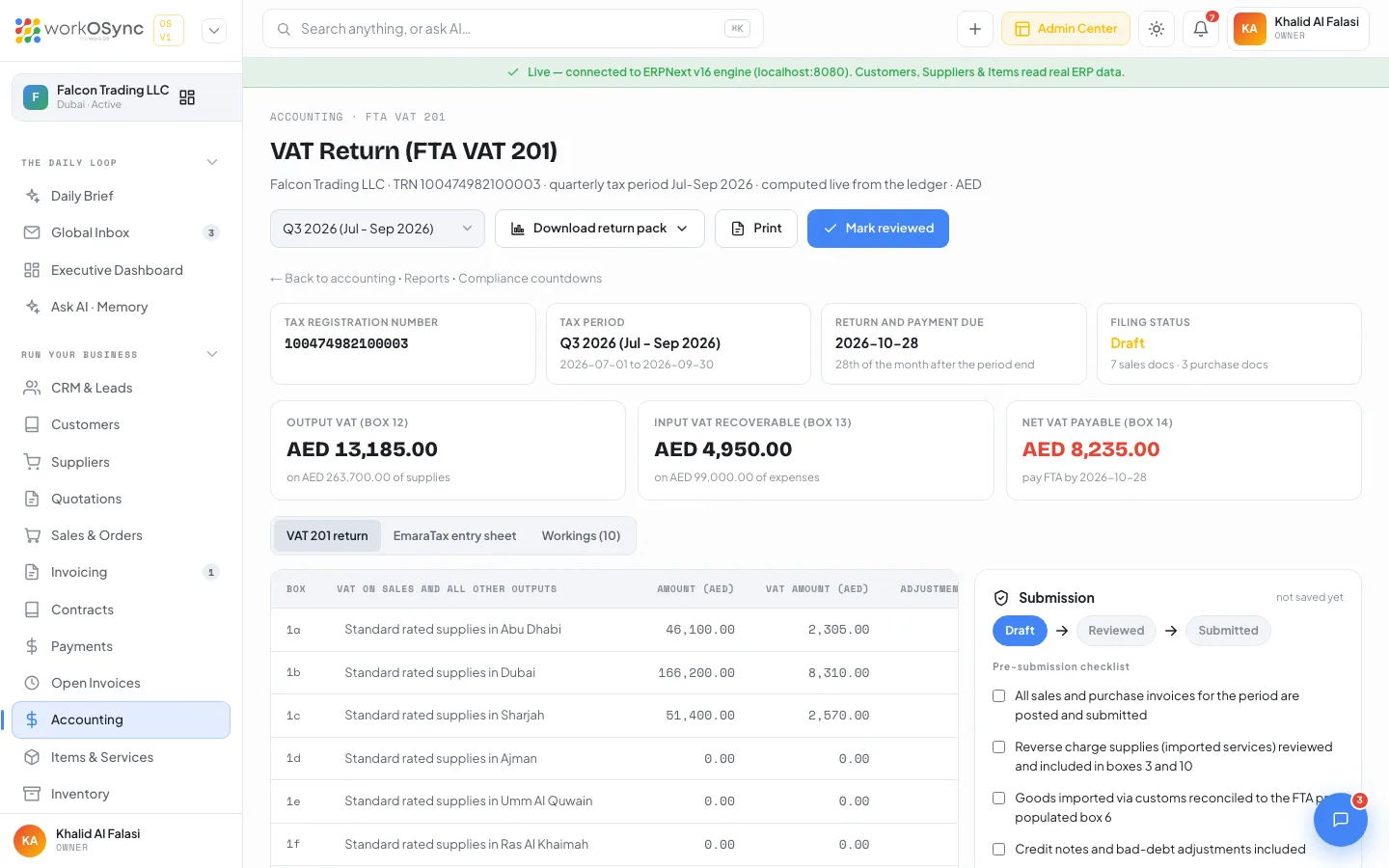
Header, period and actions
- Tax period selector: a dropdown grouped into Quarterly (the current quarter and the seven before it) and Monthly (the current month and the eleven before it). Choosing one reloads the page with
?period=2026-Q3or?period=2026-09; the page defaults to the current quarter. - Download return pack: an Export menu (Excel (.csv), CSV, PDF) whose rows are the boxes in FTA order with Box, Description, Amount, VAT Amount and Adjustment columns, headed by the taxable person, TRN, period, due date and filing status, and closing with whether the profit margin scheme applied. The file is named
VAT201-{period}. - Print: opens the browser print dialog with a print header carrying the TRN, period, due date and status.
- A status button that changes with the workflow: Mark reviewed while Draft, Mark submitted to FTA while Reviewed, and a green Submitted badge with the date once submitted.
- Links to Back to accounting, Reports and Compliance countdowns.
Four header tiles follow, then a three-figure strip:
| Tile | Contents |
|---|---|
| Tax Registration Number | The company TRN (100474982100003 in the demo). |
| Tax period | The period label with its from and to dates. |
| Return and payment due | The 28th of the month after the period end, which is the FTA deadline for both filing and payment. |
| Filing status | Draft (amber), Reviewed (blue) or Submitted (green), with the count of sales and purchase documents in the period. |
| Output VAT (box 12) | Total tax due, on the box 8 total of supplies. |
| Input VAT recoverable (box 13) | Total recoverable tax, on the box 11 total of expenses. |
| Net VAT payable (box 14) | Box 12 minus box 13, with "pay FTA by" the due date. When the result is negative the tile reads Net VAT reclaimable (box 14) with "refund or carry forward". |
The three views
A segmented control switches between VAT 201 return, EmaraTax entry sheet and Workings (with the number of working rows in the label).
VAT 201 return is three tables. Every box row has Amount (AED), VAT Amount (AED) (labelled Recoverable VAT (AED) on the expenses table) and Adjustment (AED). Boxes 1a to 1g are indented under the sales table and boxes 8 and 11 are bold total rows.
| Box | Line | How WorkOSync fills it |
|---|---|---|
| 1a to 1g | Standard rated supplies in Abu Dhabi, Dubai, Sharjah, Ajman, Umm Al Quwain, Ras Al Khaimah, Fujairah | Every submitted sales invoice that charged VAT, split by the customer's emirate. The emirate comes from the billing address: the state first, then the city, and Dubai when neither is recognised. |
| 2 | Tax refunds provided to tourists | Sales invoices on a tourist-refund tax template; the VAT is shown as a negative. |
| 3 | Supplies subject to the reverse charge provisions | Sales invoices on a reverse-charge template, plus the output VAT self-accounted on imported services (which is recovered again in box 10). |
| 4 | Zero rated supplies | Sales invoices with no VAT that are not exempt, including exports outside the UAE. |
| 5 | Exempt supplies | Sales invoices on an exempt template. |
| 6 | Goods imported into the UAE | Bills from foreign suppliers with no VAT charged, with 5% output VAT self-accounted and recovered again in box 10. |
| 7 | Adjustments to goods imported into the UAE | Shown as 0 unless an adjustment is recorded. |
| 8 | Totals | Sum of boxes 1 to 7. |
| 9 | Standard rated expenses | Every submitted purchase invoice that carried VAT. |
| 10 | Supplies subject to the reverse charge provisions | The recoverable side of boxes 3 and 6. |
| 11 | Totals | Sum of boxes 9 and 10. |
| 12 | Total value of due tax for the period | Box 8 VAT plus its adjustment. |
| 13 | Total value of recoverable tax for the period | Box 11 VAT plus its adjustment. |
| 14 | Net VAT due (or reclaimable) for the period | Box 12 minus box 13, red when payable and green when reclaimable. |
| PMS | Profit margin scheme applied to any supplies in this period | Yes or No, from the checkbox in the Submission panel. |
A footnote under the tables states the rules: box 1 is split by the customer's emirate from the billing address; boxes 3 and 6 carry the output VAT on reverse-charge services and imported goods, recovered again in box 10; zero-rated exports sit in box 4; credit notes reduce the boxes of the period they are issued in; and adjustments are for bad-debt relief and prior-period corrections. Zero-rated or exempt purchases are listed in the workings as not reportable.
EmaraTax entry sheet lists the same figures in the order and with the exact labels the FTA portal uses, so you can key them in top to bottom: Amount, VAT amount (or Recoverable VAT) and Adjustment for each box, then boxes 12 to 14 and the profit margin scheme question.
Workings is the document-level trail: Document (sales invoices link to their invoice page), Party, Date, Box, Emirate, Type (Tax invoice, Credit note, Supplier bill, Debit note, with export, import or reverse charge noted), Amount (AED) and VAT (AED), sorted by date. With nothing posted it reads "No submitted invoices or bills posted in {period}."
In the demo, Q3 2026 shows AED 256,900 of standard-rated sales with AED 12,845 output VAT across 5 tax invoices (split across Abu Dhabi, Dubai and Sharjah), AED 99,000 of standard-rated expenses with AED 4,950 input VAT across 3 bills, and AED 7,895 net payable.
Submission panel
The card on the right tracks the return through Draft, Reviewed and Submitted, with the current step highlighted and a note of where the record is saved. It holds a five-item Pre-submission checklist:
- All sales and purchase invoices for the period are posted and submitted.
- Reverse charge supplies (imported services) reviewed and included in boxes 3 and 10.
- Goods imported via customs reconciled to the FTA pre-populated box 6.
- Credit notes and bad-debt adjustments included.
- Payment of net VAT scheduled before the due date (GIBAN / e-Dirham).
Beneath it, a Profit margin scheme checkbox (for second-hand goods, antiques and collectors' items) and the fields Reviewed on, Reviewed by, Submitted on (EmaraTax), Submitted by, FTA acknowledgement reference and Notes. The checklist and the profit margin box lock once the return is Submitted.
- Pick the period and check the figures
Choose the tax period, read the box tables and open Workings to confirm every document landed in the right box.
- Complete the checklist and mark reviewed
Tick all five items; Mark reviewed stays disabled until you do ("Tick every checklist item to move the return to Reviewed."). Reviewed on defaults to today and Reviewed by to Accounts if left blank.
- File on EmaraTax
Use the EmaraTax entry sheet to key the boxes into the FTA portal, then enter Submitted on (EmaraTax). Mark submitted refuses without that date ("Enter the date you submitted on EmaraTax first.").
- Record the acknowledgement and pay
Paste the FTA acknowledgement reference, click Save, and pay the box 14 amount by the due date via GIBAN. Reopen as draft unlocks the return if a correction is needed.
Save, Mark reviewed, Mark submitted and Reopen as draft all persist the record. With the live engine it is stored in ERPNext as a Note titled VAT201 {period} and a toast confirms the Note name; in demo mode it is kept on this device (browser storage) for that period. Read UAE compliance for the wider filing obligations and how the tax invoice feeds this return.
Exporting statements
The Export menu on Transactions and Bills offers Excel (.csv), CSV and PDF, all produced in the browser. The Excel option is a CSV with a byte-order mark so Excel opens it cleanly, and PDF opens a print-ready table for the browser's save-as-PDF dialog. The VAT 201 return has the same menu as Download return pack plus a Print button. The Export and Export PDF buttons on the P&L, balance sheet, trial balance, general ledger and AR ageing pages arrive with the ERPNext reporting integration; until then, export the same figures from the matching report in Reports. See Exports and printing for the formats.
Tax regions
The accounting screens and the VAT return are UAE-only. The invoice form, the estimate form and Settings then Country & tax region share one tax-region setting, stored per browser, that changes the currency, the rate and the labels printed on documents:
| Region | Currency | Tax | Registration label | Line label |
|---|---|---|---|---|
| AE (default) | AED | VAT 5% | TRN | VAT @ 5% |
| IN | INR | GST 18% | GSTIN | Intra-state CGST @ 9% plus SGST @ 9%; inter-state IGST @ 18% |
| EU | EUR | VAT 20% | VAT ID | Cross-border B2B: Reverse charge (0%) |
| US | USD | Sales Tax 8.25% | EIN | Sales tax |
The AE region carries the note "UAE Federal Tax Authority, 5% standard VAT. FTA VAT 201 return." See Settings for where to change it and Invoicing for how it prints on a tax invoice.