Settings
Settings is where the company is described, the tax region and payment gateways are chosen, modules are switched on and off, and people are given roles. It has three screens: Settings, Users & access and My profile. All three live under System in the sidebar and in the user menu at the top right.
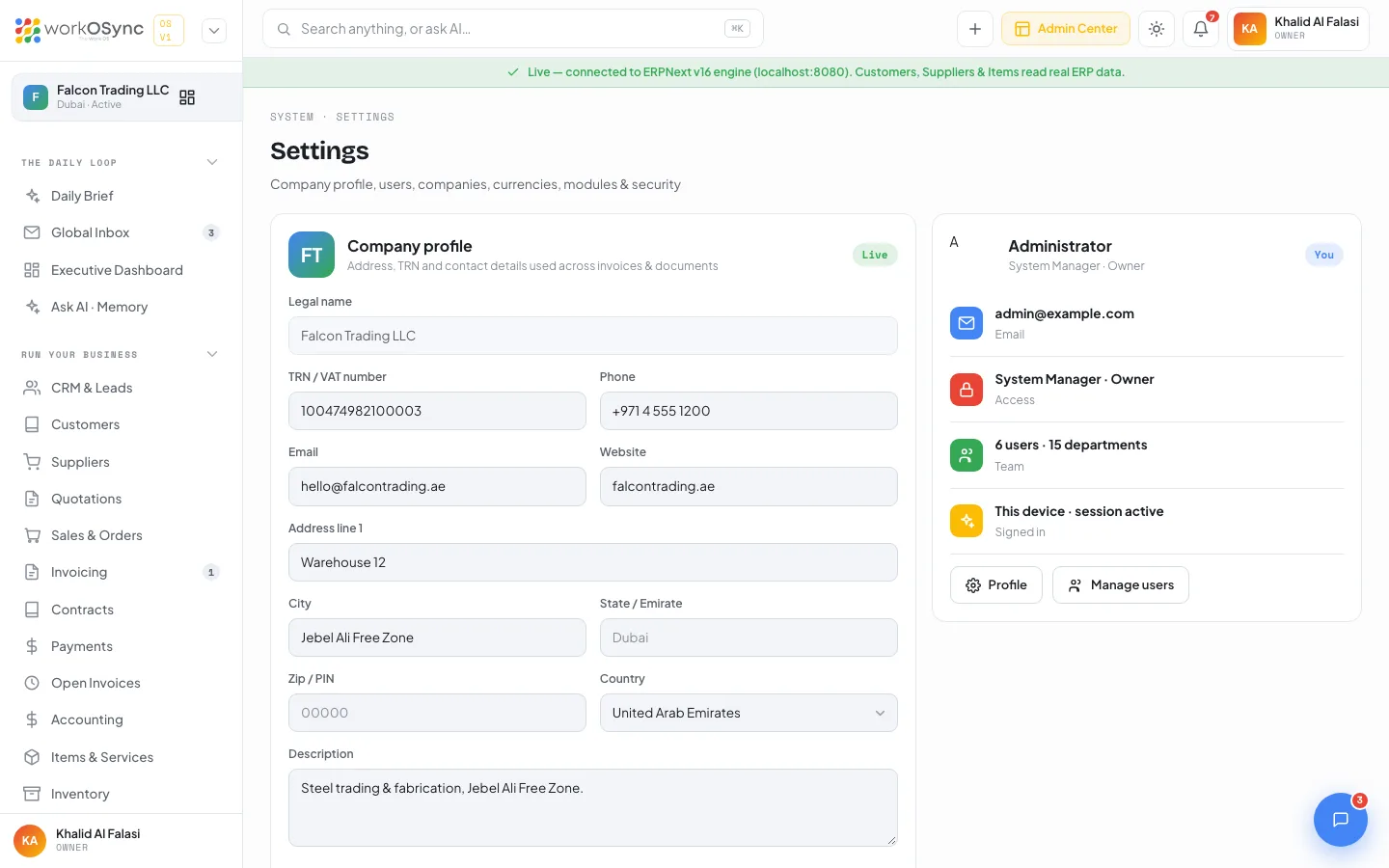
Company profile
The card reads "Address, TRN and contact details used across invoices & documents". In Live mode it carries a green Live badge; in demo mode a banner says the ERPNext engine must be connected to save.
| Field | Notes |
|---|---|
| Legal name | Read-only. It comes from the company record in the engine and prints on every tax document. |
| TRN / VAT number | Your 15-digit Tax Registration Number, placeholder 100xxxxxxxxxxxx. Required on FTA tax invoices. |
| Phone | Placeholder +971 …. |
| The company address shown on documents. | |
| Website | For example company.ae. |
| Address line 1 | For example "Warehouse 12, Jebel Ali Free Zone". |
| City | Default Dubai in the placeholder. |
| State / Emirate | The emirate, for example Dubai. |
| Zip / PIN | Postal code where one applies. |
| Country | Select, default United Arab Emirates; also Saudi Arabia, Qatar, Kuwait, Bahrain, Oman, India, Pakistan, United Kingdom, United States, Singapore, Egypt and Jordan. |
| Description | What the company does, a few lines. |
Click Save company details. The button reads Saving… while the engine is updated and a green banner confirms Company details saved. If the engine rejects the update the error is shown above the form.
Your user card
Beside the profile is your account card: avatar, name, role and a You badge, then rows for Email, Access (your role), Team and Signed in ("This device · session active"). Two buttons lead on: Profile opens My profile and Manage users opens Users & access.
Companies (multi-company)
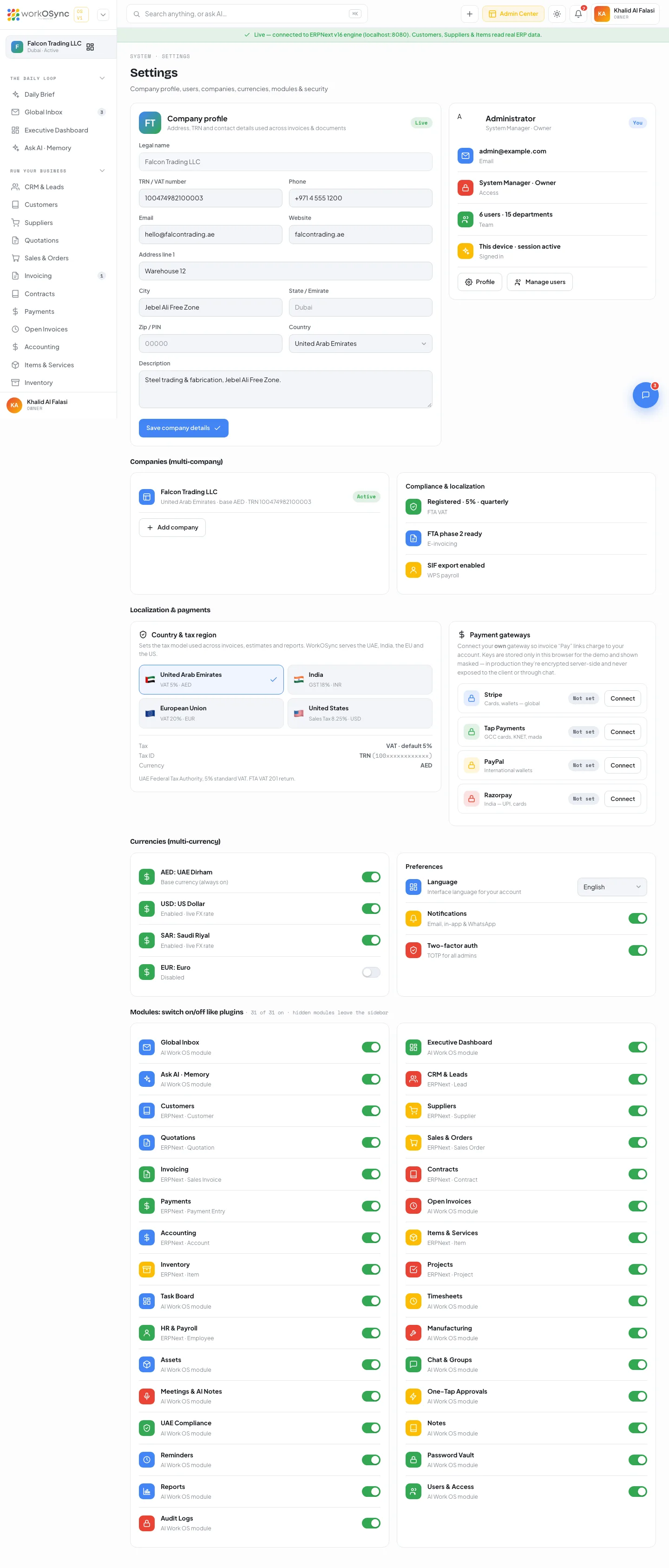
The multi-company card lists the current company with its country, base currency and TRN and an Active badge, followed by any other workspaces you have added, each with an Active or Setup badge and an X to remove it.
- Click Add company
A modal titled Add a company opens.
- Legal name (required)
For example "Falcon Logistics FZE". Leaving it blank shows "Enter the company name."
- City / free zone and Base currency
City defaults to Dubai; currency offers AED (default), USD, SAR, EUR and GBP.
- Add company
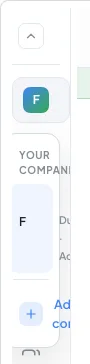
A confirmation says the company was added and that you can switch to it from the company menu in the sidebar. Each company is a separate workspace with its own books.
Added companies are kept in this browser so the switcher and this card stay in step while you evaluate. Provisioning a second set of books in the engine arrives in a later release.
Compliance & localization
A read-only summary of the UAE setup: FTA VAT "Registered · 5% · quarterly", E-invoicing "FTA phase 2 ready", and WPS payroll "SIF export enabled". See UAE compliance for what each means.
Country & tax region
The tax region sets the tax model used across invoices, estimates and reports. Click a region tile to select it; the card flashes Saved and the detail panel below updates with the tax name and default rate, the tax ID label with a sample, the currency and a note.
| Region | Tax | Default rate | Currency | Tax ID | Note |
|---|---|---|---|---|---|
| United Arab Emirates (default) | VAT | 5% | AED | TRN | FTA VAT 201 return. |
| India | GST | 18% | INR | GSTIN | Intra-state splits into CGST and SGST; inter-state uses IGST. HSN/SAC codes on lines. |
| European Union | VAT | 20% | EUR | VAT ID | B2B cross-border uses reverse charge at 0%; OSS for cross-border B2C. |
| United States | Sales Tax | 8.25% | USD | EIN | Destination-based, varies by state and county. No federal VAT. |
Payment gateways
Connect your own gateway so the Pay link on invoices charges to your account. Each gateway row shows Not set or Connected and a Connect button (Manage once saved) that expands the key fields.
| Gateway | Best for | Key fields |
|---|---|---|
| Stripe | Cards and wallets, global | Publishable key, Secret key, Webhook secret |
| Tap Payments | GCC cards, KNET, mada | Public key, Secret key |
| PayPal | International wallets | Client ID, Secret |
| Razorpay | India: UPI and cards | Key ID, Key secret |
Fields are password fields. Save keys marks the gateway Connected and shows each saved value masked (first four and last four characters); Disconnect removes them.
Gateway keys are stored only in this browser for the demo. In production they are encrypted server-side and never exposed to the client. Use test-mode keys while evaluating and never paste a live secret into chat or a ticket. See Payments for how a paid invoice is recorded.
Currencies (multi-currency)
AED is the base currency and is always on. USD, SAR and EUR each have a switch; an enabled currency reads "Enabled · live FX rate". USD and SAR are on by default.
Preferences
- Language: English, Arabic (RTL) or Hindi for your account.
- Notifications: email, in-app and WhatsApp, on by default.
- Two-factor auth: "TOTP for all admins", on by default.
Modules: switch on/off like plugins
Thirty-one modules are listed in two columns, each labelled ERPNext · {DocType} for engine-backed modules or AI Work OS module for the AI layer. The heading counts how many are on. Switching a module off dims its row and removes it from the sidebar. The Daily Brief and Settings cannot be switched off. The full list is in the Module catalogue.
The currency, preference and module switches are remembered in this browser and the sidebar reacts to them. Applying them to the engine, to every device and to every user arrives in a later release; today they are a preview of the switchboard rather than a company-wide setting.
Users & access
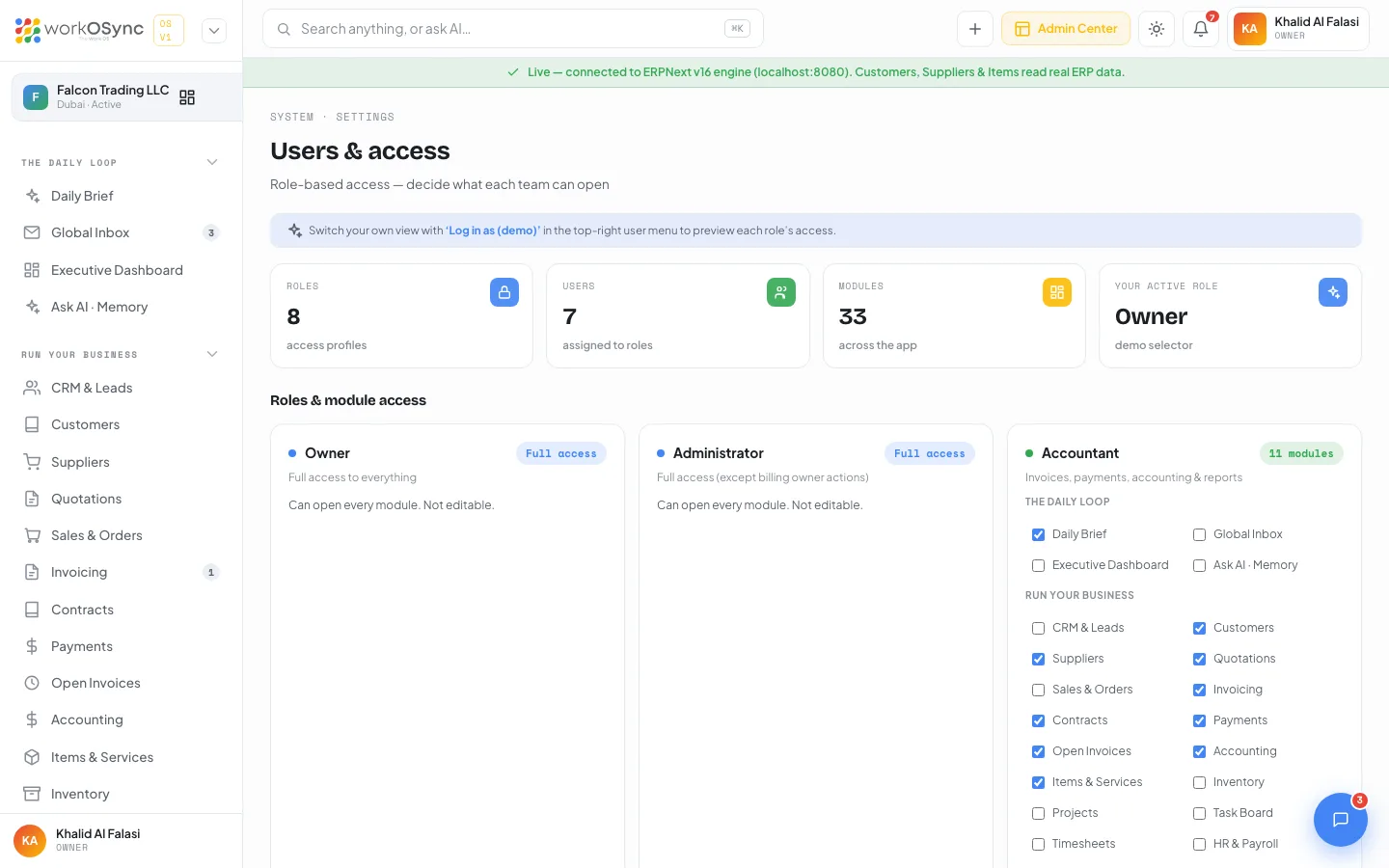
Open System · Users & Access or click Manage users on your user card. The page title is Users & access, subtitle "Role-based access - decide what each team can open". A banner tips you to preview each role with Log in as (demo) in the user menu.
KPIs
Roles 8, Users 7, Modules 33 across the app, and Your active role (the role you are currently viewing as).
Roles & module access
One card per role, each with a coloured dot, the role name, a description and a badge.
| Role | Badge | Editable |
|---|---|---|
| Owner | Full access | No. "Can open every module. Not editable." |
| Administrator | Full access | No. |
| Accountant, HR Manager, Sales, Project Manager, Staff | N modules | Yes. A checkbox for every module, grouped by sidebar group. |
| Client | Portal | No. Uses the client portal with their own records only. |
Tick or untick a module and the change applies live: the sidebar of anyone viewing as that role updates and the route guard redirects them to the Daily Brief if they open a page that was removed. Reset to default is enabled only when a role has been changed and restores the built-in set. The default sets are in Roles and permissions.
Users table
Columns are Name (with avatar), Email, Team / Company and Role. The role cell is a select listing all eight roles; changing it assigns the user to that role. The demo workspace has seven users: an owner, sales, HR, accountant, project manager and staff member at Falcon Trading LLC, and a client at Al Habtoor Group.
Log in as (demo)
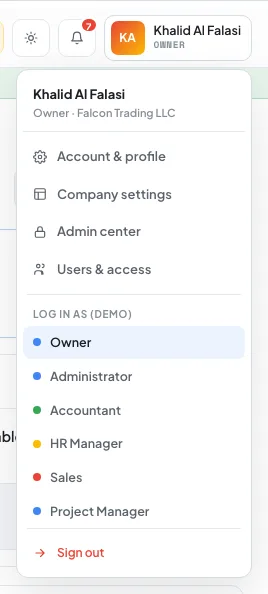
The user menu (top right) lists eight role buttons with coloured dots: Owner, Administrator, Accountant, HR Manager, Sales, Project Manager, Staff and Client. Picking Client opens the portal; any other role opens the Daily Brief with a Viewing as {Role} banner in the sidebar. It is a client-side preview of what each role sees, useful for checking a module change before telling the team.
Module overrides and user role assignments are stored in this browser. Applying them to real accounts arrives with the directory and SSO integration in a later release.
My profile
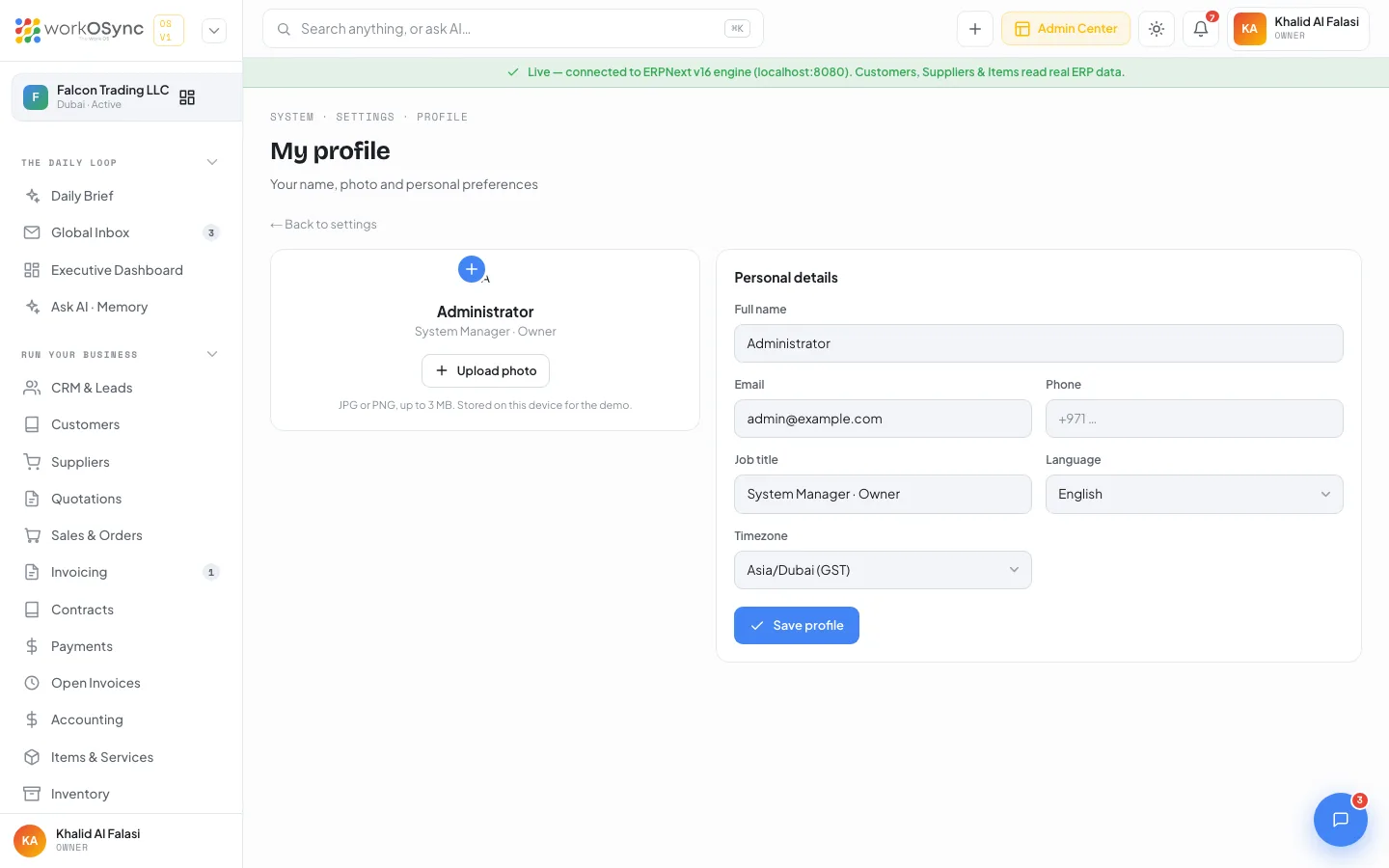
Open Profile on your user card, the sidebar footer with your name, or Account & settingsin the user menu. The page title is My profile, subtitle "Your name, photo and personal preferences", with a ← Back to settings link. Every role can open this page.
Photo
- Click the + on the avatar or Upload photo to choose an image. JPG or PNG, up to 3 MB.
- A larger file is refused with "Please choose an image under 3 MB."
- Remove appears once a photo is set and returns you to your two-letter initials.
- The photo updates everywhere at once: the topbar, the sidebar footer, chat and comments. It is stored on this device for the demo.
Personal details
| Field | Options and defaults |
|---|---|
| Full name | Prefilled from your account. |
| Prefilled from your account. | |
| Phone | Placeholder +971 …. |
| Job title | Prefilled with your role. |
| Language | English (default), Arabic or Hindi. |
| Timezone | Asia/Dubai (GST, default), Asia/Kolkata (IST), Europe/London (GMT), America/New_York (ET). |
Click Save profile; a Saved badge confirms and your name updates across the app.
Sign-in protection (rate limits, lockouts and bot detection) is described in Security. Platform-level company records, packages and billing live in the Platform Console, which superadmins reach from the Admin Center chip in the topbar.