Ask AI and company memory
Ask AI is the question screen of the Daily Loop. You bring your own API key for OpenAI, Anthropic, Google or Moonshot, choose a model, and ask questions in plain language. The key never leaves your browser except to reach the provider you chose.
What company memory is
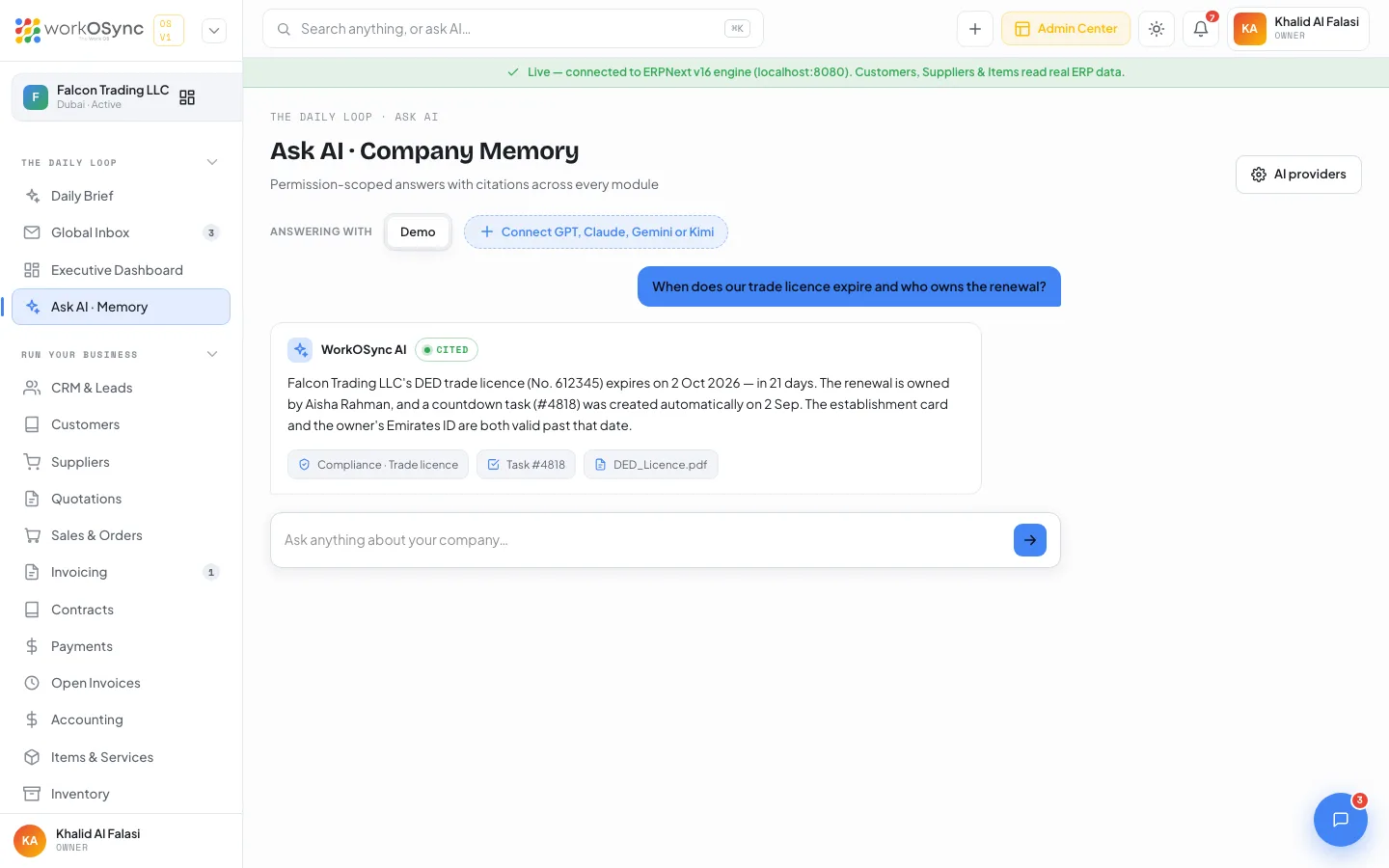
Company memory is the idea behind the whole AI layer: every record you already keep in WorkOSync (invoices, contracts, compliance countdowns, tasks, meeting notes, chat threads) is the knowledge base an assistant should answer from, scoped to what your role is allowed to see. The Ask AI screen is where that memory is queried. Its header reads Ask AI · Company Memory with the subtitle "Permission-scoped answers with citations across every module".
Grounding answers in your live company records, and citations on live answers, are on the roadmap. In the current build a connected provider answers from the WorkOSync system prompt (it knows it is an assistant inside an ERP for a UAE trading company) and from the question you type. Treat live answers as general assistance rather than a lookup of your ledger. The seeded example turn on the screen shows the citation format the grounded version will use.
The screen
- Title badge: once at least one provider is saved, a green pill shows N connected.
- AI providers button (top right): toggles the bring-your-own-key card. The label gains a count, for example AI providers · 2, once keys are saved.
- Provider bar: the label Answering with followed by a segmented control. Demo is always present; each connected provider appears as its short name (GPT, Claude, Gemini, Kimi). With nothing connected the bar shows a Connect GPT, Claude, Gemini or Kimi shortcut that opens the key card.
- Thread: your questions on the right, answers on the left. Each answer has a header with the answering provider (or WorkOSync AI in demo mode) and a status pill.
- Question bar: the input reads Ask anything about your company… in demo mode, or Ask {Provider}… when a provider is selected. Press Enter or click the send arrow. The input and button are disabled while an answer is being fetched.
Bring your own key
Open the AI providers card, titled Connect your AI providers (bring your own key). It holds four provider tiles. Each tile has a password-type field labelled API key with a prefix hint, a model select, and a Save & connect button that stays disabled until you type something. The first key you save is selected automatically in the provider bar.
The key is stored only in this browser (in local storage on this device) and is sent only to the provider's official API from your device. It never reaches WorkOSync servers and it is never included in the conversation. Clearing site data for WorkOSync removes it. Use a key with a spending limit, and never paste a key into chat, email or a ticket.
| Provider tile | Key prefix hint | Models offered | Endpoint called from the browser |
|---|---|---|---|
| OpenAI · GPT | sk-… | gpt-5, gpt-4o, gpt-4o-mini | OpenAI chat completions |
| Anthropic · Claude | sk-ant-… | claude-opus-4-8, claude-sonnet-5, claude-haiku-4-5-20251001 | Anthropic messages API |
| Google · Gemini | AIza… | gemini-2.5-pro, gemini-2.5-flash | Google Generative Language API |
| Moonshot · Kimi | sk-… | kimi-k2-0905-preview, moonshot-v1-128k | Moonshot chat completions |
Connect OpenAI GPT
- Create a key in your OpenAI account
Generate a secret key in the OpenAI platform dashboard and give it a monthly budget. It starts with
sk-. - Open the providers card
On Ask AI click AI providers, then find the OpenAI · GPT tile.
- Paste the key and pick a model
Paste into API key (sk-…). Choose
gpt-5for the best answers,gpt-4ofor a balance, orgpt-4o-minifor speed and cost. - Save & connect
The tile turns green with a Connected badge and the provider bar gains a GPT segment.
Connect Anthropic Claude
- Create a key in the Anthropic console
Keys start with
sk-ant-. Set a spend limit on the workspace. - Paste into the Anthropic · Claude tile
Choose
claude-opus-4-8for depth,claude-sonnet-5for everyday use, orclaude-haiku-4-5-20251001for the fastest replies. - Save & connect
WorkOSync calls the Anthropic messages API directly from your browser with the header that permits direct browser access, so no proxy is involved.
Connect Google Gemini
- Create an API key in Google AI Studio
Keys start with
AIza. Restrict the key to the Generative Language API. - Paste into the Google · Gemini tile
Choose
gemini-2.5-proorgemini-2.5-flash. - Save & connect
Questions go to the Generative Language
generateContentendpoint for the model you picked.
Connect Moonshot Kimi
- Create a key on the Moonshot platform
Keys start with
sk-, the same shape as OpenAI keys, so check which tile you are pasting into. - Paste into the Moonshot · Kimi tile
Choose
kimi-k2-0905-previewormoonshot-v1-128k(a 128k context window). - Save & connect
Questions go to the Moonshot chat completions endpoint.
Change or disconnect a key
A connected tile shows the key masked (first four and last four characters), the chosen model, and two buttons. Change reopens the key field and model select so you can paste a new key or switch models; Cancel backs out without changes. Disconnect removes the key from this browser immediately; if that provider was selected in the provider bar, the bar falls back to Demo.
How a question is answered
- Pick who answers
Use the Answering with segmented control. Your choice is remembered on this device.
- Type the question and press Enter
Your question appears in the thread and a typing indicator shows under the provider name while the request is in flight.
- The browser calls the provider
WorkOSync sends a single turn: the WorkOSync system prompt plus your question. There is no server hop; the request goes from your device to the provider's official API.
- Read the answer
The answer header shows the provider name and a green live pill, meaning it came from the connected model in real time. Line breaks in the reply are preserved.
Errors and the CORS tip
If the request fails, the answer is shown in red as Couldn't reach {Provider}. {error}, where the error carries the HTTP status and the start of the provider's response (for example an invalid key or a model you do not have access to). Beneath it a tip explains that some providers block direct browser calls (CORS) and that your key is still saved locally. If you see a CORS error, switch to a provider that allows browser calls or check the key's permissions; the key itself has not been lost.
Demo mode
With Demo selected (or nothing connected), every question receives the same reply: it asks you to connect an AI provider with your own API key to get live answers, and carries a single chip labelled permission-scoped retrieval. Demo mode is safe to use for walkthroughs because nothing is sent anywhere.
Citation chips
The thread opens with one seeded turn: the question "When does our trade licence expire and who owns the renewal?" and an answer that names the licence, the owner and the countdown task. Under the answer sit three citation chips, each with an icon and a label: Compliance · Trade licence, Task #4818 and DED_Licence.pdf, and the answer header shows a cited pill instead of live. The format is module, then record; a file citation shows the file name. This is what grounded answers will look like once retrieval is wired; live answers in this build do not carry chips.
Ask AI from global search
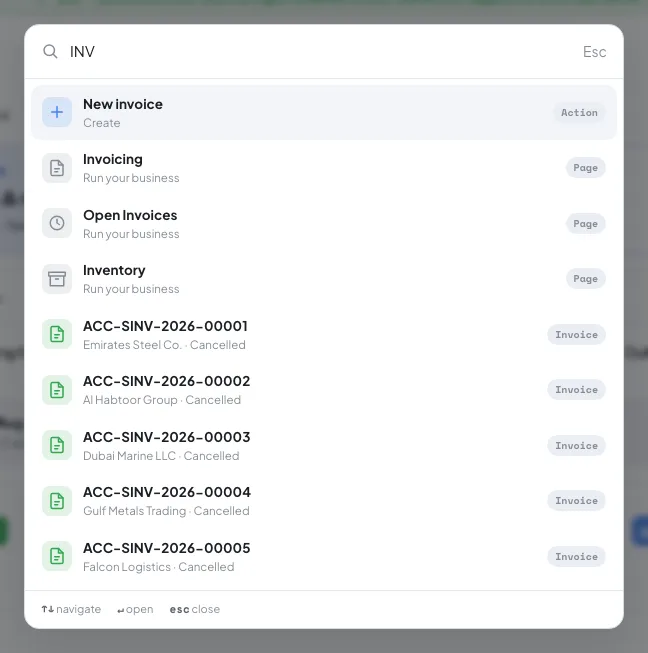
Global search (press ⌘K or Ctrl+K anywhere) searches customers, invoices, contracts, quotations, suppliers, items, leads and employees. When there is no exact match it shows a row reading Ask AI: "your query" with the hint "No exact match - ask company memory". Selecting it opens the Ask AI screen so you can put the same question to your provider. See Navigating the app for the full search behaviour.
Ask for drafting and explanation rather than lookups: "Draft a polite reminder for an overdue AED 126,500 invoice", "Explain what a UAE establishment card is", or "Summarise the steps to file a VAT 201 return". For live figures use the Reports pages and the AI Work OS layer overview for what is coming next.