Manufacturing
Manufacturing turns recipes into batches. You define a recipe with its costed bill of materials, release work orders to a production line, record what was produced and wasted, check each lot against quality specs, and ship finished goods with the right export documents. The module is generic recipe-based batch production; the demo dataset is a food manufacturer making fried onions, dehydrated onions, pickles and sauces.
Manufacturing does not call the ERP yet. Every screen reads a fixed demo dataset dated 12 Sep 2026, and the work orders, recipes and shipments you create are saved in this browser's workspace only. They show a blue New badge and disappear if you clear browser storage. Posting BOMs, Work Orders and Stock Entries for real arrives when the ERPNext Manufacturing backend is connected.
Navigating the module
Every manufacturing screen carries the MfgNav chip row: Dashboard, Work Orders, Recipes & BOMs, Raw Materials, Finished Goods, Costing, Quality and Exports. Production lines in the demo are Fry Line 1, Fry Line 2, Dryer Line A, Dryer Line B, Pickle Bay 1, Pickle Bay 2 and Sauce Line 1.
Dashboard
/manufacturing is titled Manufacturing with a New work order button. Two rows of KPIs summarise the month:
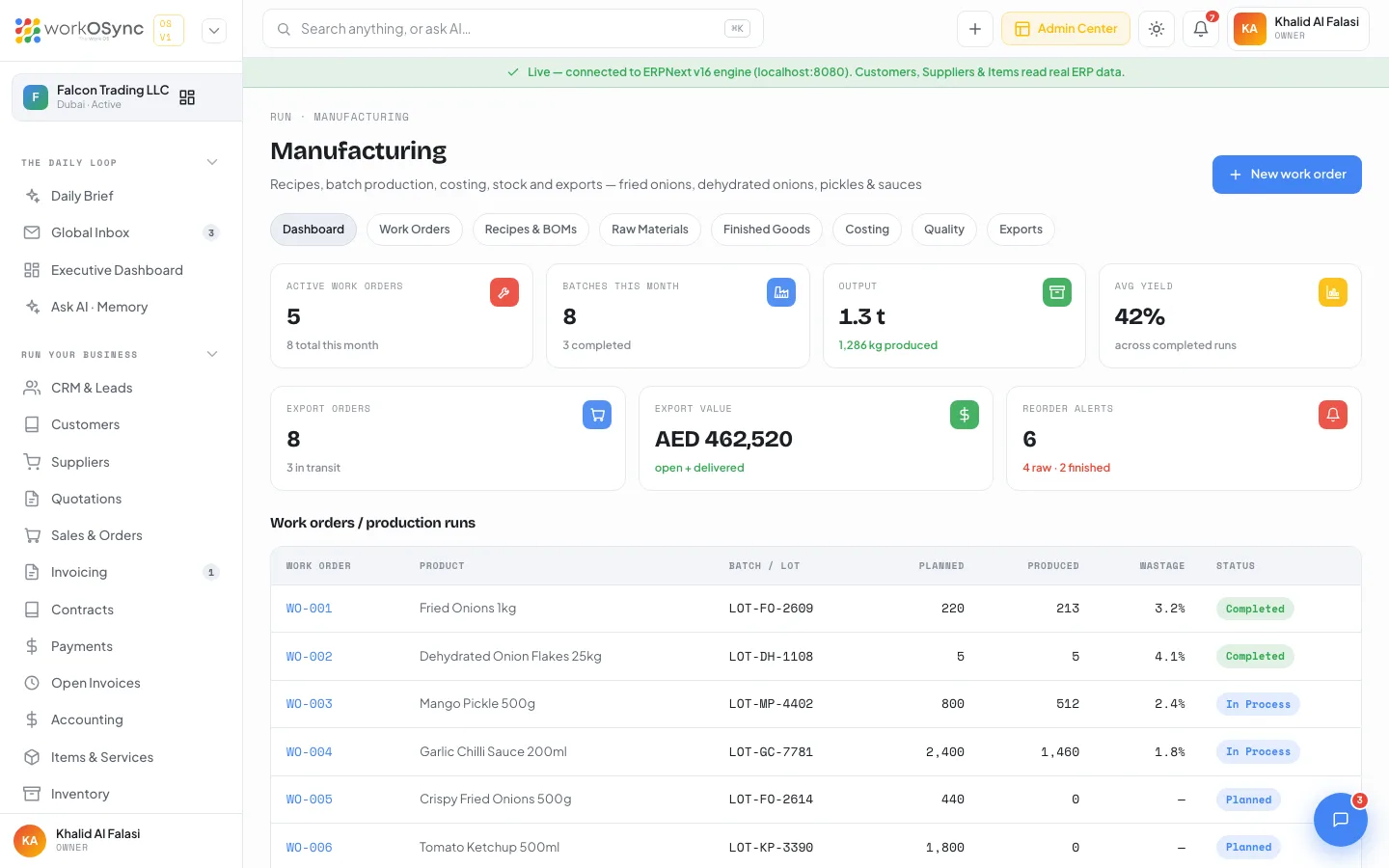
| Tile | Meaning | Demo value |
|---|---|---|
| Active work orders | Runs that are Planned or In Process, with the month's total beneath. | 5 (8 total this month) |
| Batches this month | All work orders started this month, with how many completed. | 8 (3 completed) |
| Output | Total produced quantity. | 1.3 t (1,286 kg produced) |
| Avg yield | Average output-to-input ratio across runs. | 42% |
| Export orders | Shipments booked, with how many are in transit. | 8 (3 in transit) |
| Export value | Sum of shipment values. | AED 462,520 |
| Reorder alerts | Raw materials and finished goods below their levels. | 6 (4 raw, 2 finished) |
Below the KPIs: Work orders / production runs (Work order, Product, Batch / Lot, Planned, Produced, Wastage, Status), Recipes (bills of materials) (Recipe, Category, Output, Yield, Ingredients, Batch cost, Cost / unit), a Raw material stock card with a "4 to reorder" badge (Material, On hand, Reorder, Status Reorder or OK) and a Finished goods card with a "2 below par" badge (Product, Category, In stock, Status Low or In stock).
Work orders
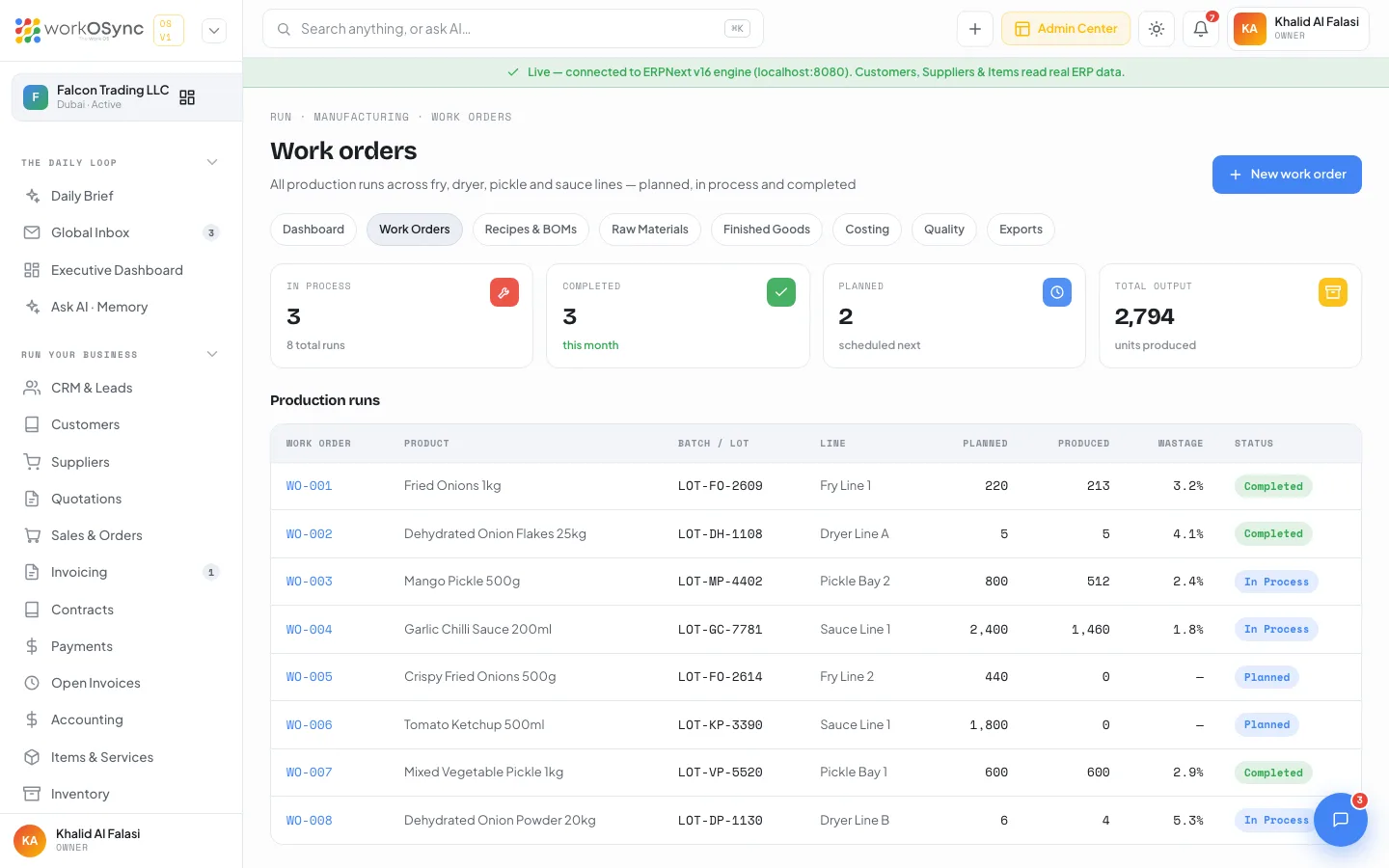
/manufacturing/work-orders lists every production run across the fry, dryer, pickle and sauce lines. KPIs: In process, Completed, Planned and Total output in units produced. The Production runs table has the same columns as the dashboard plus a Line column. Click a work order to open its detail.
Lifecycle and statuses
| Status | Meaning | Badge |
|---|---|---|
| Planned | Released to a line with a target quantity and dates, not yet started. Produced quantity and wastage are not recorded. | Neutral |
| In Process | The batch is running. Produced quantity and wastage can be entered as the run progresses. | Amber |
| Completed | The run has finished, produced quantity and wastage are final, and the lot has passed through QA. | Green |
A run moves Planned to In Process to Completed. The demo work order WO-001 (Fried Onions 1kg, lot LOT-FO-2609, Fry Line 1, operator Imran Qadri) is Completed with 213 of 220 produced and 3.2% wastage.
How to create a work order
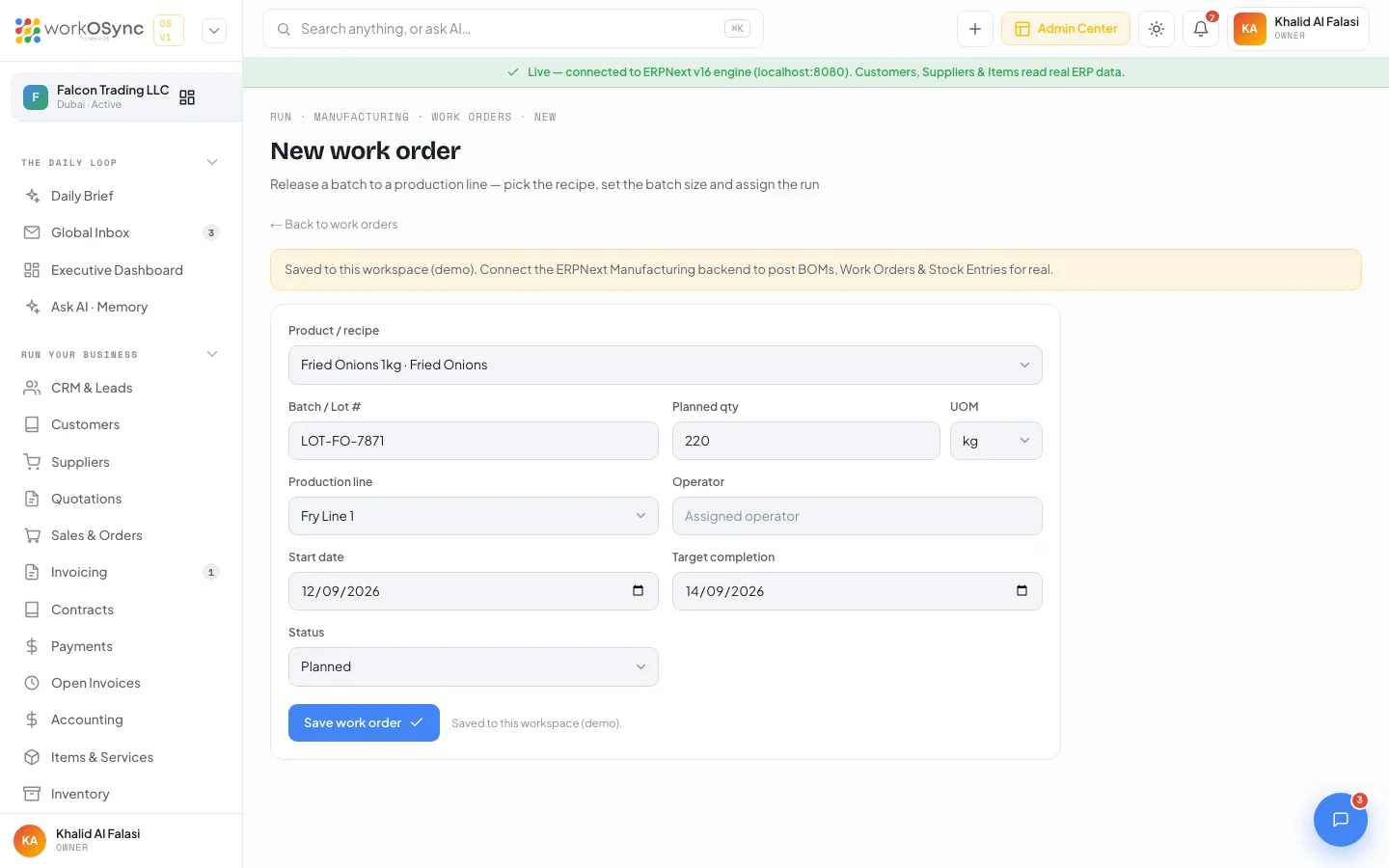
Click New work order on the dashboard or the list, or open /manufacturing/work-orders/new. A notice at the top reminds you the record is saved to this workspace.
| Field | Default | Notes |
|---|---|---|
| Product / recipe | Fried Onions 1kg · Fried Onions | Required. Choosing a recipe sets the planned quantity to the recipe's output. |
| Batch / Lot # | Auto, in the form LOT-FO-#### | Editable lot reference used in QA and traceability. |
| Planned qty | Recipe output | Must be greater than zero. |
| UOM | kg | kg, pcs or sacks. |
| Production line | Fry Line 1 | One of the seven lines. |
| Operator | Empty | The person running the batch. |
| Start date | Today | |
| Target completion | Two days after start | |
| Status | Planned | Planned, In Process or Completed. |
| Produced qty and Wastage % | Empty | Shown only when the status is not Planned. |
- Pick the recipe
Choose the product in Product / recipe. The planned quantity fills from the recipe output; adjust it for the batch size you are running.
- Assign the run
Set the Production line, type the Operator and confirm the start and target dates.
- Set the status
Leave it Planned to schedule the run, or choose In Process or Completed and fill in Produced qty and Wastage %.
- Save
Click Save work order. Validation stops you with "Select a product / recipe." or "Planned quantity must be greater than zero." New orders are numbered from WO-101 and show the New badge in every list.
Work order detail
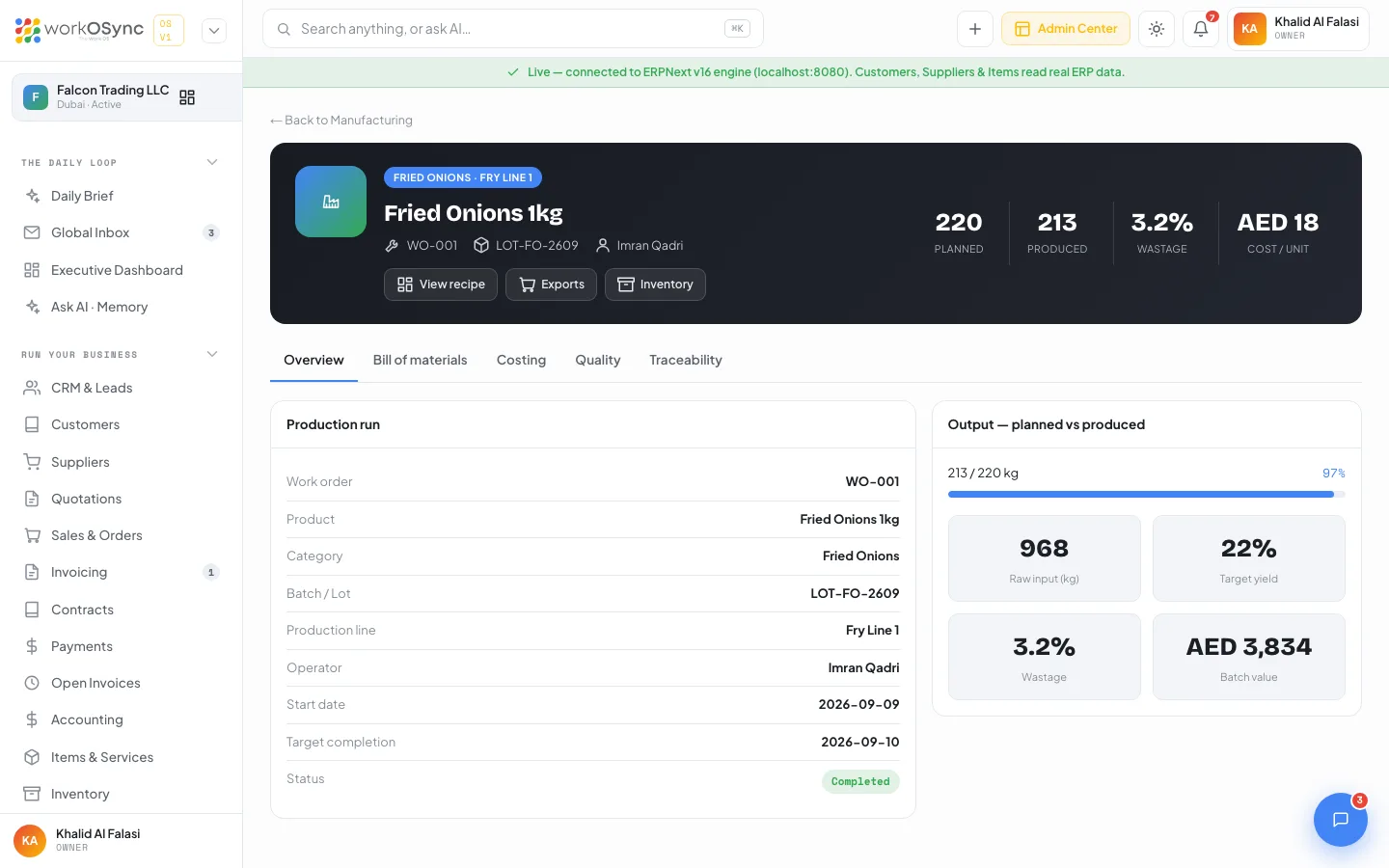
/manufacturing/[wo] opens with a banner showing the category and line, the product, and chips for the work order id, lot and operator. Header buttons: View recipe, Exports and Inventory. Four stats sit beneath: Planned, Produced, Wastage and Cost / unit. A Back to Manufacturing link returns to the dashboard.
| Tab | What it contains |
|---|---|
| Overview | A Production run card (Work order, Product, Category, Batch / Lot, Production line, Operator, Start date, Target completion, Status) and an Output - planned vs produced progress bar with tiles for Raw input, Target yield, Wastage and Batch value. |
| Bill of materials | Materials consumed for the recipe: Ingredient, Required, Consumed, Unit cost, Total, with a Total raw material line. |
| Costing | Cost build-up (produced qty): Raw material cost, Direct labour, Factory overhead, Total production cost, Units produced, Cost per finished unit. Then Margin vs selling price: Selling price, Cost per unit, Margin per unit, Gross margin %, Batch revenue, Batch margin. |
| Quality | Quality assurance checks with a Batch passed or Review needed badge: Parameter, Spec, Measured, Result. The footer records the QA sign-off date and that a retention sample is kept for 12 months against the lot. |
| Traceability | Lot traceability - in to out: Raw in, Processing, QA, Finished out, linking supplier lots (SUP-####) through the run to the export shipment (EXP-####). |
Recipes and bills of materials
/manufacturing/recipes lists standard recipes, their input-to-output yields and costed bills of materials. KPIs: Recipes / BOMs, Avg yield, Ingredients and Categories. The Recipes table matches the dashboard card. The demo has four recipes: Fried Onions 1kg, dehydrated flakes, mango pickle and garlic chilli sauce.
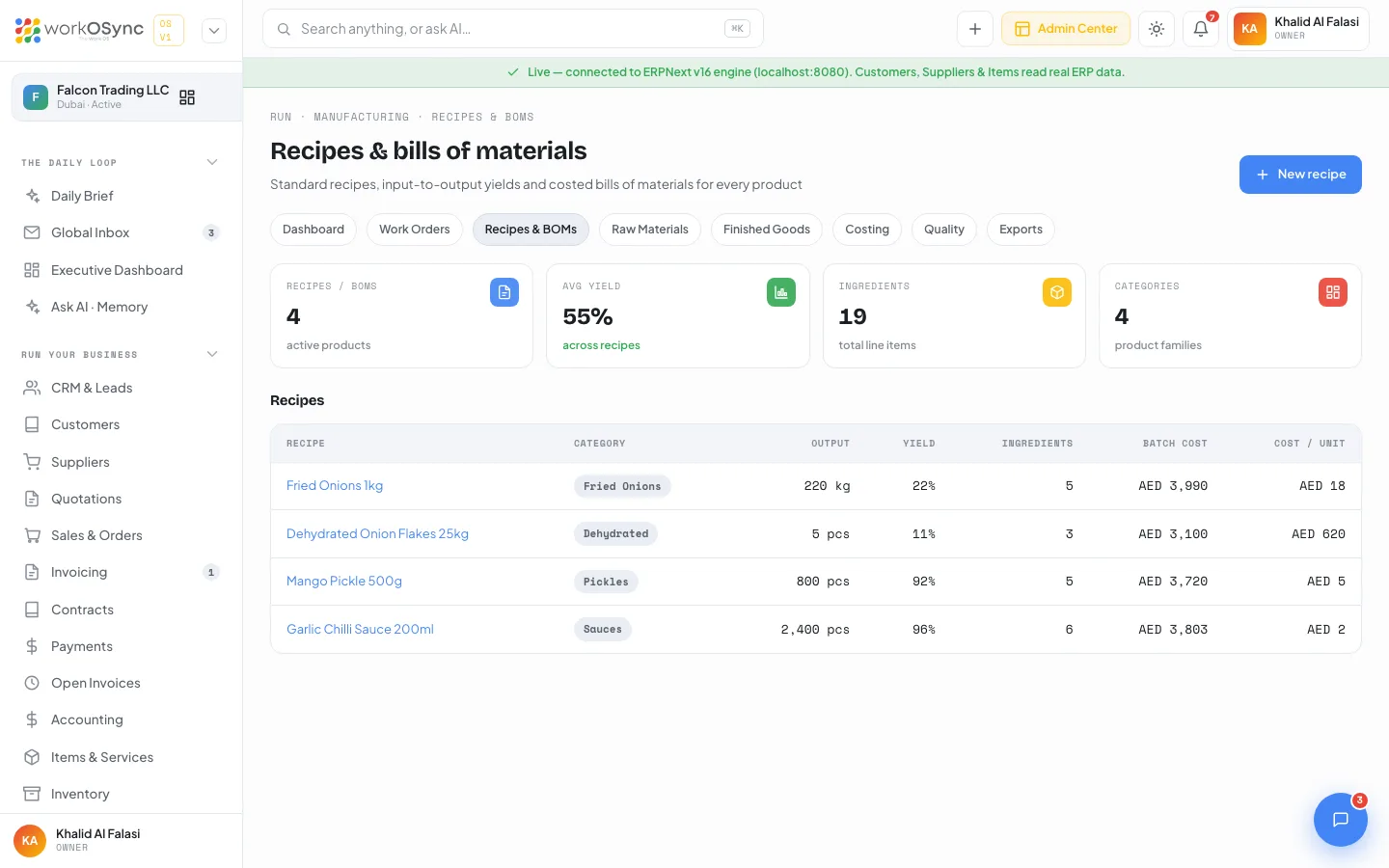
Recipe fields
A recipe holds the product, its category (Fried Onions, Dehydrated, Pickles, Sauces), the output quantity and UOM per batch, the target yield percentage, the raw input in kg, labour and overhead per batch, a sell price and unit, a list of ingredients (item, quantity, UOM, unit cost) and the process steps (step, detail, time).
Costing formulas
| Figure | Formula |
|---|---|
| Raw material | Sum over ingredients of quantity multiplied by unit cost. |
| Total batch cost | Raw material plus labour per batch plus overhead per batch. |
| Cost per unit | Total batch cost divided by output quantity. |
| Margin per unit | Sell price minus cost per unit. |
| Gross margin % | Margin per unit divided by sell price. |
Recipe detail
/manufacturing/recipe/[id] is titled with the product name and an id badge; the subtitle gives the category, output per batch and yield. All recipes returns to the list. KPIs: Batch output (from the kg of input), Yield (with the ingredient count), Cost / unit (with the batch cost) and Gross margin. Two cards follow: Ingredients (per batch) with Item, Qty, Unit cost, Total and % cost plus a Total raw material line, and the Cost per unit build-up. The Process steps table lists #, Step, Detail and Time.
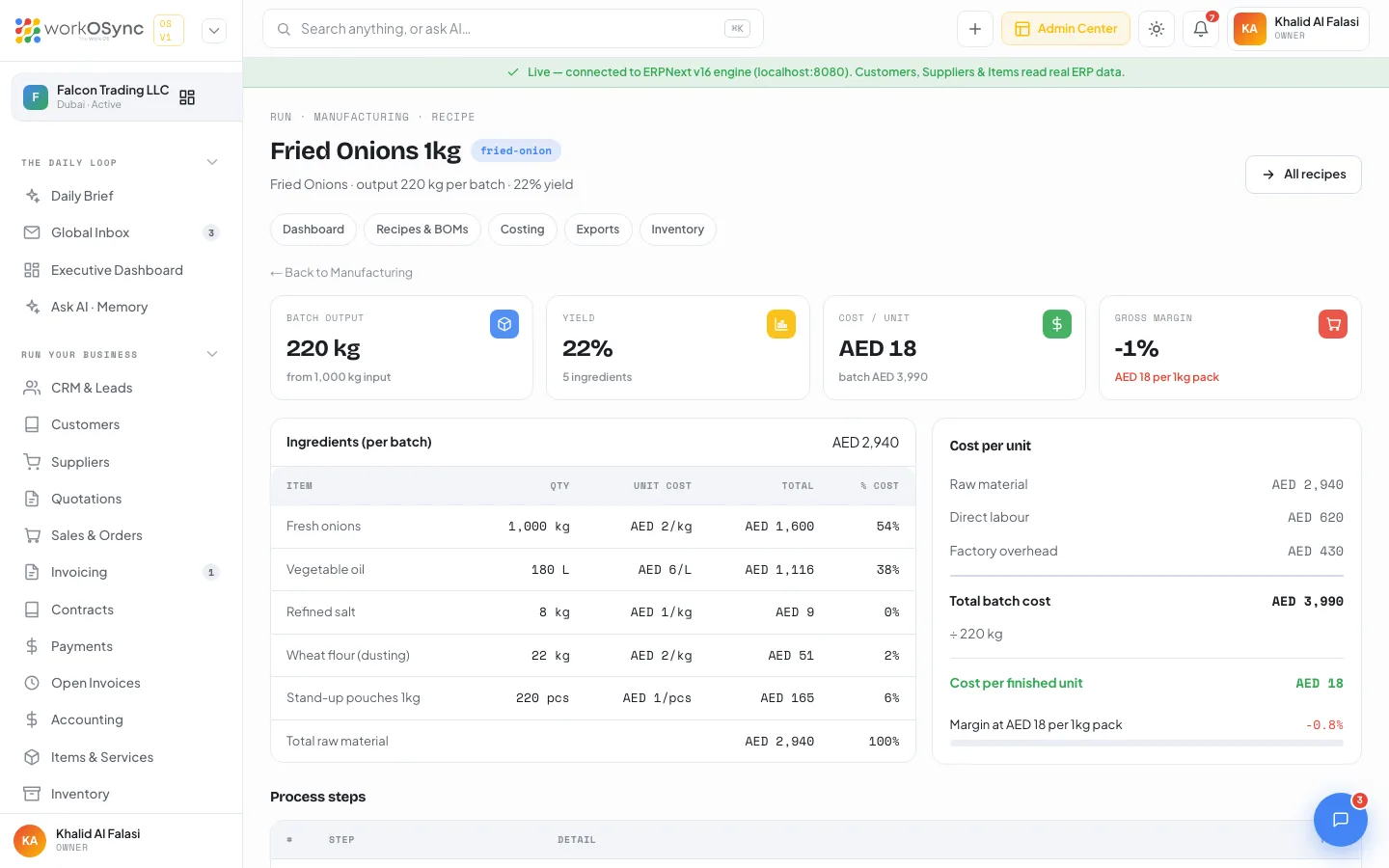
How to create a recipe
Click New recipe or open /manufacturing/recipes/new. Costing is computed live in the right-hand panel as you type.
| Field | Notes |
|---|---|
| Recipe name | Required, for example "Crispy Fried Onions 250g". Missing: "Enter a recipe name." |
| Product | The finished product the recipe makes. |
| Category | Fried Onions, Dehydrated, Pickle, Sauce or Other. |
| Output qty and UOM | Output must be greater than zero ("Output quantity must be greater than zero."). |
| Target yield % | Expected output as a share of raw input. |
| Sell price (AED per UOM) | Drives the margin bar in the costing panel. |
| Ingredients (bill of materials) | Rows of Material / item, qty, UOM (kg, g, L, ml, pcs, sacks), unit cost and a computed line total, with Add ingredient and a Raw material subtotal. |
| Process steps | Free-text rows such as "Slicing - uniform 1.5mm on drum cutter", with Add step. |
| Labour cost (AED) and Overhead (AED) | Entered in the Live costing panel, per batch. |
- Name the recipe and set the batch
Enter the name, product and category, then the output quantity, UOM and target yield.
- Build the bill of materials
Add one row per ingredient with its quantity and unit cost. The line totals and the raw material subtotal update as you go.
- Add labour and overhead
Type the per-batch labour and overhead in the Live costing panel. It shows Raw material, Direct labour, Factory overhead, Total batch cost, the division by output quantity and the Cost per unit, with a margin bar against the sell price.
- Describe the process and save
Add the process steps in order, then click Save recipe.
Raw materials
/manufacturing/materials tracks raw material and packaging inventory. KPIs: Material SKUs (with the category count), Below reorder ("replenish soon" or "all stocked"), Stock value (on-hand at cost) and In stock (at or above par). The Raw-material stock table has Material, Category (Onions, Oil, Salt, Vinegar, Produce, Spices, Packaging), On hand, Reorder level, Unit cost, Stock value and Status (Low or OK). In the demo, Mustard oil, Pickle spice mix, Garlic paste and Glass jars 500g are below reorder.
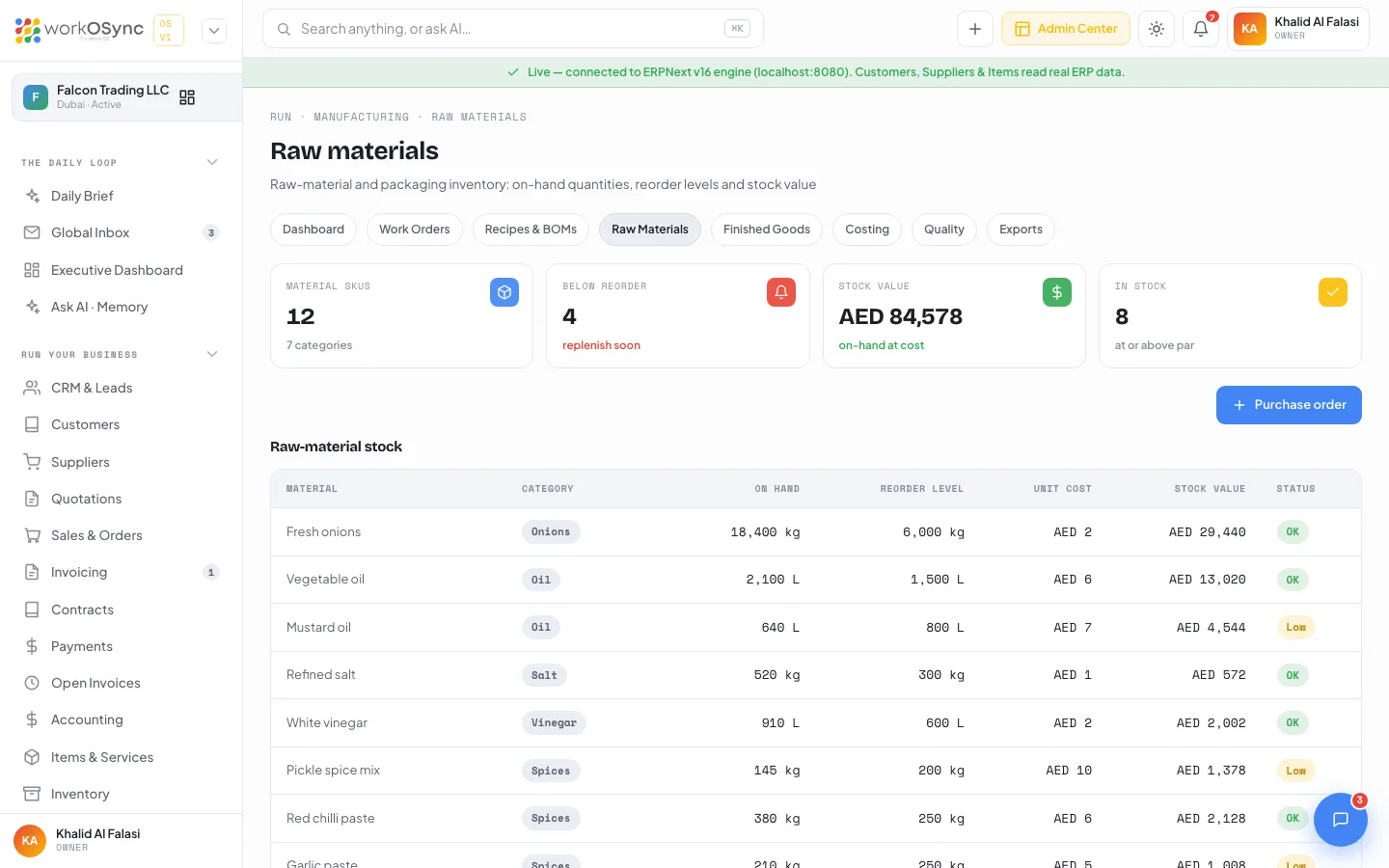
Raising a purchase order
Purchase order opens the Raise purchase order modal: Material (low items are tagged "(low)" and the first low item is preselected), Quantity in the material's unit (suggested so stock reaches twice the reorder level), Expected delivery and Supplier (Al Ain Farms Co-op, Emirates Refined Oils, Gulf Salt Works, Jebel Ali Packaging or Spice Route Trading). A footer shows on hand, reorder level and the estimated cost. Raise PO needs a material and a quantity above zero.
Orders appear in the Purchase orders list below the table with their id (PO-), quantity, supplier, order and expected dates and an Ordered badge. Receive books the quantity into stock (the material row gains an Updated badge and its status recalculates) and turns the order Received; Archive then removes it from the list. Like the rest of the module, purchase orders are saved in this workspace.
Finished goods
/manufacturing/finished-goods is the finished-goods warehouse: on-hand stock, batch traceability and value by SKU. KPIs: Finished SKUs (with categories), Units in stock, Stock value and Below par. Columns: Product, SKU (for example FO-011, SC-08500), Category, Batch / Lot, On hand, Value and Status.
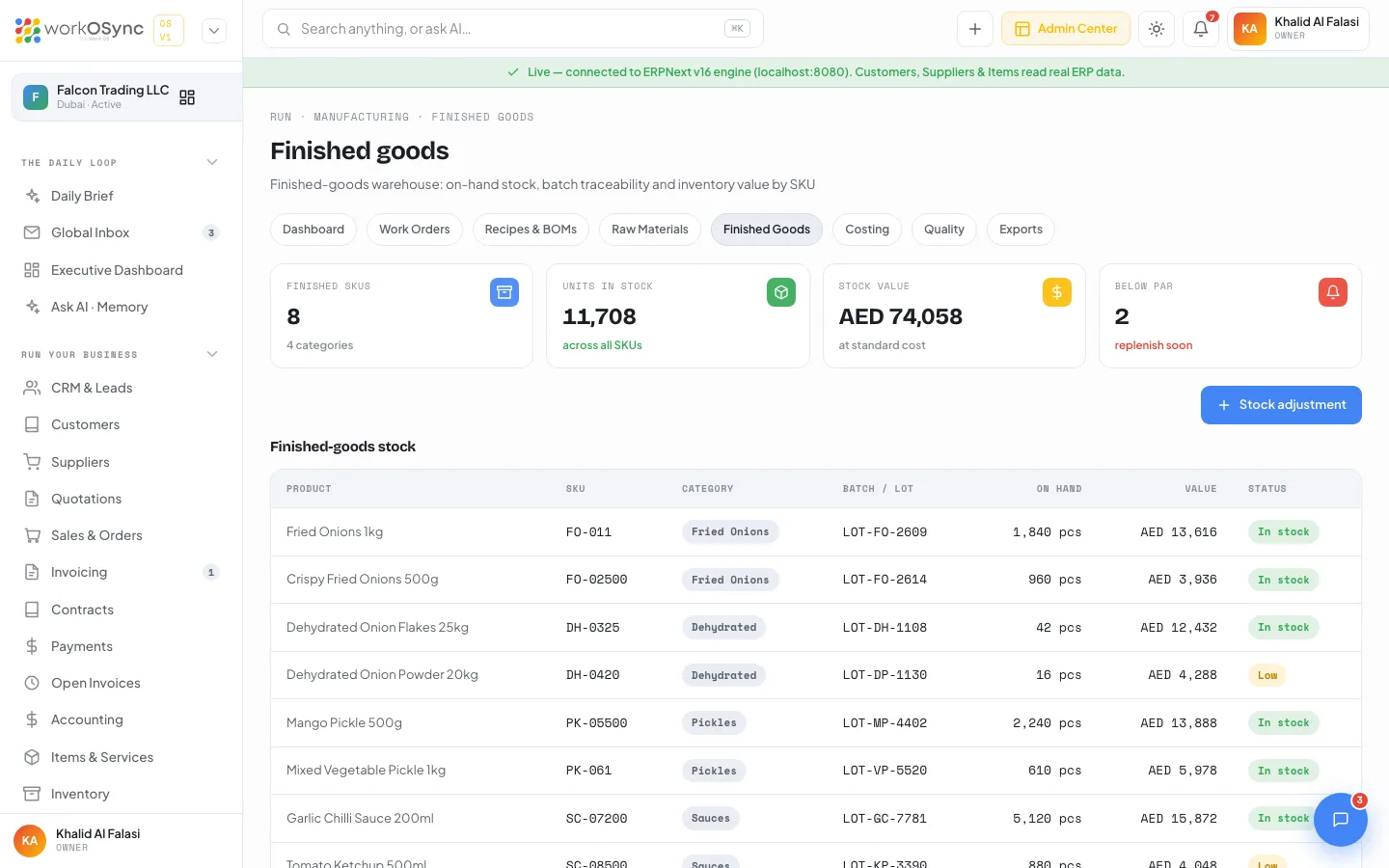
Posting a stock adjustment
Stock adjustment opens a modal with Product, Direction (Write off / reduce, or Add to stock), Quantity in the product's unit and Reason (Stock count correction, Damaged / expired, Samples issued, Returned from customer, Production overrun). The footer previews on hand before and after posting. Post adjustment needs a quantity above zero and refuses to take stock below zero ("Only {n} on hand."). Adjusted rows gain an Adjusted badge and every posting is listed in the Adjustment log beneath the table with its ADJ- id, date and reason; Reverse undoes it. Adjustments are saved in this workspace. General stock outside manufacturing lives in Inventory.
Product costing
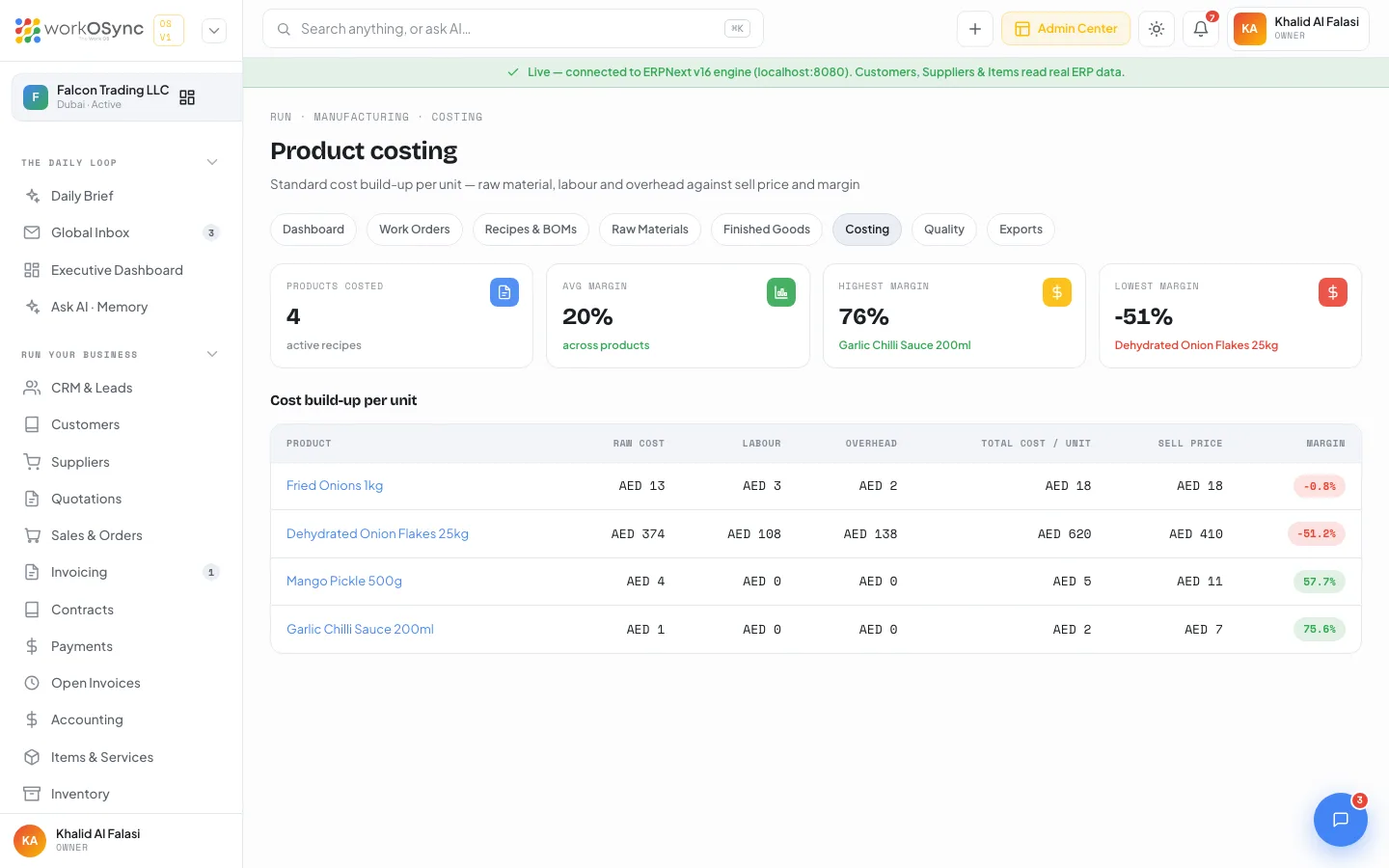
/manufacturing/costing shows the standard cost build-up per unit for every recipe against its sell price. KPIs: Products costed, Avg margin, Highest margin and Lowest margin, each naming the product. The Cost build-up per unit table has Product (linked to the recipe), Raw cost, Labour, Overhead, Total cost / unit, Sell price and Margin. Margin is green at 40% or more, amber at 20% or more and red below that.
Quality assurance
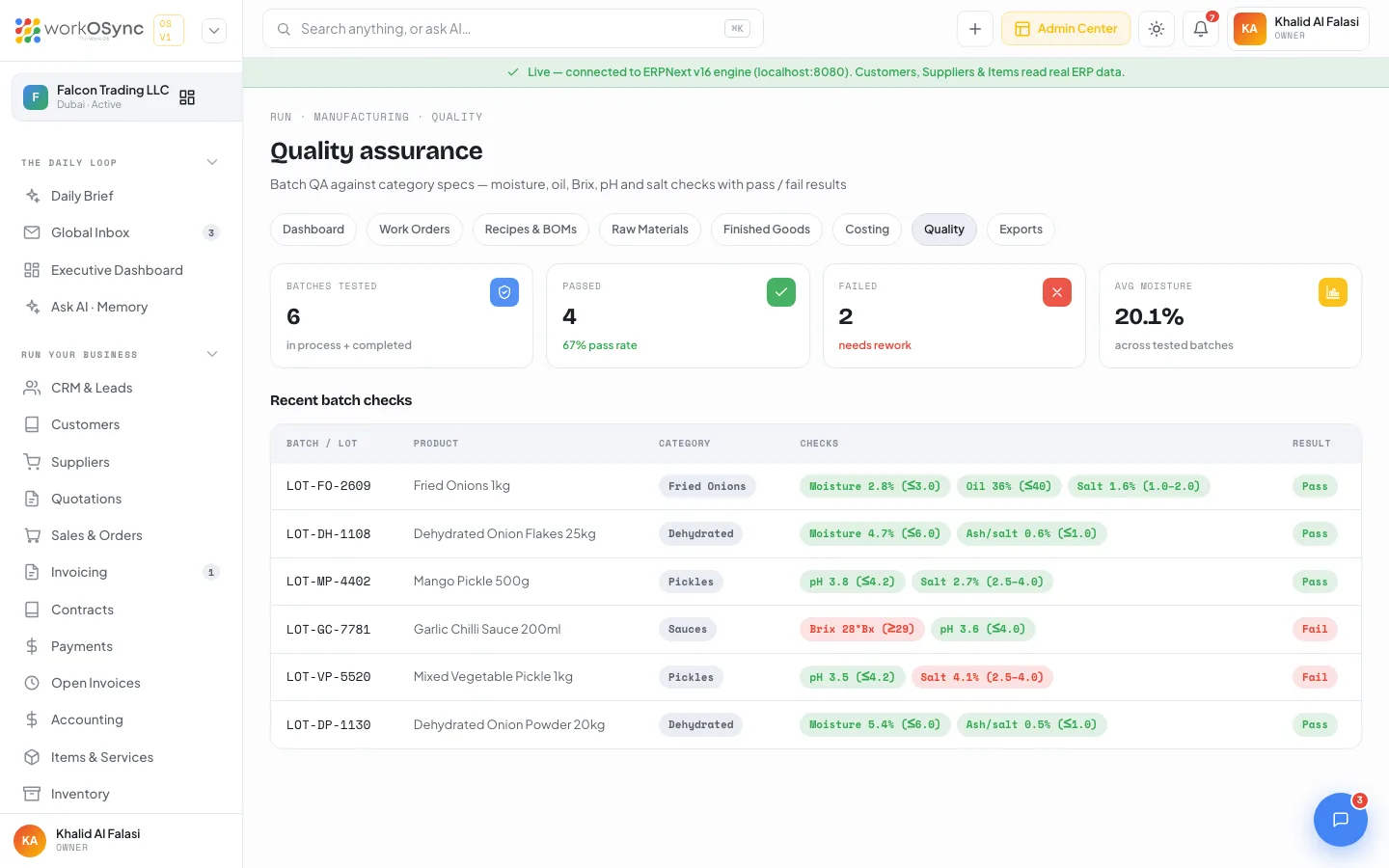
/manufacturing/quality checks each batch against its category spec. KPIs: Batches tested, Passed (with the pass rate), Failed (needs rework) and Avg moisture. The Recent batch checks table has Batch / Lot, Product, Category, Checks (chips such as "Moisture 2.8% (≤3.0)") and Result (Pass or Fail).
Specs by category
| Category | Parameters on the work order Quality tab | Batch check limits |
|---|---|---|
| Fried Onions | Moisture ≤ 3.0%, Residual oil, Colour, Peroxide value, Foreign matter | Moisture ≤ 3.0, oil ≤ 40, salt 1.0 to 2.0 |
| Dehydrated | Moisture ≤ 6.0%, Mesh / flake size, Total plate count, SO2 residue, Metal detection | Moisture ≤ 6.0, ash/salt ≤ 1.0 |
| Pickles | pH 3.2 to 4.0, Salt 12 to 16%, Acidity, Oil cover, Yeast & mould | pH ≤ 4.2, salt 2.5 to 4.0 |
| Sauces | pH 3.4 to 3.9, Brix 26 to 30, Viscosity (Bostwick), Total acidity, Net fill 200 ± 3 ml | Brix ≥ 29, pH ≤ 4.0 |
Exports and shipments
/manufacturing/exports covers local and international shipments: countries, incoterms, documentation and delivery status. KPIs: Export orders (with destination markets), In transit (with how many are booked), Export value and Top destination with its value.
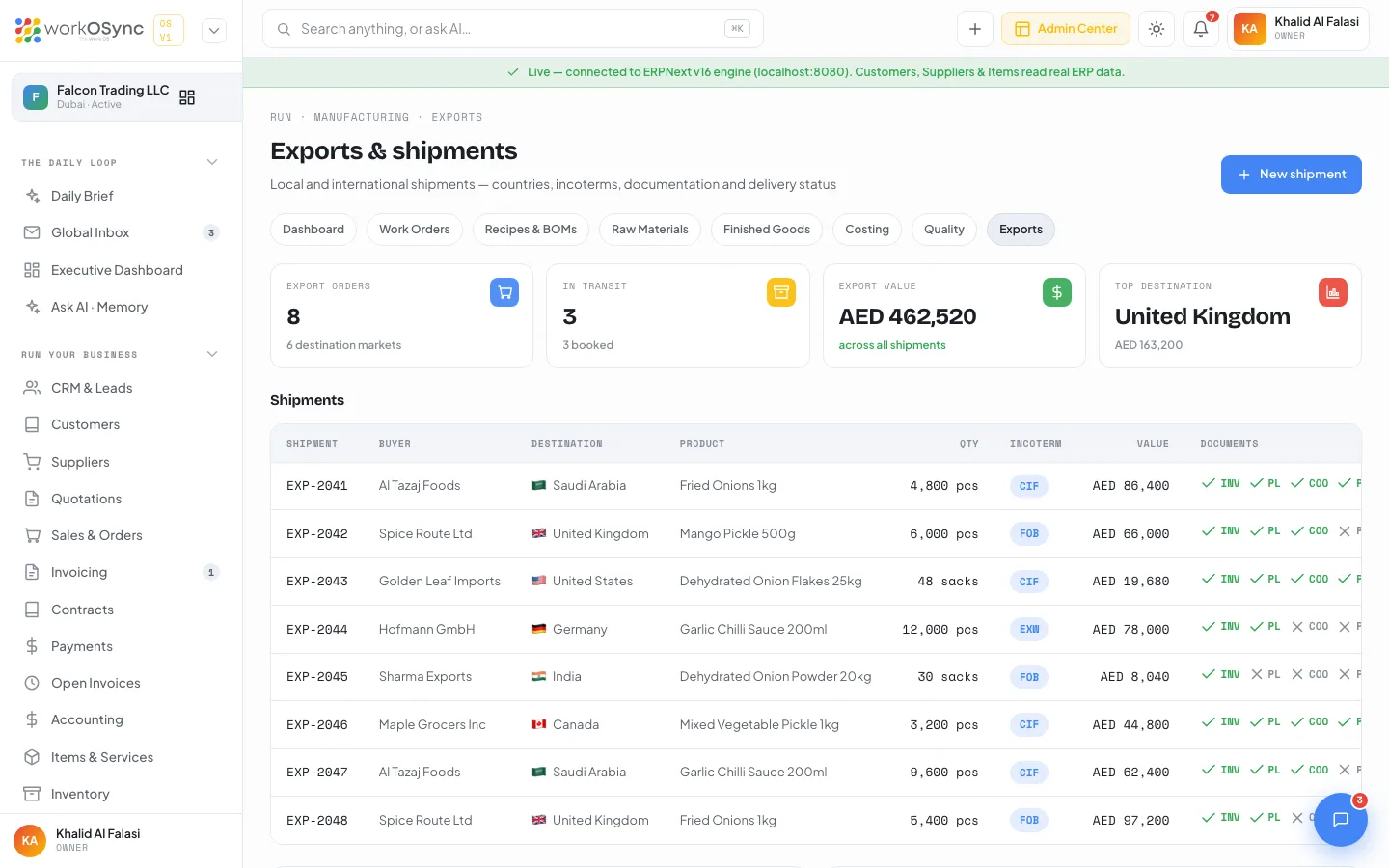
The Shipments table has Shipment, Buyer, Destination (flag and country), Product, Qty, Incoterm, Value, Documents (ticks for INV, PL, COO and PHYTO) and Status. Two cards follow: Export value by destination as bars and a Documentation checklist with Shipment, Destination, Docs ready (n / 4) and a Complete or Pending status.
| Incoterm | Meaning |
|---|---|
| EXW | Ex Works: the buyer collects from your factory and carries all freight and risk. |
| FOB | Free On Board: you deliver the goods on board the vessel at the port of shipment; risk passes there. |
| CIF | Cost, Insurance and Freight: you pay carriage and insurance to the destination port. |
| Document | Purpose |
|---|---|
| INV Commercial invoice | Value, buyer and terms for customs and payment. |
| PL Packing list | Cartons, weights and lot numbers in the consignment. |
| COO Certificate of origin | Proves the country of manufacture for duty and preference. |
| PHYTO Phytosanitary certificate | Plant-health clearance for food and agricultural exports. |
| Status | Meaning |
|---|---|
| Booked (grey) | Reserved with the forwarder, not yet dispatched. |
| In transit (amber) | Dispatched and on its way. |
| Delivered (green) | Received by the buyer. |
How to book a shipment
Click New shipment or open /manufacturing/exports/new.
- Enter the buyer and destination
Buyer is required ("Enter a buyer."). Destination country defaults to Saudi Arabia; the list also offers United Kingdom, United States, Germany, India, Canada and UAE.
- Describe the consignment
Set Product, Qty (greater than zero, or "Quantity must be greater than zero."), Unit (pcs or sacks), Incoterm (FOB by default) and Value (AED). The Shipment value figure updates live.
- Tick the documents
Invoice is ticked by default; add Packing List, COO and Phyto as they are ready. The checklist card shows how many of the four are done.
- Set the status and save
Leave Status as Booked and click Save shipment. New shipments are numbered from EXP-2049.
When the ERPNext Manufacturing backend is connected, completed work orders post stock entries into Inventory and material costs into Accounting, and shipments become delivery notes against sales orders.