Roles and permissions
Every person in a WorkOSync company has one of eight roles. A role decides which modules appear in the sidebar and which routes the person can open, so salaries stay with HR, the books with finance and the pipeline with sales. Owners and Administrators can tailor any role from Users & Access.
The eight roles
| Role | Described as | Typical person |
|---|---|---|
| Owner | Full access to everything | The founder or managing director; the account that created the workspace. |
| Administrator | Full access (except billing owner actions) | A trusted deputy or operations head. |
| Accountant | Invoices, payments, accounting & reports | Finance staff or an external bookkeeper. |
| HR Manager | People, timesheets, leave & payroll | Whoever runs payroll and the WPS file. |
| Sales | Leads, customers, quotes & orders | Account managers and the sales desk. |
| Project Manager | Projects, tasks & timesheets | Delivery leads and site managers. |
| Staff | Assigned tasks, timesheets & tools | Everyone else on the team. |
| Client | Their own projects, invoices & estimates | A customer given a login to the portal. |
Module matrix
The default access for each role. A tick means the module is in that role's sidebar and its routes open; a blank means it is hidden and redirected. Client is not shown because it uses the portal instead of the module sidebar.
| Module | Owner | Administrator | Accountant | HR Manager | Sales | Project Manager | Staff |
|---|---|---|---|---|---|---|---|
| Daily Brief | ✓ | ✓ | ✓ | ✓ | ✓ | ✓ | ✓ |
| Global Inbox | ✓ | ✓ | · | · | ✓ | · | ✓ |
| Executive Dashboard | ✓ | ✓ | · | · | · | · | · |
| Ask AI | ✓ | ✓ | · | · | · | · | · |
| CRM & Leads | ✓ | ✓ | · | · | ✓ | · | · |
| Customers | ✓ | ✓ | ✓ | · | ✓ | ✓ | · |
| Suppliers | ✓ | ✓ | ✓ | · | · | · | · |
| Quotations | ✓ | ✓ | ✓ | · | ✓ | · | · |
| Sales & Orders | ✓ | ✓ | · | · | ✓ | · | · |
| Invoicing | ✓ | ✓ | ✓ | · | ✓ | · | · |
| Contracts | ✓ | ✓ | ✓ | · | ✓ | · | · |
| Payments | ✓ | ✓ | ✓ | · | · | · | · |
| Open Invoices | ✓ | ✓ | ✓ | · | · | · | · |
| Accounting | ✓ | ✓ | ✓ | · | · | · | · |
| Items & Services | ✓ | ✓ | ✓ | · | · | · | · |
| Inventory | ✓ | ✓ | · | · | · | · | · |
| Projects | ✓ | ✓ | · | · | · | ✓ | · |
| Task Board | ✓ | ✓ | · | ✓ | · | ✓ | ✓ |
| Timesheets | ✓ | ✓ | · | ✓ | · | ✓ | ✓ |
| HR & Payroll | ✓ | ✓ | · | ✓ | · | · | · |
| Manufacturing | ✓ | ✓ | · | · | · | · | · |
| Assets | ✓ | ✓ | · | · | · | · | · |
| Chat & Groups | ✓ | ✓ | · | · | · | ✓ | ✓ |
| Meetings | ✓ | ✓ | · | · | ✓ | ✓ | · |
| Approvals | ✓ | ✓ | · | ✓ | · | · | · |
| UAE Compliance | ✓ | ✓ | · | ✓ | · | · | · |
| Notes | ✓ | ✓ | · | ✓ | · | ✓ | ✓ |
| Reminders | ✓ | ✓ | · | ✓ | ✓ | ✓ | ✓ |
| Password Vault | ✓ | ✓ | · | · | · | · | · |
| Reports | ✓ | ✓ | ✓ | · | · | · | · |
| Users & Access | ✓ | ✓ | · | · | · | · | · |
| Audit Logs | ✓ | ✓ | · | · | · | · | · |
| Settings | ✓ | ✓ | · | · | · | · | · |
Executive Dashboard and Ask AI are reserved for Owner and Administrator by default because they expose company-wide figures. My profile is open to everyone regardless of role.
Customising a role
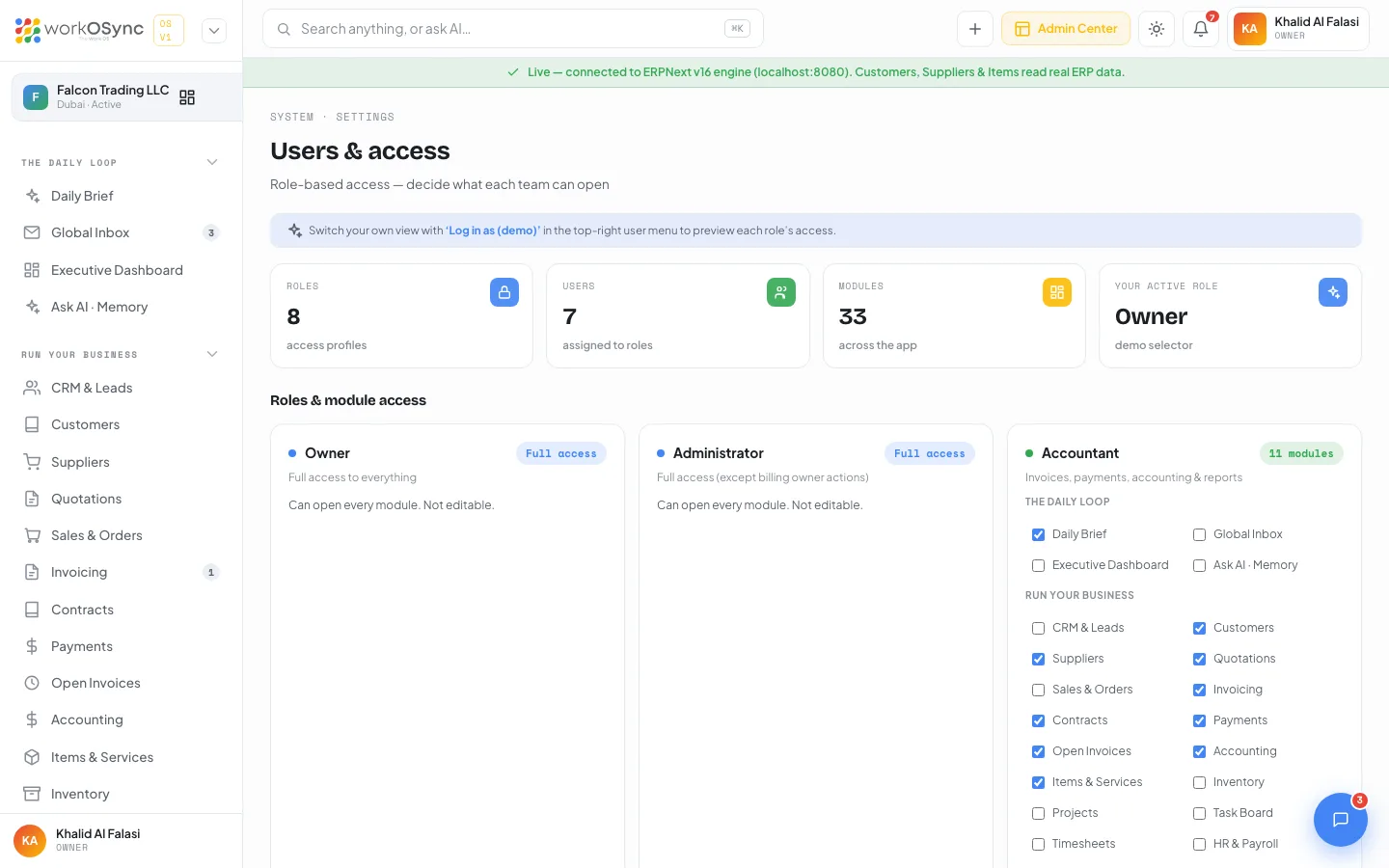
- Open Users & Access
It is in the System group of the sidebar, or under Users & access in your account menu.
- Find the role card
Each editable card shows an N modules badge and a checkbox for every module, grouped the same way as the sidebar.
- Tick or untick modules
Changes apply immediately to the sidebar and the route guard for anyone using that role.
- Reset if needed
Reset to default becomes available once a role differs from the defaults above.
The Users table below the cards lists each person with their team, company and a role selector, so re-assigning someone is a single change.
How access is enforced
- The sidebar only renders the groups and modules the active role may open.
- Typing a disallowed URL redirects to the Daily Brief; a Client typing any non-portal URL is returned to the portal.
- Quick create and search still list every action, but the page they open is subject to the same guard.
- The Platform Console is separate: it is gated server-side to superadmins, independent of company roles. See Platform Console.
Previewing a role
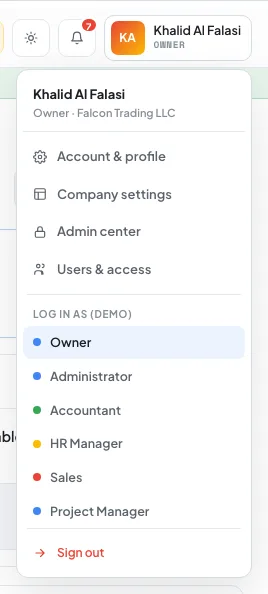
Open your account menu and pick a role under Log in as (demo). The sidebar shrinks to that role's modules and a Viewing as banner appears until you switch back to Owner. This is the quickest way to check what a new hire will see before you send the invite.
The client portal
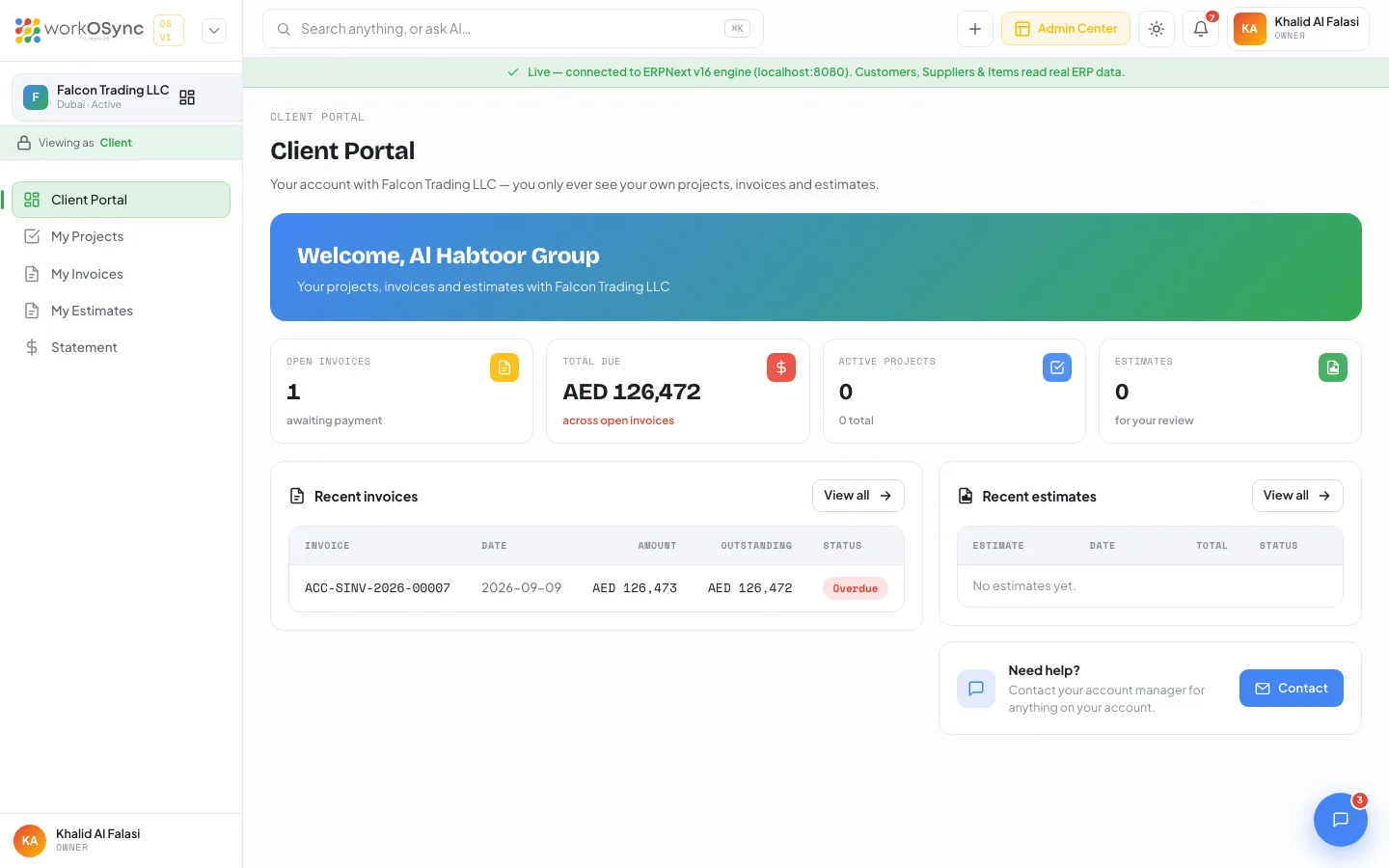
A Client role never sees the company workspace. Its sidebar has five entries and every page is scoped to that customer's own records.
| Portal page | Shows |
|---|---|
| Client Portal | Open invoices, total due, active projects, estimates for review, recent invoices and estimates, and a contact card for the account manager. |
| My Projects | Projects being delivered for the client with status, progress and budget. |
| My Invoices | Every invoice with date, due, amount, outstanding and status, plus View / Pay which opens the hosted pay page. |
| My Estimates | Quotations awaiting review with Review & sign, which opens the online acceptance page. |
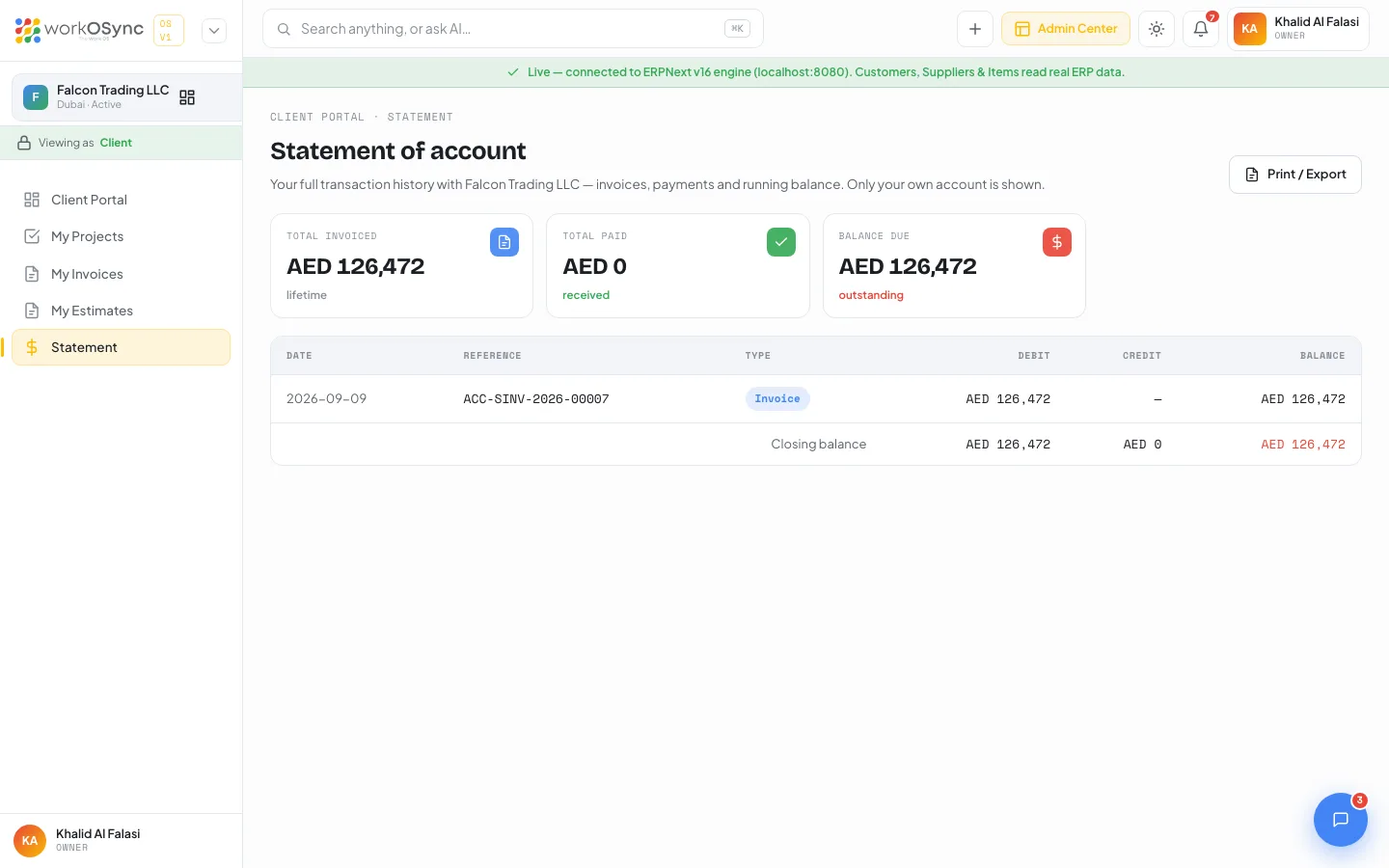
| Statement | A running statement of account with a Print / Export button. |
Superadmin
Superadmin is not a company role but a platform flag. It is decided by the server from the signed-in account and unlocks the Platform Console, where another superadmin can grant or revoke it with the toggle in the Users section. A superadmin still uses a normal company role inside any workspace.
Your login session carries your role from the server. The Log in as switcher is a preview tool for Owners and Administrators; it does not change the session another person holds.