Sales orders
Sales & orders is the order-to-cash hub: quotation → order → delivery → invoice. A sales order confirms what the customer bought and at what price, tracks how much has been delivered, produces a proforma invoice for advance payment and creates the final tax invoice with one click. The page also lists your purchase orders so buying and selling sit side by side.
The Sales & orders page
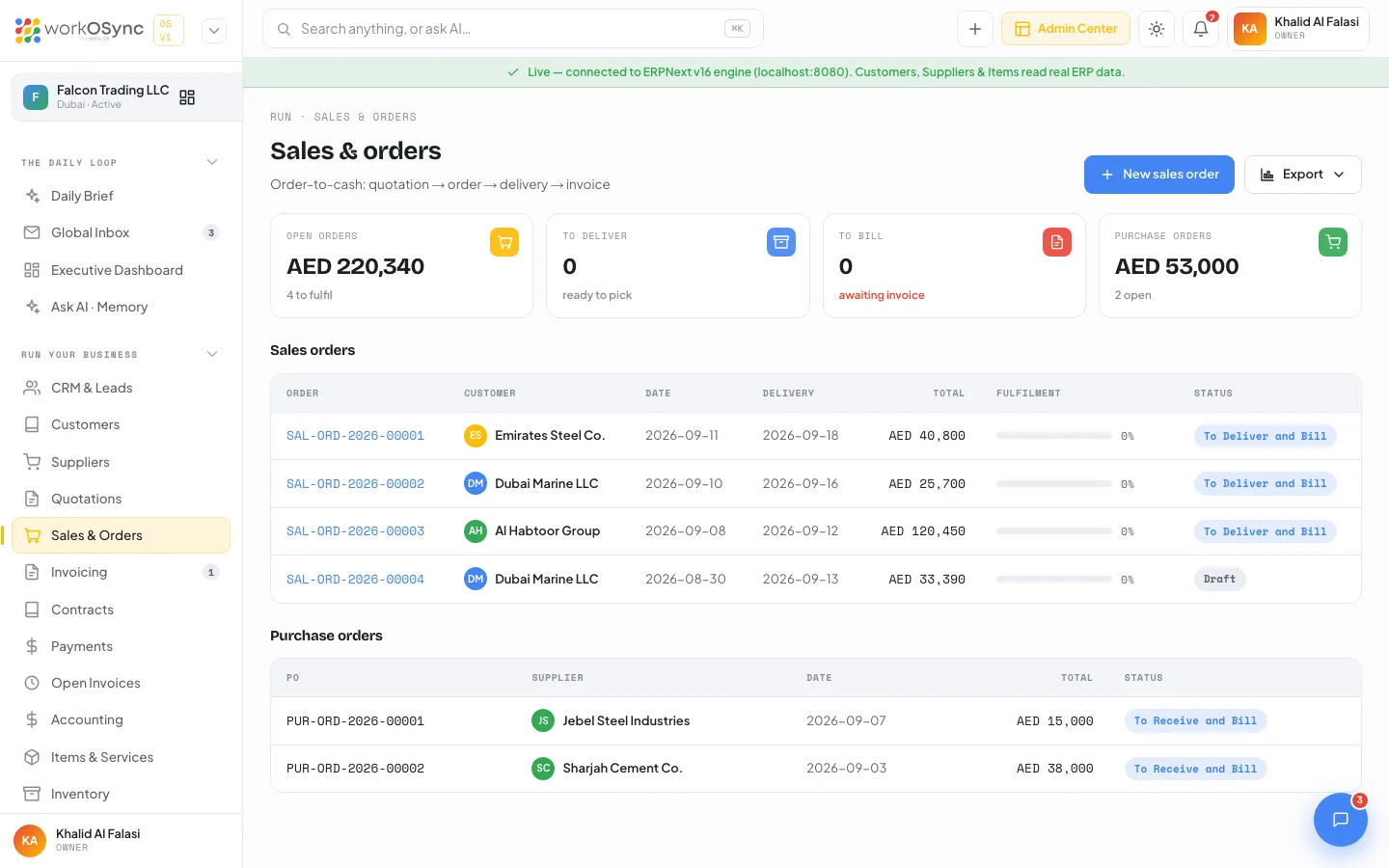
Open Sales from the sidebar (/sales). The page is titled Sales & orders with the subtitle Order-to-cash: quotation → order → delivery → invoice. Header buttons are New sales order and Export (columns Order, Customer, Date, Delivery, Total, Delivered % and Status).
KPI tiles
| Tile | What it shows |
|---|---|
| Open orders | The value of every order not yet Completed, with {n} to fulfil. |
| To deliver | Orders waiting to be picked and shipped (ready to pick). |
| To bill | Delivered orders that still need an invoice (awaiting invoice). |
| Purchase orders | Total value of the purchase orders listed, with {n} open (the count of listed POs). |
Sales orders table
| Column | Meaning |
|---|---|
| Order | The order number (SAL-ORD-2026-00001 when connected). Links to the order. |
| Customer | The customer the order was raised for. |
| Date | Order date. |
| Delivery | Promised delivery date. |
| Total | Grand total including VAT. |
| Fulfilment | A progress bar with the delivered percentage. |
| Status | To Deliver, To Bill or Completed. |
Purchase orders table
Below the sales orders sits a Purchase orders table with PO, Supplier, Date, Total and Status. Purchase order statuses are To Receive, To Bill and Completed. Each supplier's POs also appear on their supplier profile.
Order statuses
| Status | Meaning | Next step |
|---|---|---|
| To Deliver | Confirmed, goods or services not yet delivered. | Issue a proforma if you need an advance, then deliver. |
| To Bill | Delivered, no tax invoice yet. | Create tax invoice from the order. |
| Completed | Delivered and invoiced. | Collect the balance in Payments. |
New sales order
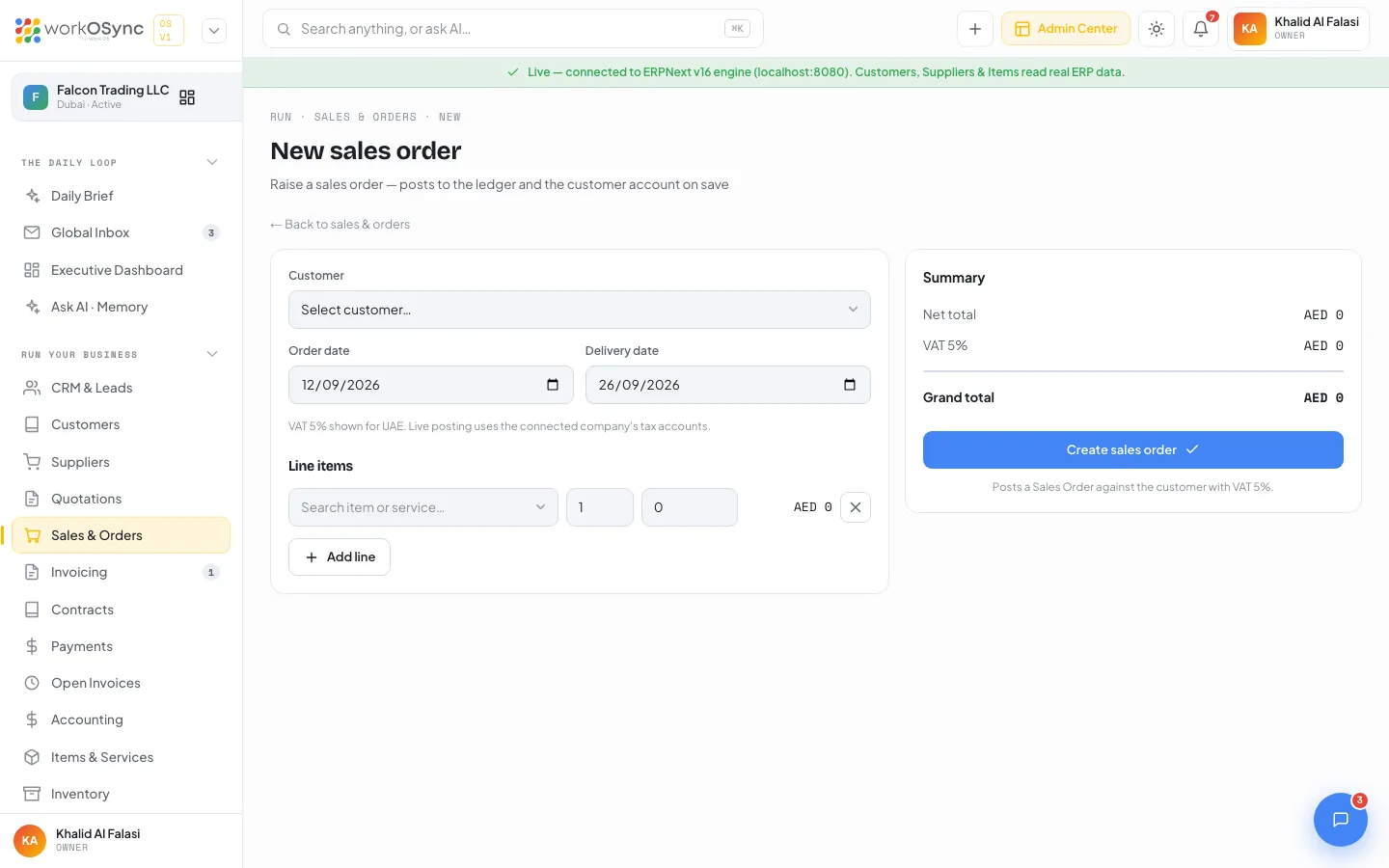
New sales order opens /sales/new, titled New sales order with the subtitle Raise a sales order - posts to the ledger and the customer account on save. Most orders start life as a converted quotation; use this form for orders that arrive without one.
| Field | Default and notes |
|---|---|
| Customer | Pick from the customer master. |
| Order date | Defaults to today. |
| Delivery date | Defaults to 14 days after the order date. |
| Lines | Item picker, quantity, rate and amount per line; Add line appends one. |
The form notes VAT 5% shown for UAE. Live posting uses the connected company's tax accounts. The summary shows Net total, VAT 5% and Grand total. Create sales order is captioned Posts a Sales Order against the customer with VAT 5%. It submits the order with the delivery date on every line (the order date is used when delivery is blank) and on success you land on the new order's page. Missing input returns Please choose a customer. or Add at least one line item.; in demo mode the page carries a Demo mode - connect the ERPNext engine to actually raise orders. banner.
Pick lines from the Items & Services catalogue rather than typing descriptions. The rate fills in from the catalogue, the unit is consistent across documents, and stock-tracked products flow through to Inventory on delivery.
The sales order page
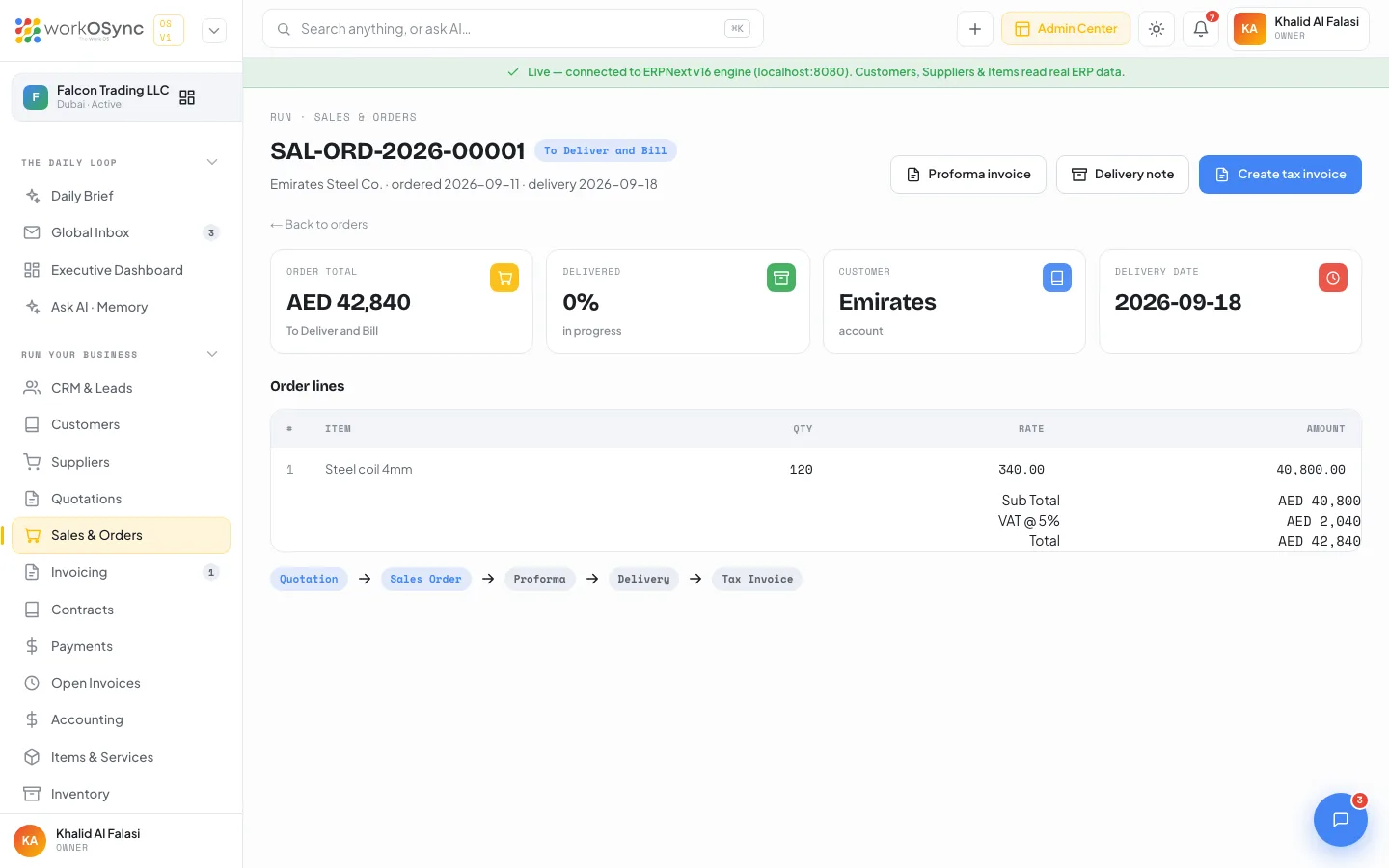
Click an order to open /sales/{id}. The title is the order number with a status badge and the subtitle reads {customer} · ordered {date} · delivery {date}.
Header actions
| Button | What it does |
|---|---|
| Proforma invoice | Opens the public proforma at /proforma/{id} in a new tab, ready to send for an advance. |
| Delivery note | Opens the print dialog for the order page so a paper copy can travel with the goods. |
| Create tax invoice | Creates and posts a Sales Invoice from the order and confirms with Invoice {INV} created from this order. Open → |
KPI tiles and lines
- Order total, Delivered (as a percentage), Customer and Delivery date.
- Order lines: #, Item, Qty, Rate, Amount, followed by Sub Total, VAT @ 5% and Total.
- Flow chips: Quotation → Sales Order → Proforma → Delivery → Tax Invoice. The Proforma chip is clickable.
Proforma invoice
A proforma lets you ask for an advance without creating a VAT liability. The public page at /proforma/{order} needs no login, so you can email the link straight to the customer.
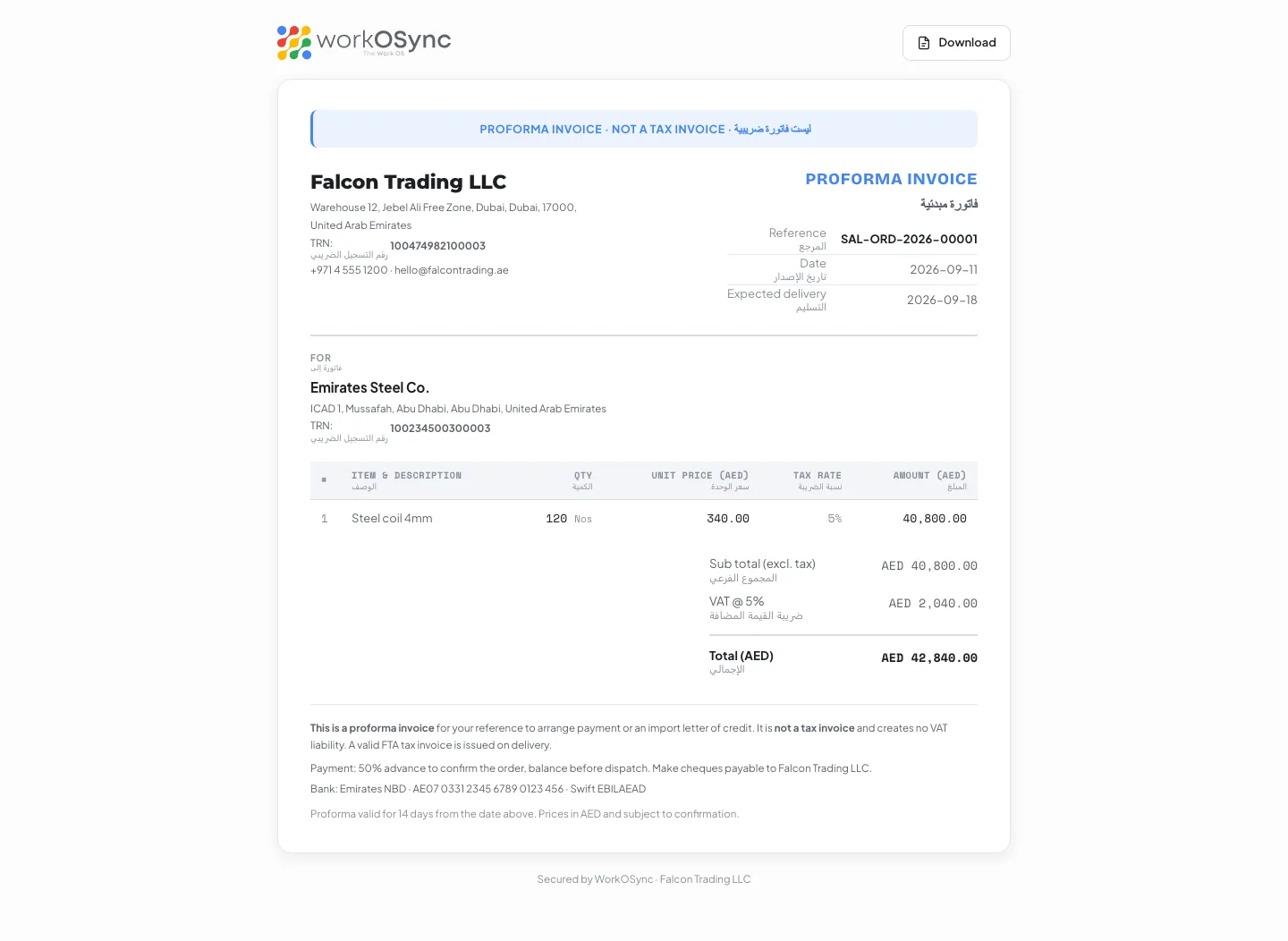
- Banner: PROFORMA INVOICE · NOT A TAX INVOICE, followed by the Arabic equivalent for a UAE company. Every label on a UAE proforma carries a compact Arabic twin underneath.
- Header: your company name (or logo), address, TRN, phone and email on the left; PROFORMA INVOICE on the right with Reference (the order ID), Date, Expected delivery and, for a foreign-currency order, a Currency row with the exchange rate (for example USD · 1 USD = 3.6725 AED).
- FOR: the customer name, address (or city and country) and TRN.
- Lines: #, Item & description, Qty with the unit, Unit price ({currency}), Tax rate and Amount ({currency}).
- Totals: Sub total (excl. tax), VAT @ 5%, Total ({currency}) and, for a foreign currency, Total in AED.
- Footer: a statement that this is a proforma invoice for arranging payment or an import letter of credit, is not a tax invoice, creates no VAT liability and that a valid FTA tax invoice is issued on delivery; the terms Payment: 50% advance to confirm the order, balance before dispatch. Make cheques payable to {company}.; your bank line; and Proforma valid for 14 days from the date above. Prices in {currency} and subject to confirmation.
- A Download button (print dialog) and the footer Secured by WorkOSync · {company}.
The proforma is country-aware: for a company outside the UAE the banner reads NOT A FINAL INVOICE (US) or names the local tax, and the statutory statements for India GST or EU reverse charge are printed when they apply.
Record the advance in Payments when it arrives. Under the cash-basis scheme the VAT on the paid portion is tracked on the Open invoices & advances page once the tax invoice exists. See UAE compliance.
Delivery
When the goods leave, print the Delivery note from the order page so the driver and the customer have a signed record. The Delivered tile and the Fulfilment bar on the list track the delivered percentage reported by the engine, and the order moves to To Bill once everything is out.
Today the Delivery note button prints the order page itself. A dedicated ERPNext Delivery Note document, with its own numbering and stock posting, arrives with the ERPNext delivery integration.
From order to tax invoice
- Open the order
From the list, or from the Orders section of the customer profile.
- Send the proforma
Click Proforma invoice, copy the URL and email it. Collect the advance.
- Deliver
Print the delivery note and dispatch. Fulfilment updates as deliveries are recorded.
- Create tax invoice
Click Create tax invoice. WorkOSync posts a Sales Invoice with the same lines and the VAT 5% tax line, and shows Open → to jump to it in Invoicing.
- Collect the balance
Share the pay link from the invoice, or record the transfer in Payments. The order shows Completed.
VAT on orders
Every sales order carries a VAT @ 5% line, computed from the engine's tax total or as 5% of the net, and every create action posts the company tax line VAT 5% - FT. The proforma shows the same VAT for information only; the tax point is the tax invoice.